Check your browser, IDE and terminal connections
See whether the browser extension, IDE extension and shoyu command are connected to the Mac app, and fix them.
Recording Status in the dashboard
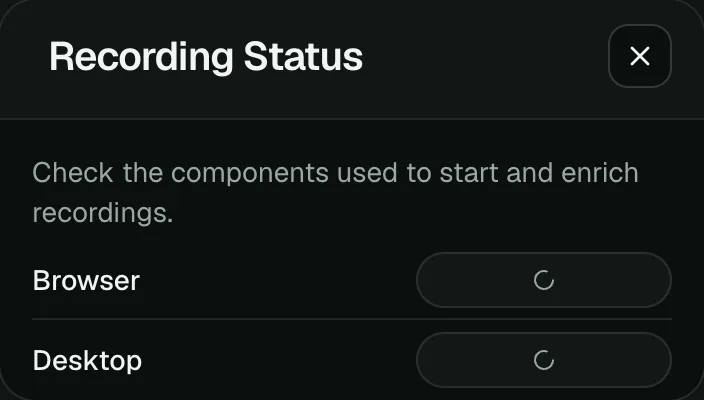
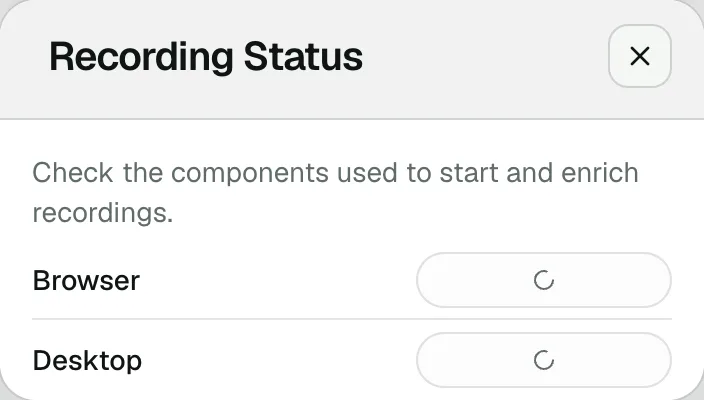
Open the account menu and choose Recording Status. It shows the browser extension and the desktop app as Connected, Approval Pending or Disconnected, with a button to fix each one.
Approvals in the Mac app
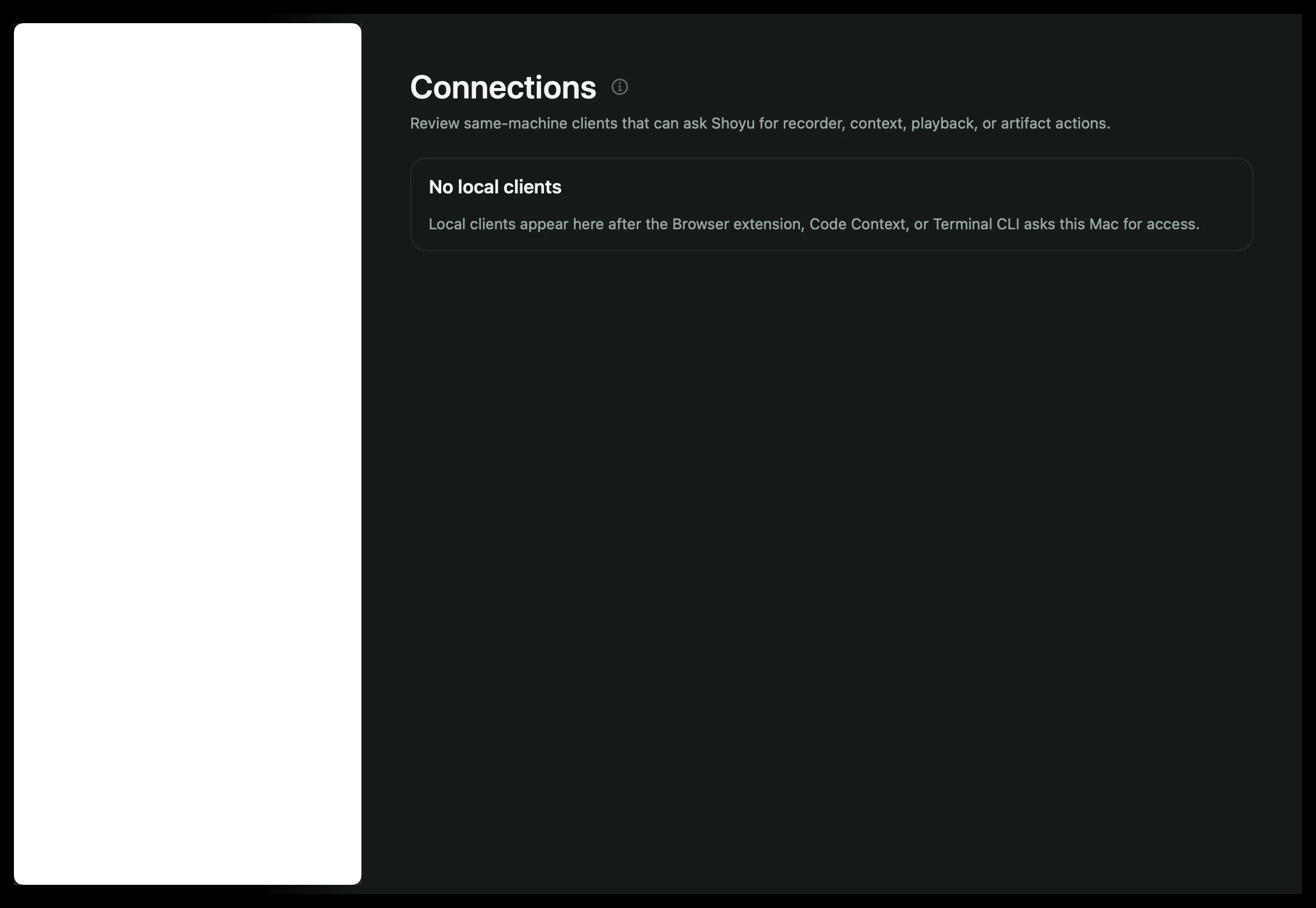
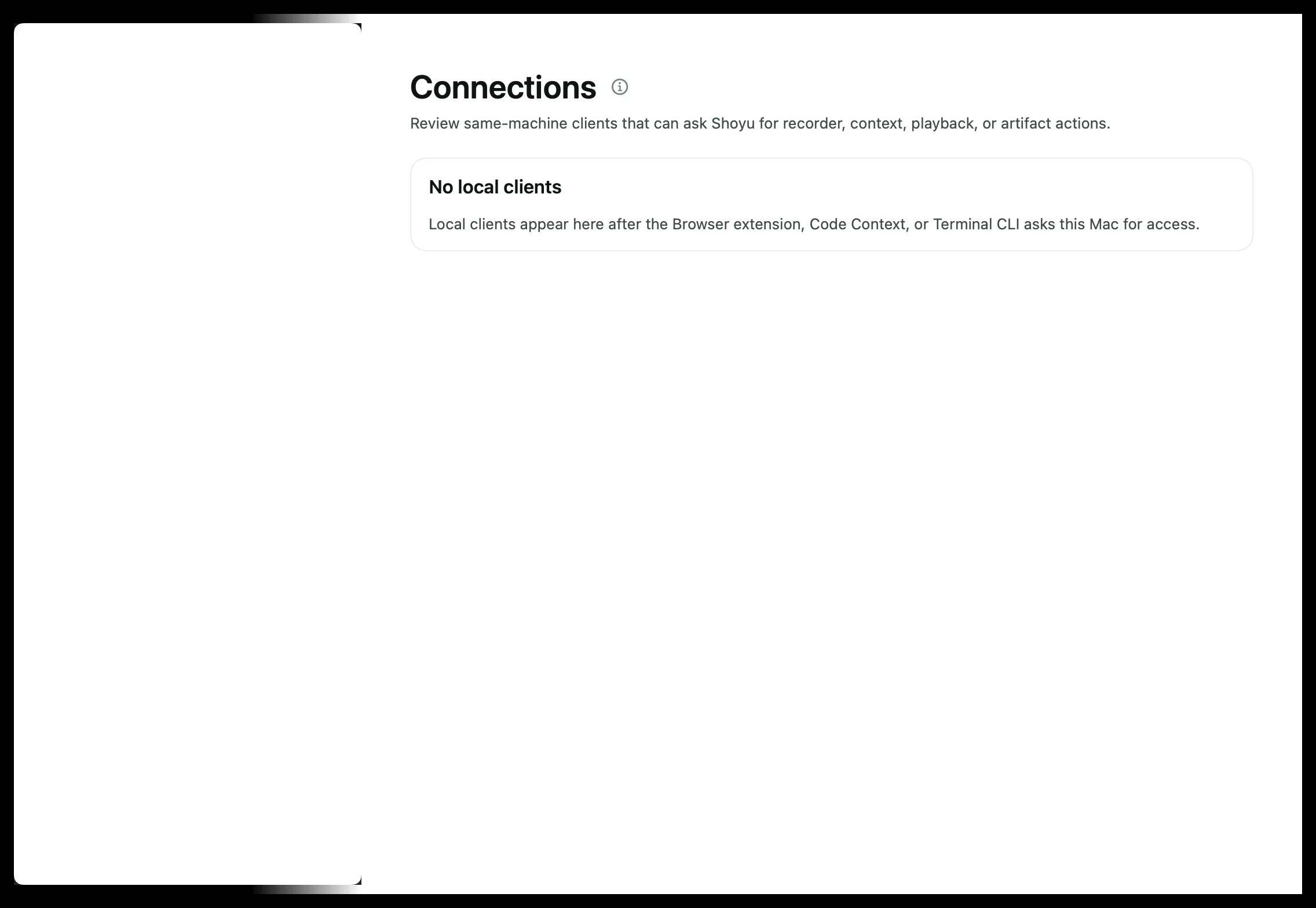
Every browser, editor and terminal must be approved once on your Mac. Open Settings › Connections to review requests. Reset clears a client you denied so it can ask again. Revoke removes one you approved.
Browser toolbar messages
| Message | What to do |
|---|---|
| Shoyu for Mac is not running | Open Shoyu. |
| Approve this extension in Shoyu for Mac | Click Approve in the Mac app. |
| Browser access was denied | In Settings › Connections, reset Browser Context. |
| Open Shoyu for Mac once to install its browser connection | Open Shoyu, then click Reload on the extension in your browser’s Extensions page. |
| Another Shoyu profile owns the local connection | Quit any other copy of Shoyu and open the one you use. |
| Update Shoyu for Mac and this extension together | Update both to the newest versions. |
Editor and terminal
In your editor, click the Shoyu status bar item for its state. See the table in Install the IDE extension. In a terminal, the shoyu command prints what it needs, such as opening or approving the Mac app.
Related guides
Still stuck? Write to hello@shoyu.cc. A person answers.