Make your first recording
Record your screen with Shoyu, stop, and share the link in under a minute.
Open the recorder
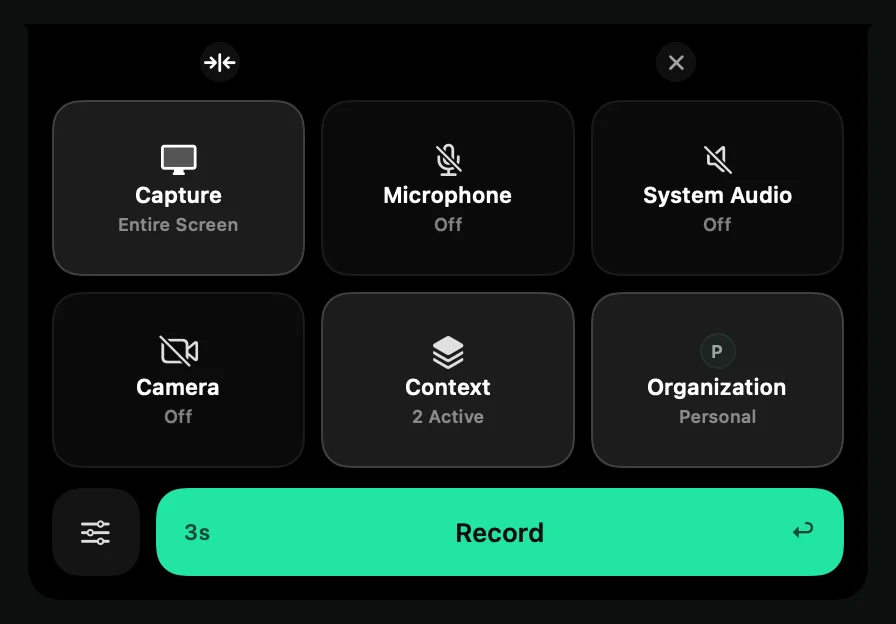
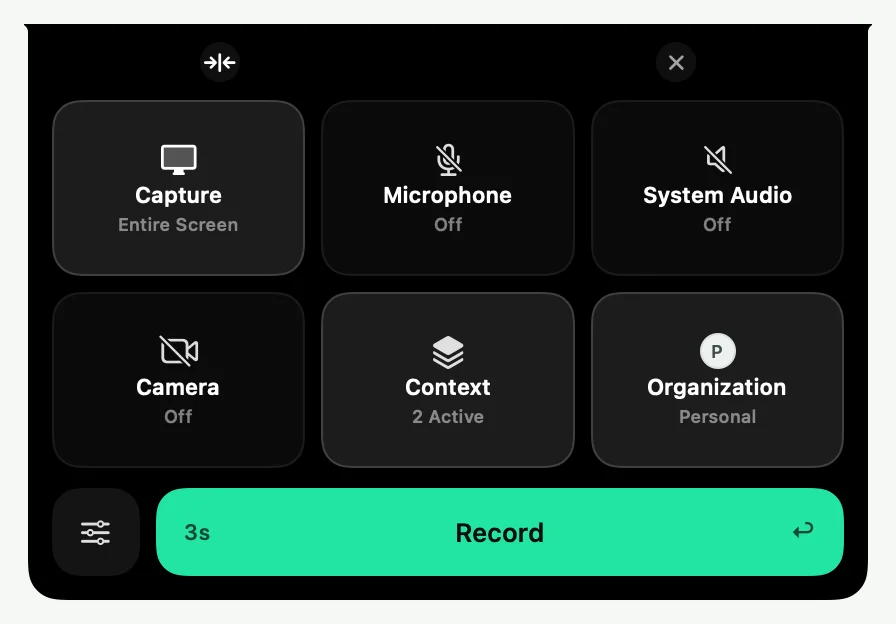
- Click the Shoyu icon in the menu bar, then click Record. Or press ⌥⇧R.
- The Control Deck opens at the top of your screen. Click Capture to choose a window, a display or a portion of the screen.
- Click Microphone if you want to talk over the recording.
- Click Record, or press ↩.
A five-second countdown runs, then Shoyu starts recording.
Record and stop
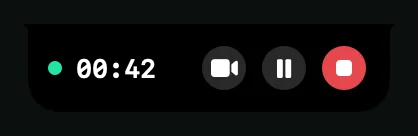
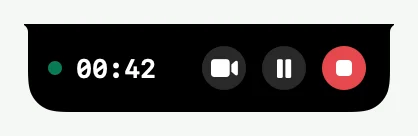
While you record, the Recording Island at the top of the screen shows the time. Click the stop button when you are done.
Shoyu uploads the recording, copies its link and opens it in your browser. Paste the link anywhere: Slack, Linear, a pull request or an email.
What your viewers get
The link opens the recording on its Playback page. People in your organization can watch, read the transcript, comment on a moment and see the context Shoyu recorded with it.
Related guides
Still stuck? Write to hello@shoyu.cc. A person answers.