Let an agent record its work
Turn on Automation so an AI agent can record a window or display on your Mac, and install the Shoyu skills it uses.
Turn on Automation
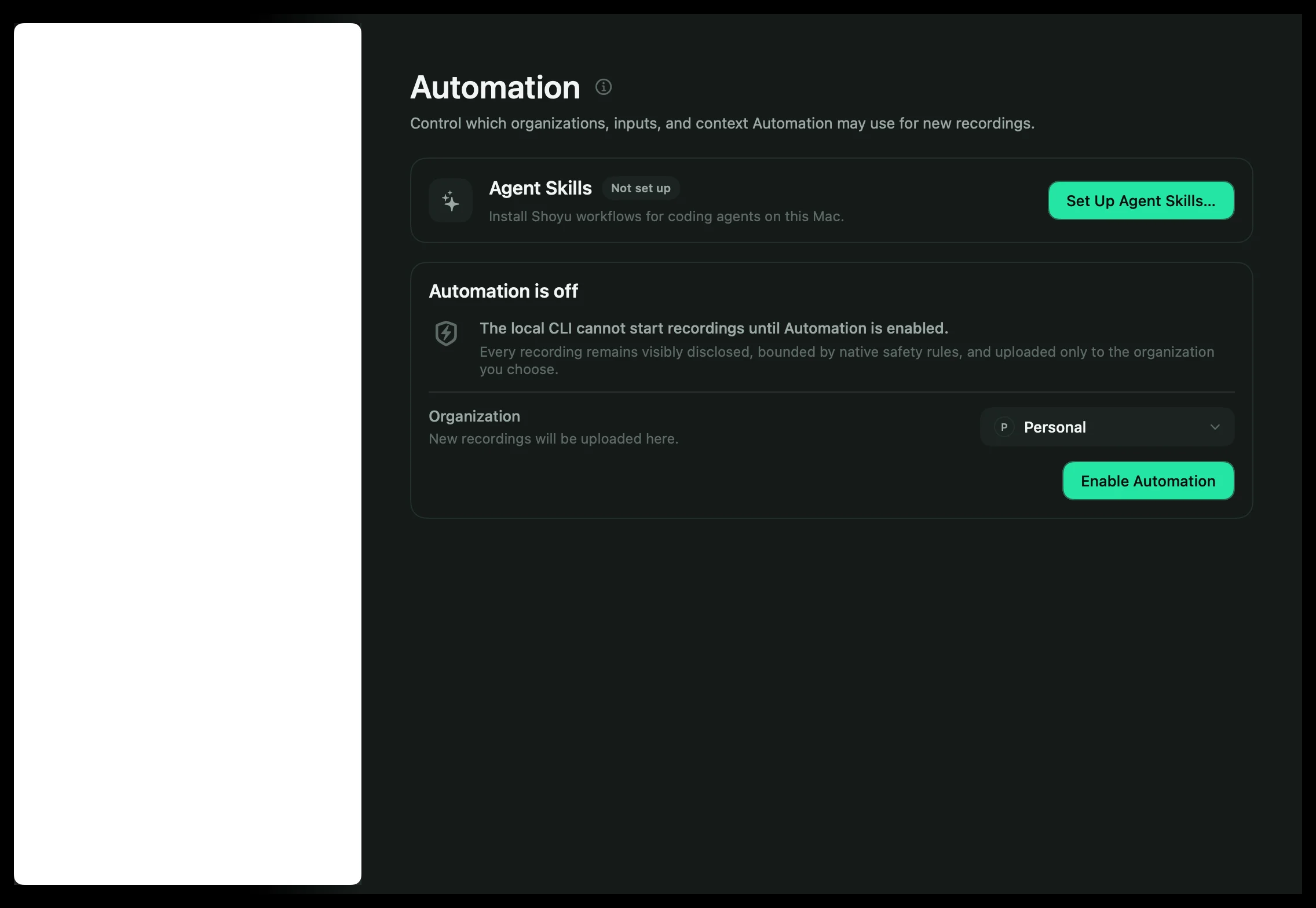
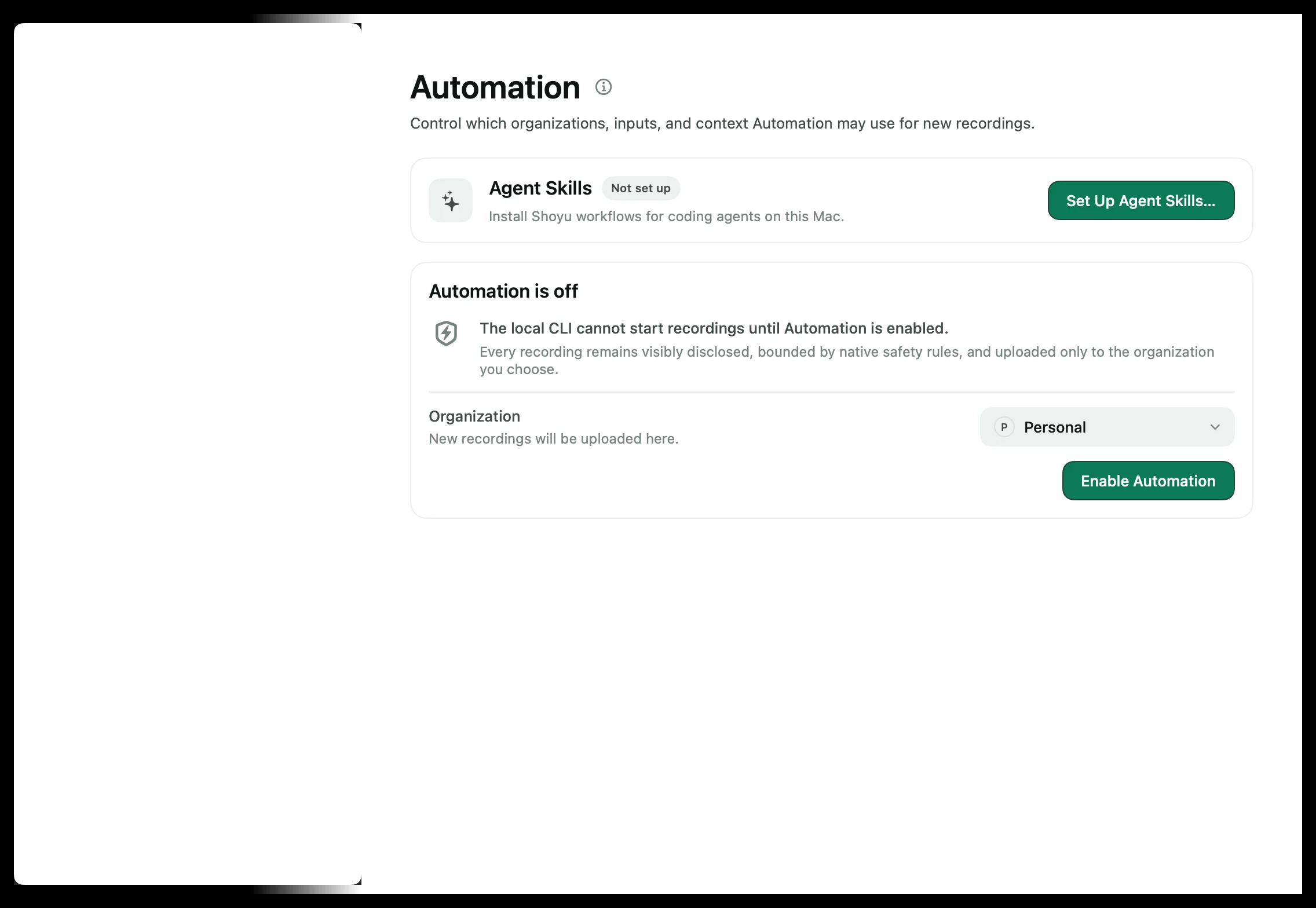
- In the Mac app, open Settings › Automation.
- Click Enable Automation and confirm with Touch ID or your Mac password.
- Choose which organizations the agent can record into, which inputs it may use, and which context it may add.
- Set Stop recordings after, from 5 to 60 minutes. The default is 30.
Automation is off until you turn it on, and an agent cannot turn it on for itself. Microphone, system audio and camera are off until you allow them.
Install the Shoyu skills
In Settings › Automation, click Set Up Agent Skills…, then Install Shoyu Skills. Shoyu adds three skills to the folders agents such as Claude Code and Codex read. Restart your agent, or start a new session, to load them.
| Skill | What it lets the agent do |
|---|---|
| shoyu-record | Record one window or display, then attach a title, summary and markers. |
| shoyu-find-recordings | Search and read recordings you can see. |
| shoyu-relate-recordings | Link recordings as Watch first, Follow-up, Related or Newer version, after showing you a preview. |
The search and relationship skills use the shoyu command’s own sign-in. Run shoyu auth once yourself. See Search from the command line.
While an agent records
A green border marks the window or display being recorded, and the menu bar shows Recording with the time. The border is not part of the recording. Agents cannot pause, and the recording stops at your time limit.
When it finishes, the agent attaches an Agent handoff. Viewers see it on the recording’s Agent tab.
Turn it off
In Settings › Automation, click Disable.
Related guides
Still stuck? Write to hello@shoyu.cc. A person answers.