Invite and manage members
Invite people to your team, change their roles, and suspend or remove them.
Roles
| Role | What they can do |
|---|---|
| Owner | Everything, including billing, roles and archiving the organization. |
| Admin | Invite and manage members, set policy, tags and domains, and manage any recording. |
| Member | Record, watch, comment, and manage their own recordings. |
Invite someone
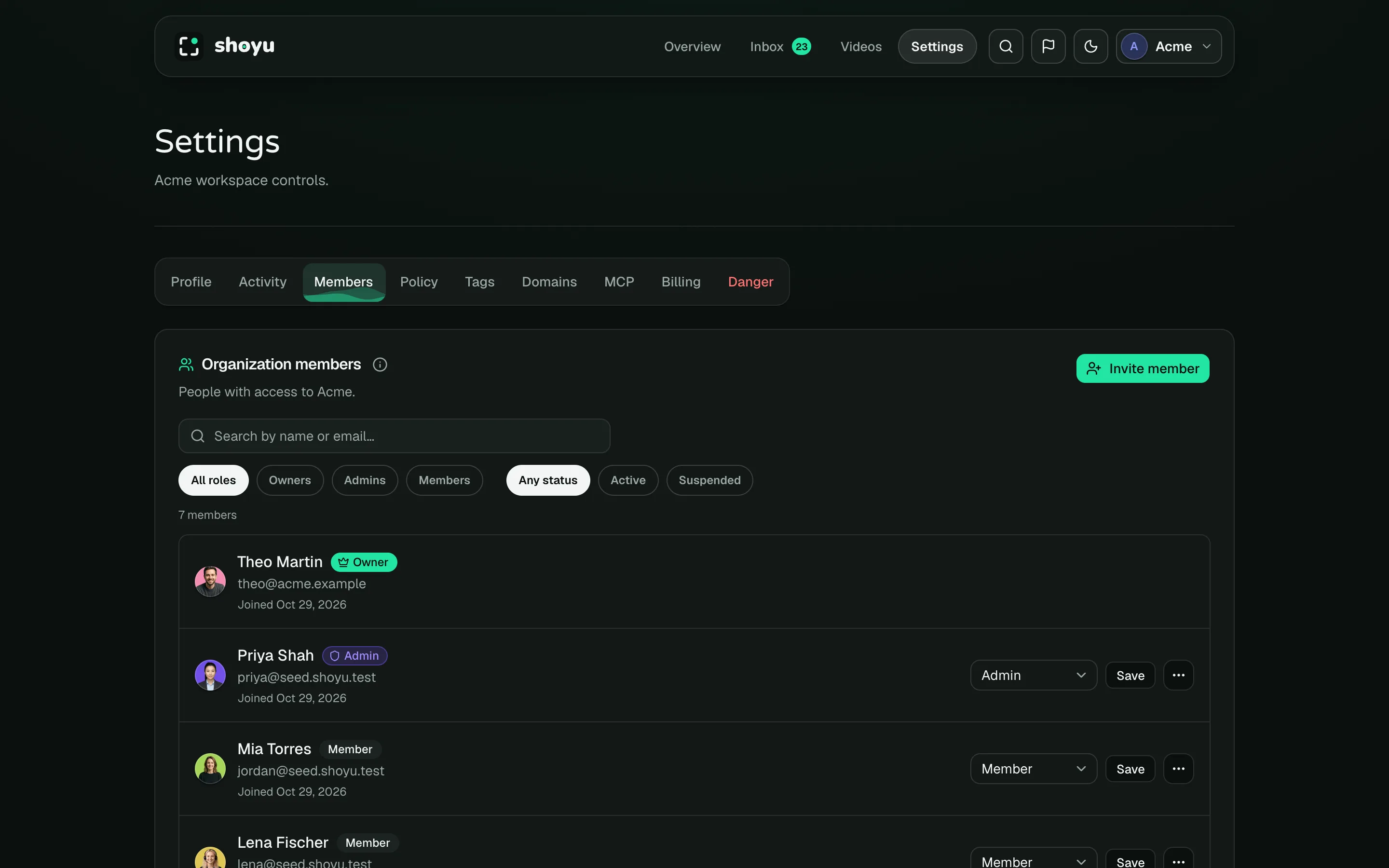
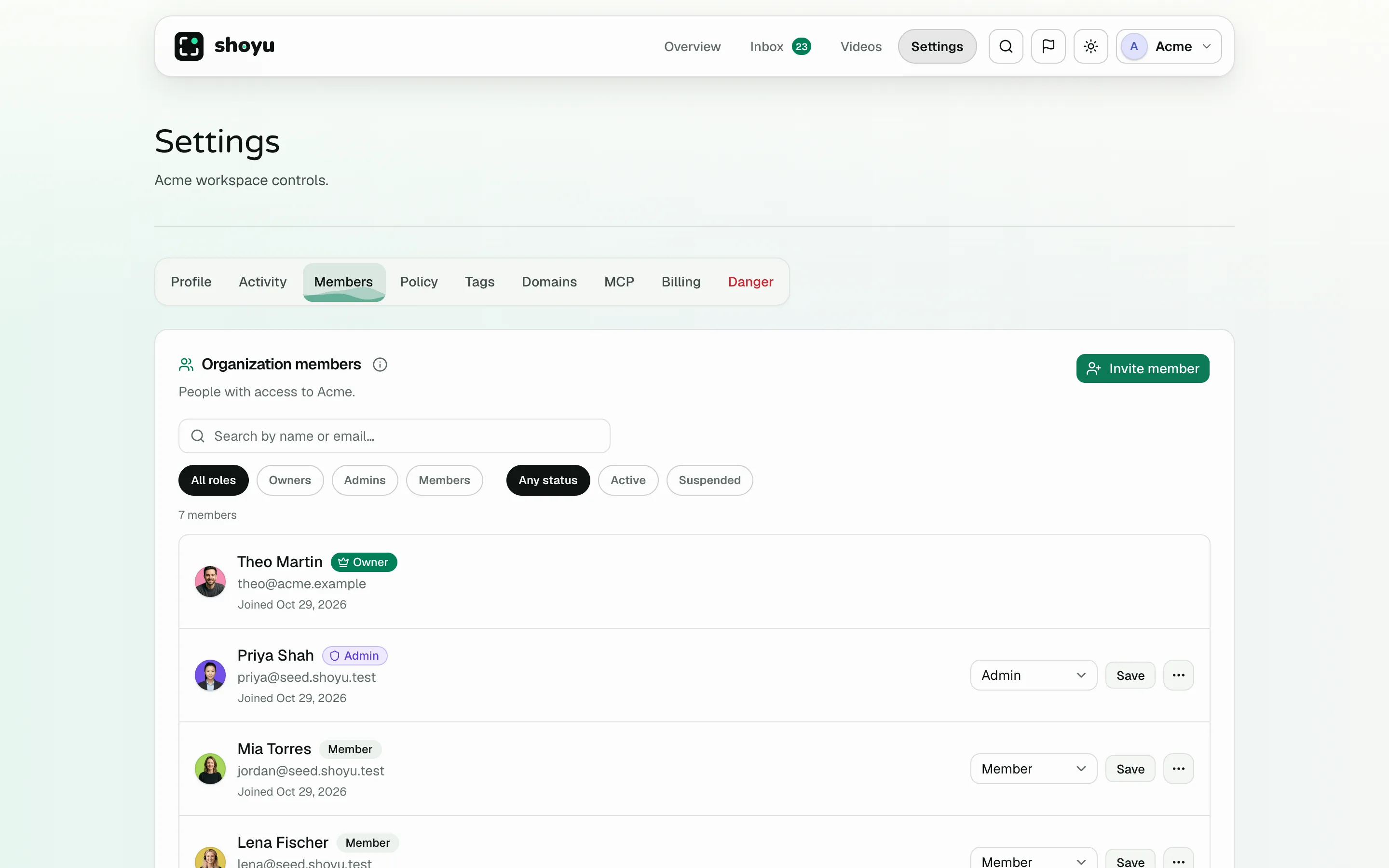
- Open Settings › Members.
- Click Invite member.
- Enter their email and choose Member or Admin.
- Click Create invite.
- Under Pending invites, click Copy link and send it to them.
Click Revoke to cancel an invite. Pending invites count towards your organization’s member limit.
Change a role, suspend or remove
Open a member’s More actions menu. Owners can change roles. Owners and admins can Suspend a member, which blocks their access but keeps them listed, or Remove them. Owners cannot be suspended or removed, and only owners can suspend admins.
Use the search and the role and status filters to find people in a large team.
Let your domain join automatically
If your team uses Google Workspace, owners and admins can open Settings › Domains and add your company’s domain. Anyone who signs in with Google from that domain joins as a member. You can only add the domain of your own verified work email. Removing a domain does not remove people who already joined.
Related guides
Still stuck? Write to hello@shoyu.cc. A person answers.