Set the frame rate, countdown and keyboard shortcuts
Change how smooth a recording is, how long the countdown runs, and whether Shoyu shows the shortcuts you press.
Open the options
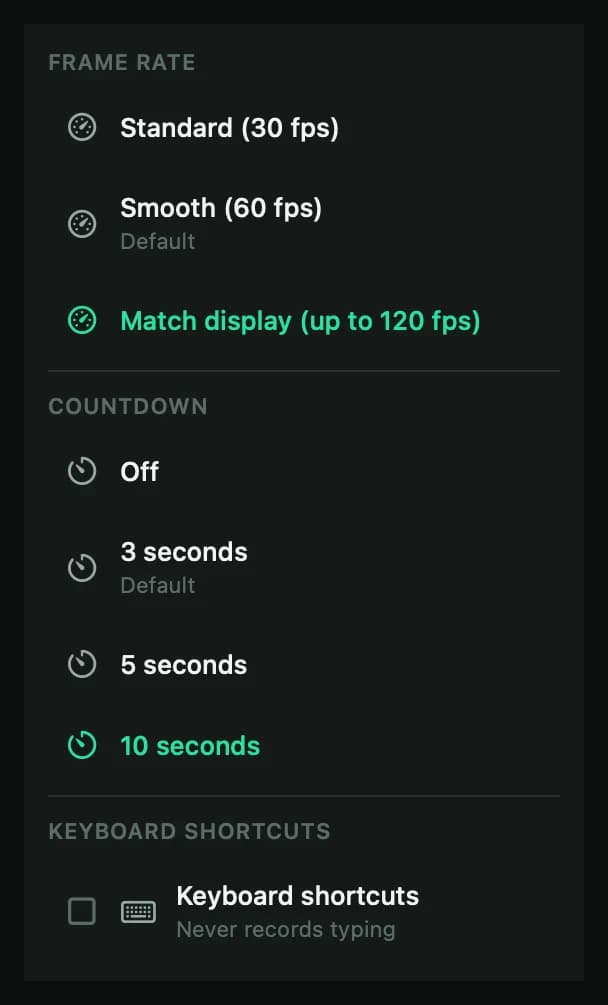
In the Control Deck, click the options button beside Record. These choices apply to this recording.
| Option | Choices |
|---|---|
| Frame rate | Standard (30 fps), Smooth (60 fps, the default) or Match display (up to 120 fps). |
| Countdown | Off, 3, 5 or 10 seconds. Your saved choice is marked Default. |
| Keyboard shortcuts | Shows shortcuts such as ⌘C in Playback. It never records typing. |
Change the defaults
To change what every recording starts with, open Settings › Recording. There you can turn the countdown on or off, set its length from 1 to 10 seconds, and pick a default frame rate.
Related guides
Still stuck? Write to hello@shoyu.cc. A person answers.