Make a GIF, MP4 or screenshot with Quick Capture
Capture a short clip or a screenshot of part of your screen and copy it straight to the clipboard.
Capture a clip
- Press ⌥⇧⌘G, or click the bolt in the Status Panel.
- The Island says Select area. Drag over the part of the screen you want.
- Click Capture clip, or press ↩.
- Click stop when you are done, or press ⌥⇧⌘G again. A clip can be up to 30 seconds.
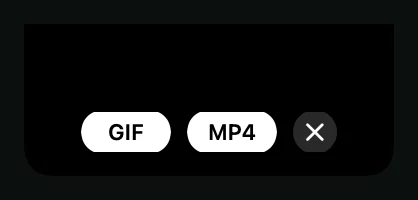
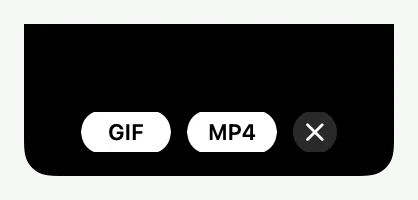
Choose GIF or MP4. Shoyu copies the file to your clipboard and shows its size, such as GIF copied. Click that message to show the file in Finder.
Take a screenshot
- Start Quick Capture and select an area.
- Click Screenshot, or press ⇧↩.
- In the Screenshot editor, add boxes, circles, blur, text or emoji, and choose a border and corners.
- Click Copy & close (⌘↩), or Save… (⌘S).
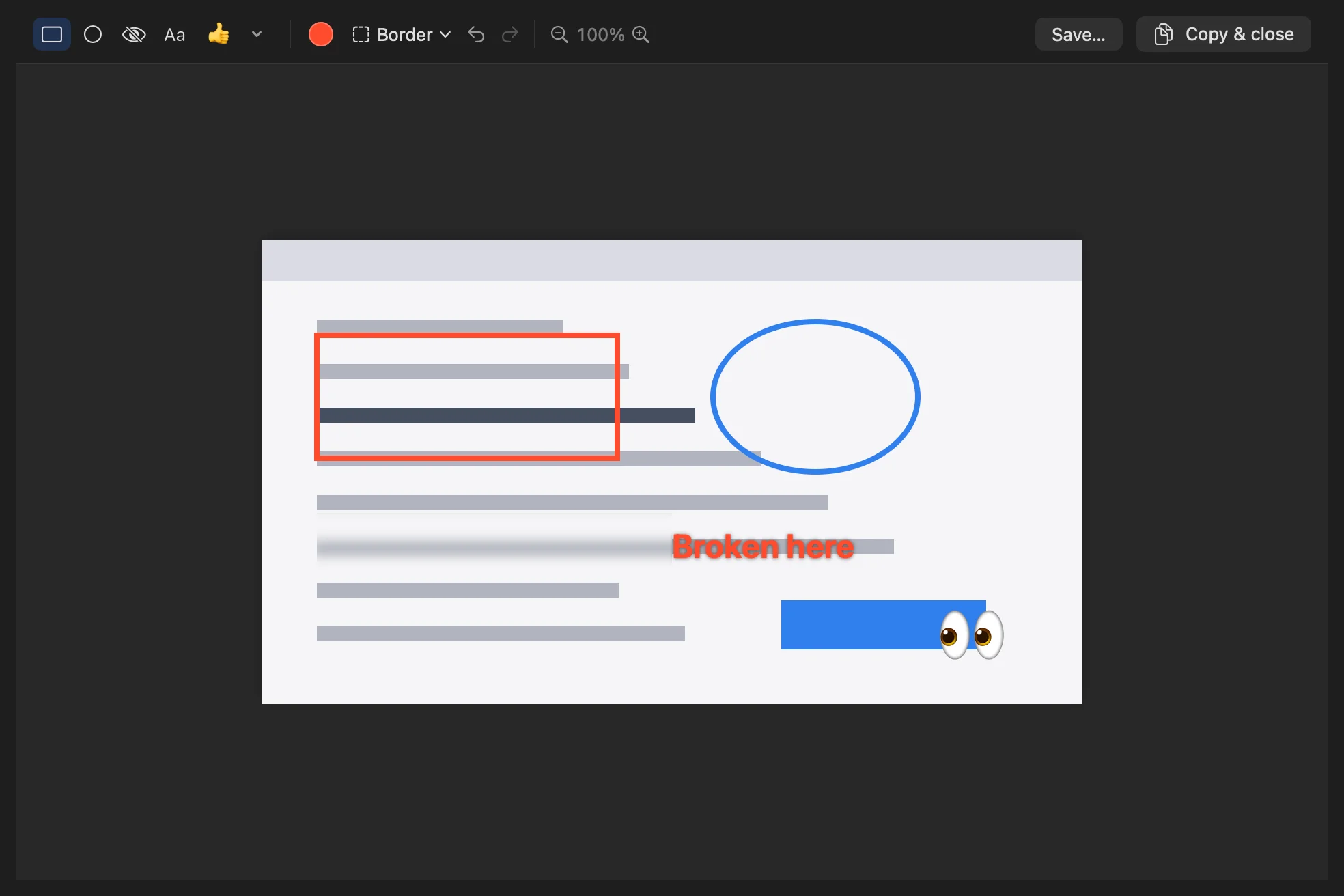
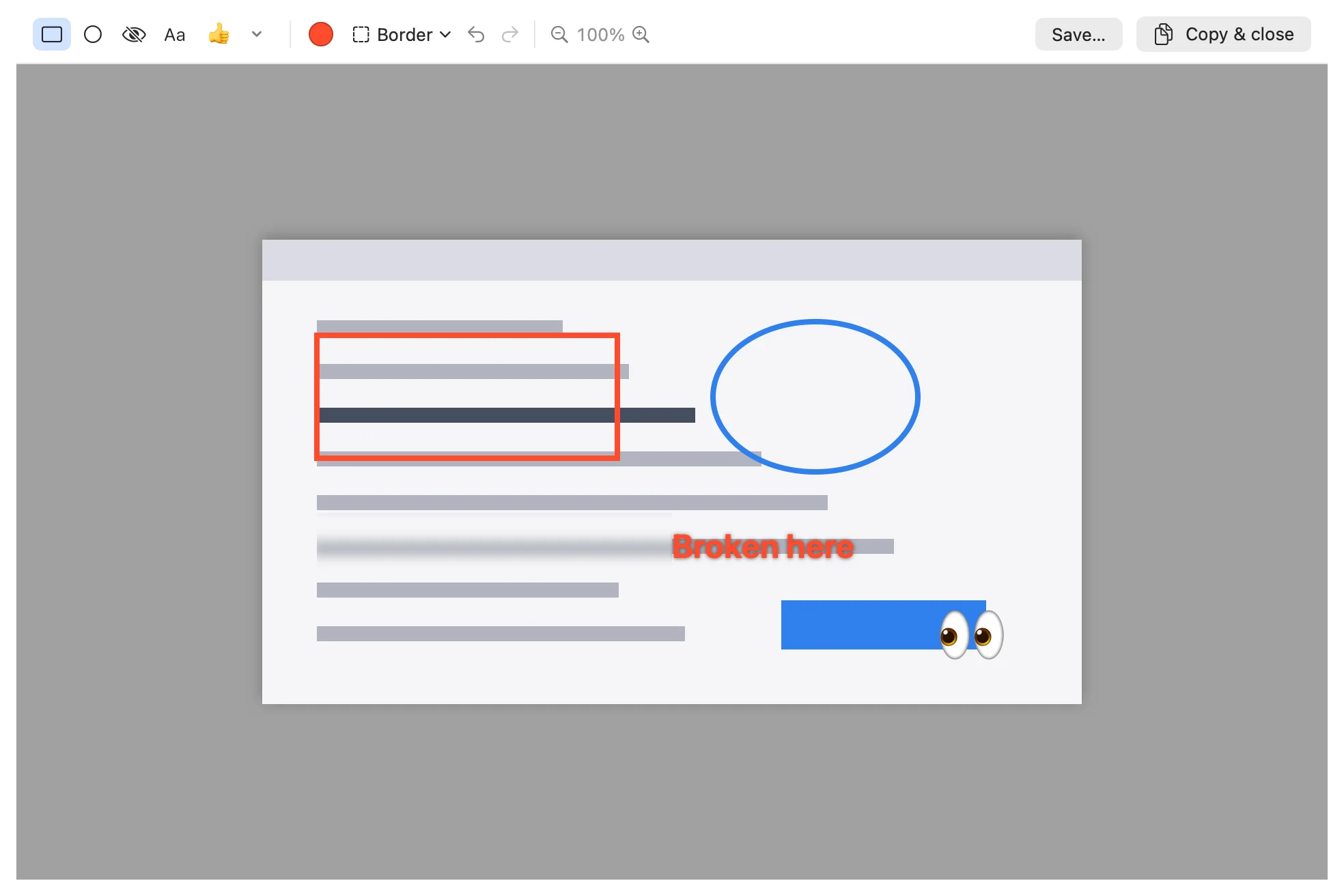
Use Undo (⌘Z) to step back, and Redo (⇧⌘Z) to bring a mark back.
To zoom, press ⌘+ or ⌘-, or pinch on the trackpad. Click the zoom percentage or press ⌘0 to fit the screenshot in the window again.
Where the files go
Quick Capture never uploads anything. Clips are saved in the Quick Captures folder and screenshots in the Screenshots folder, both inside your recordings folder.
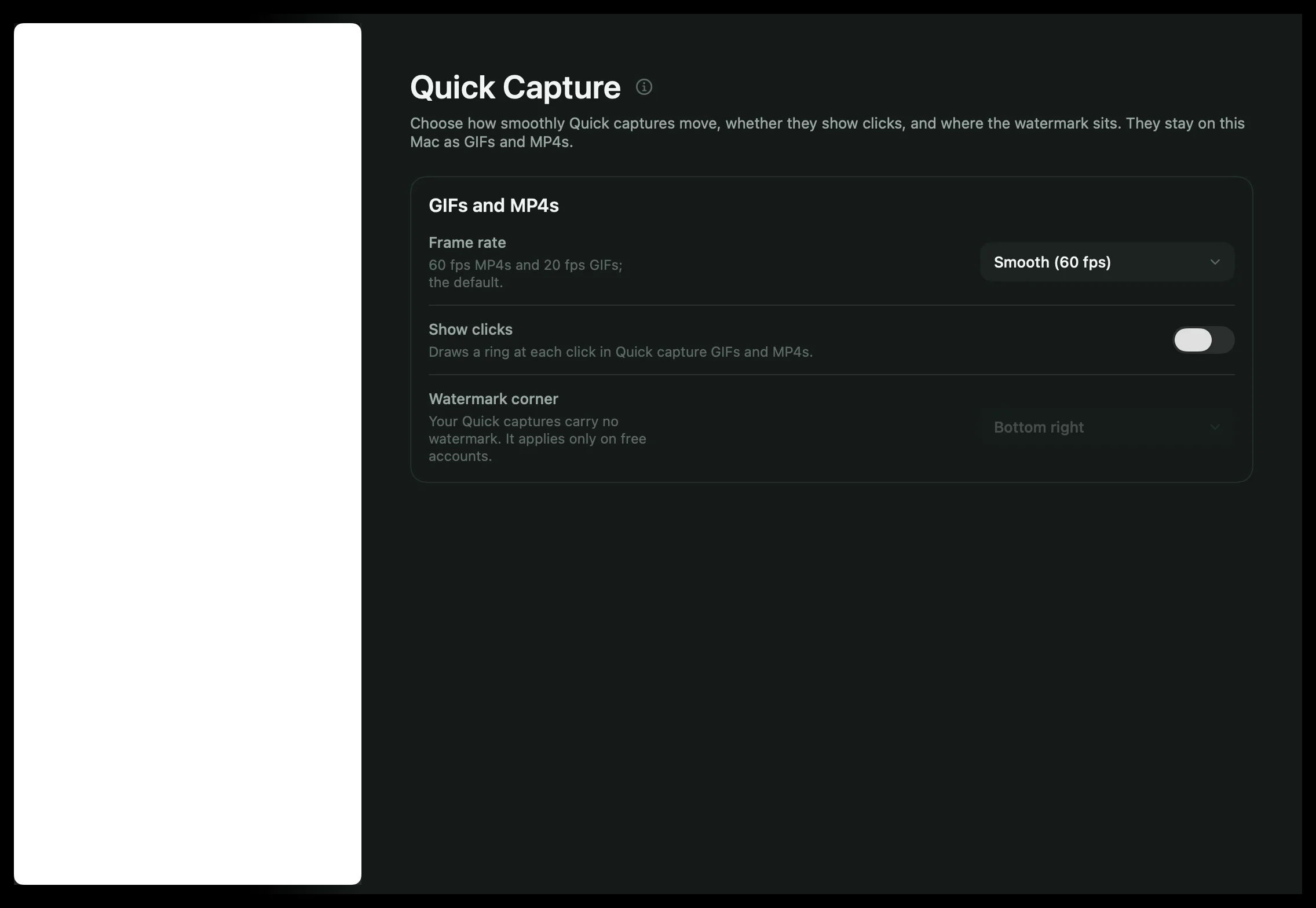
In Settings › Quick Capture you can pick the frame rate, turn on Show clicks, and choose the watermark corner. The watermark only appears on free accounts.
Related guides
Still stuck? Write to hello@shoyu.cc. A person answers.