Set your organization’s recording policy
Choose default visibility, external links, context layers, AI titles and agent access for everyone in the organization.
Open the policy
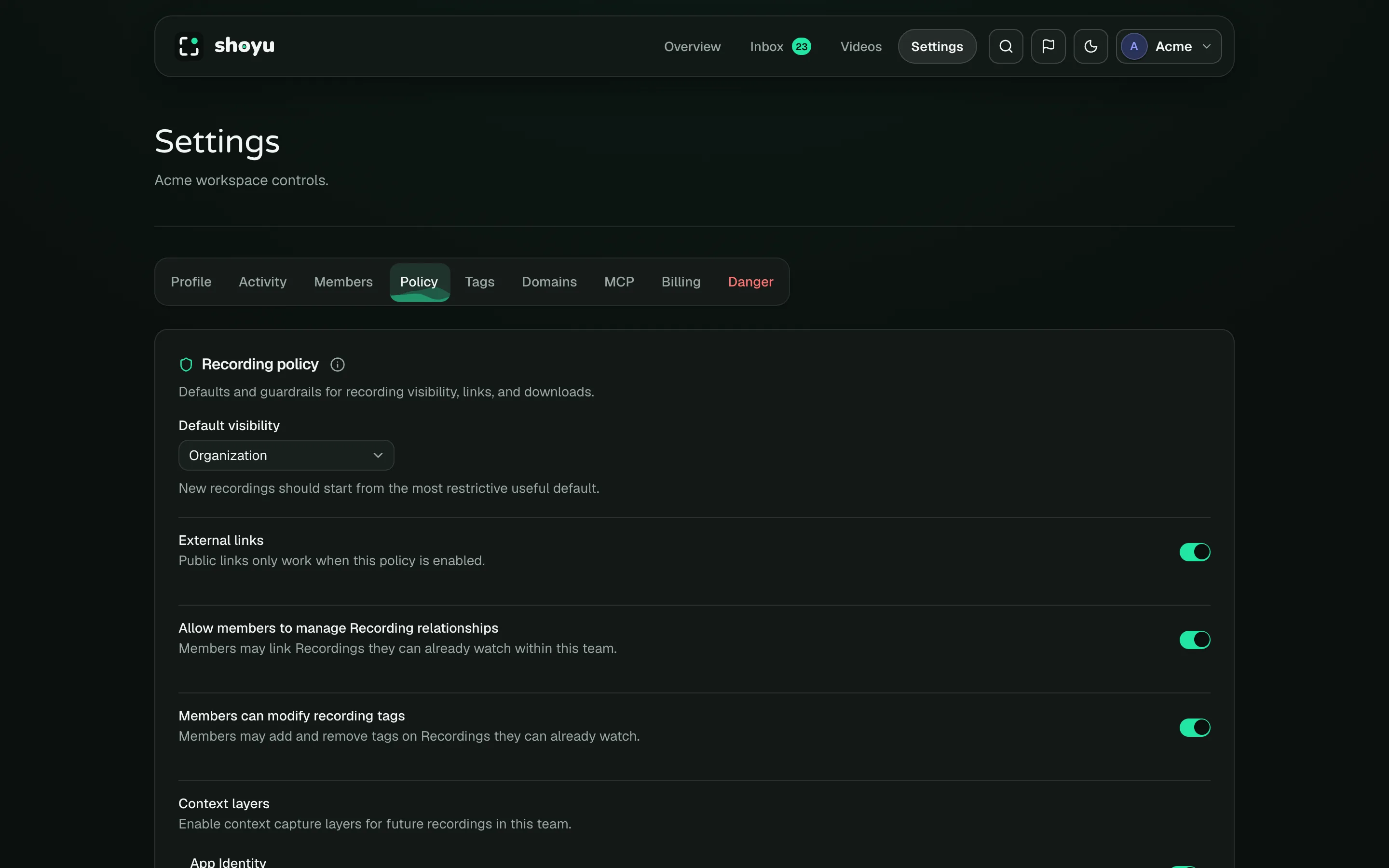
Open Settings › Policy. Owners and admins can change it; members can read it. Click Save policy when you are done.
What you can set
| Setting | What it does |
|---|---|
| Default visibility | Private, Organization or Public for new uploads. Choosing Public asks you to confirm. |
| External links | Whether recordings can be Public at all. Turning it off makes a Public default Organization. |
| Allow members to manage Recording relationships | Lets members link recordings, not only managers. |
| Members can modify recording tags | Lets members add and remove tags. |
| Context layers | Which context future recordings may capture: App Identity, Browser, IDE, Terminal, Keyboard shortcuts, Device logs and Device vitals. |
| Keep full page addresses | Keeps query strings in captured page addresses. Off by default. |
| Suggest titles with OpenAI | Sends a recording’s transcript to a hosted AI service to suggest a title. |
| MCP Access | Read lets agents search and watch recordings. Write lets them rename recordings and link related ones. |
A layer turned off here shows as Org Restricted in everyone’s Control Deck, and Shoyu does not capture it.
Related guides
Still stuck? Write to hello@shoyu.cc. A person answers.