Connect an AI agent with MCP
Let Claude Code, Codex, Cursor, VS Code, ChatGPT or Devin search and read the recordings you can watch.
Add Shoyu to your agent
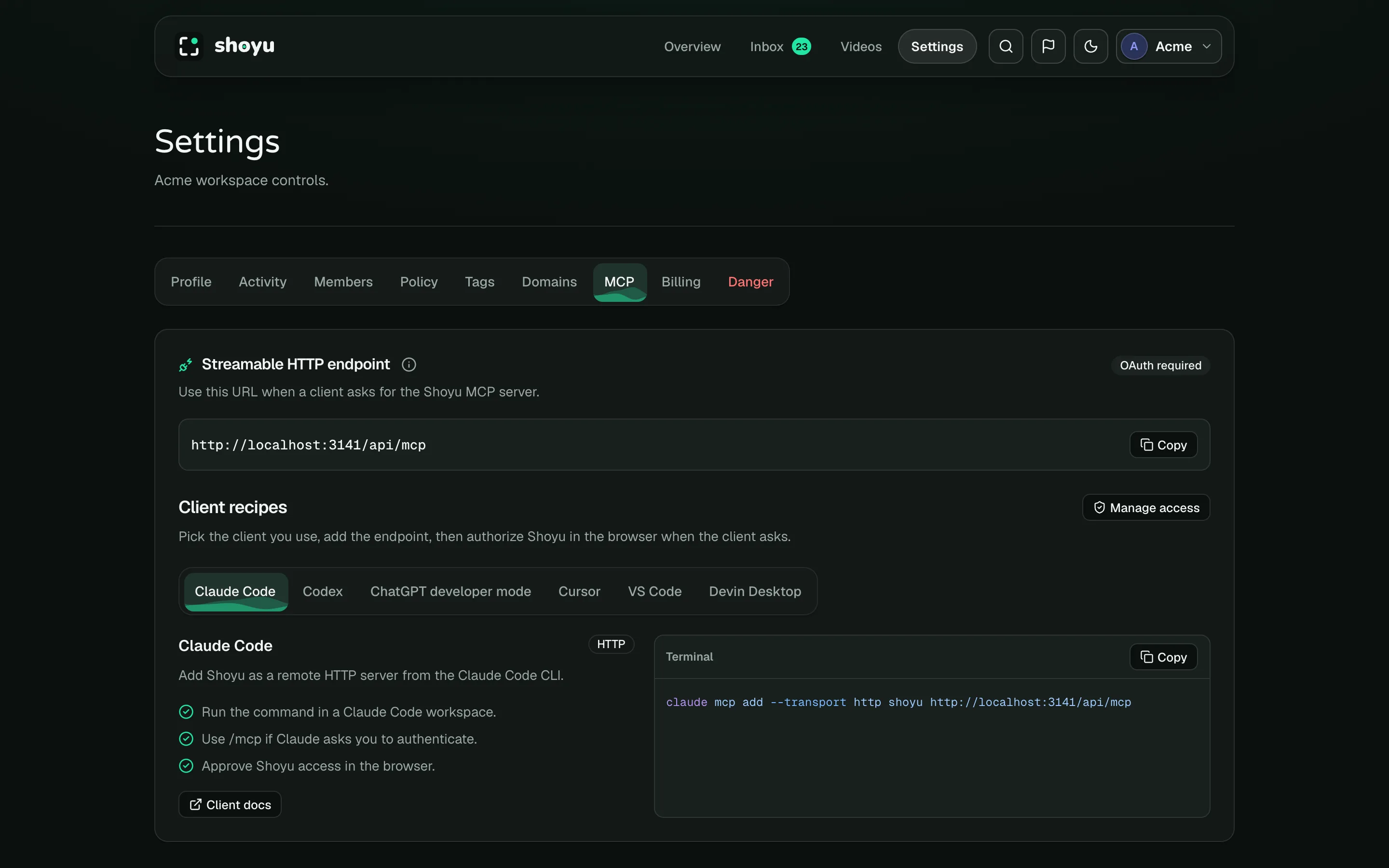
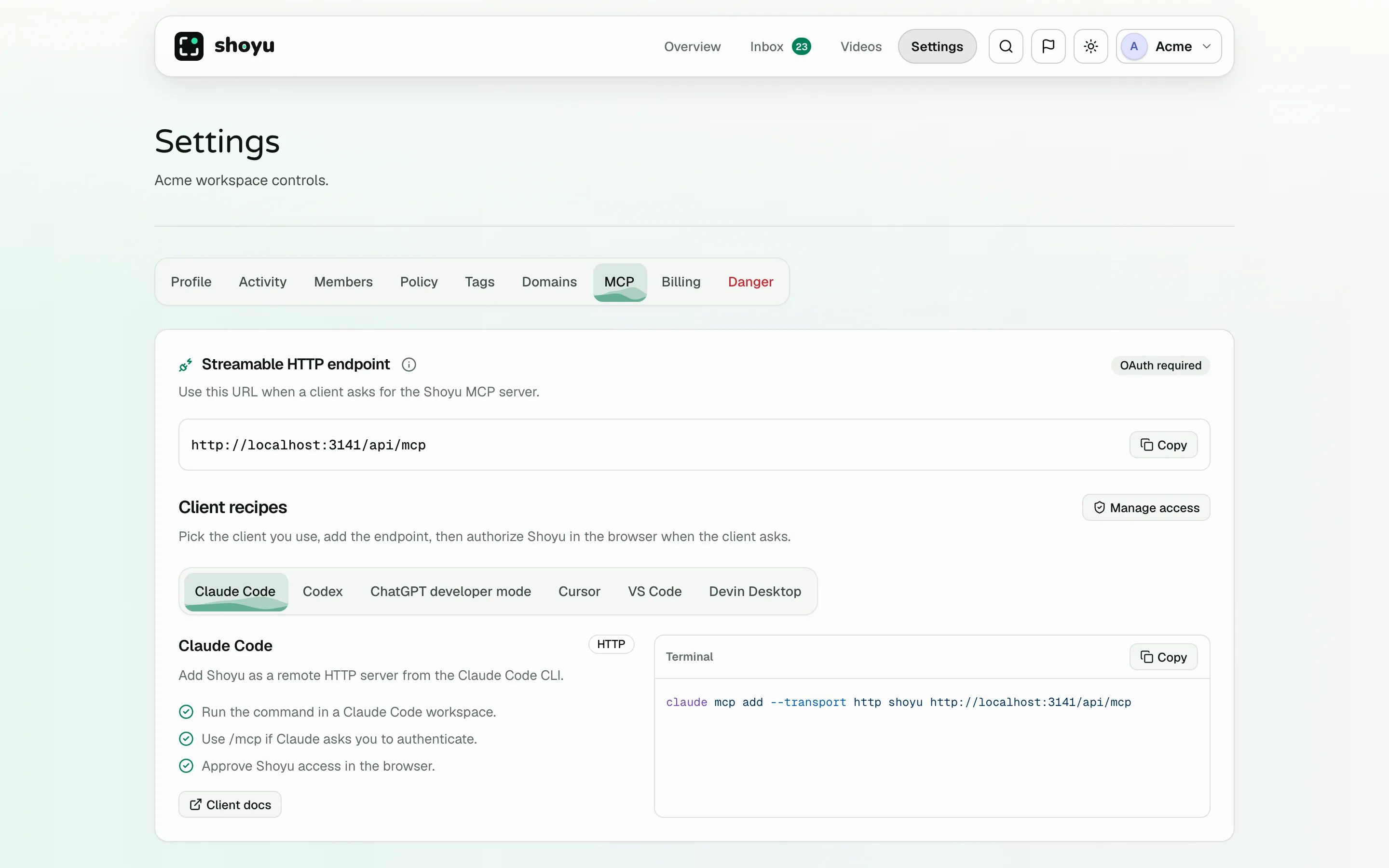
- In the dashboard, open Settings › MCP.
- Pick your agent under Client recipes and follow its steps. Click Copy to copy a command or settings snippet.
- When the agent asks, sign in to Shoyu in your browser and click Authorize.
The server address is:
https://www.shoyu.cc/api/mcpFor example, in Claude Code run:
claude mcp add --transport http shoyu https://www.shoyu.cc/api/mcpThen run /mcp in Claude Code to sign in.
Approve the agent
The consent page labels the agent Unverified app, because agents register themselves. Check that you started this sign-in, choose the Authorized organizations it can read, and click Authorize.
The agent gets read-only access to recordings you can watch, in those organizations.
What the agent can do
- Search recordings and get back the moments that matched, with timestamped links.
- Read a recording’s details: chapters, transcript and context.
- Read iPhone and iPad device logs and vitals, with secrets masked.
Agents never see comments, Deep Context network files, hidden context, or terminal sessions recorded with keystrokes.
Remove an agent’s access
Open the account menu, choose Account, then Security. Under Authorized access, find the agent (marked MCP) and click Revoke access.
Owners and admins can turn agent access off for a whole organization with MCP Access in recording policy.
Related guides
Still stuck? Write to hello@shoyu.cc. A person answers.