Fix a recording that will not start
Read the Recording Issue window and fix the problem it names.
The Recording Issue window
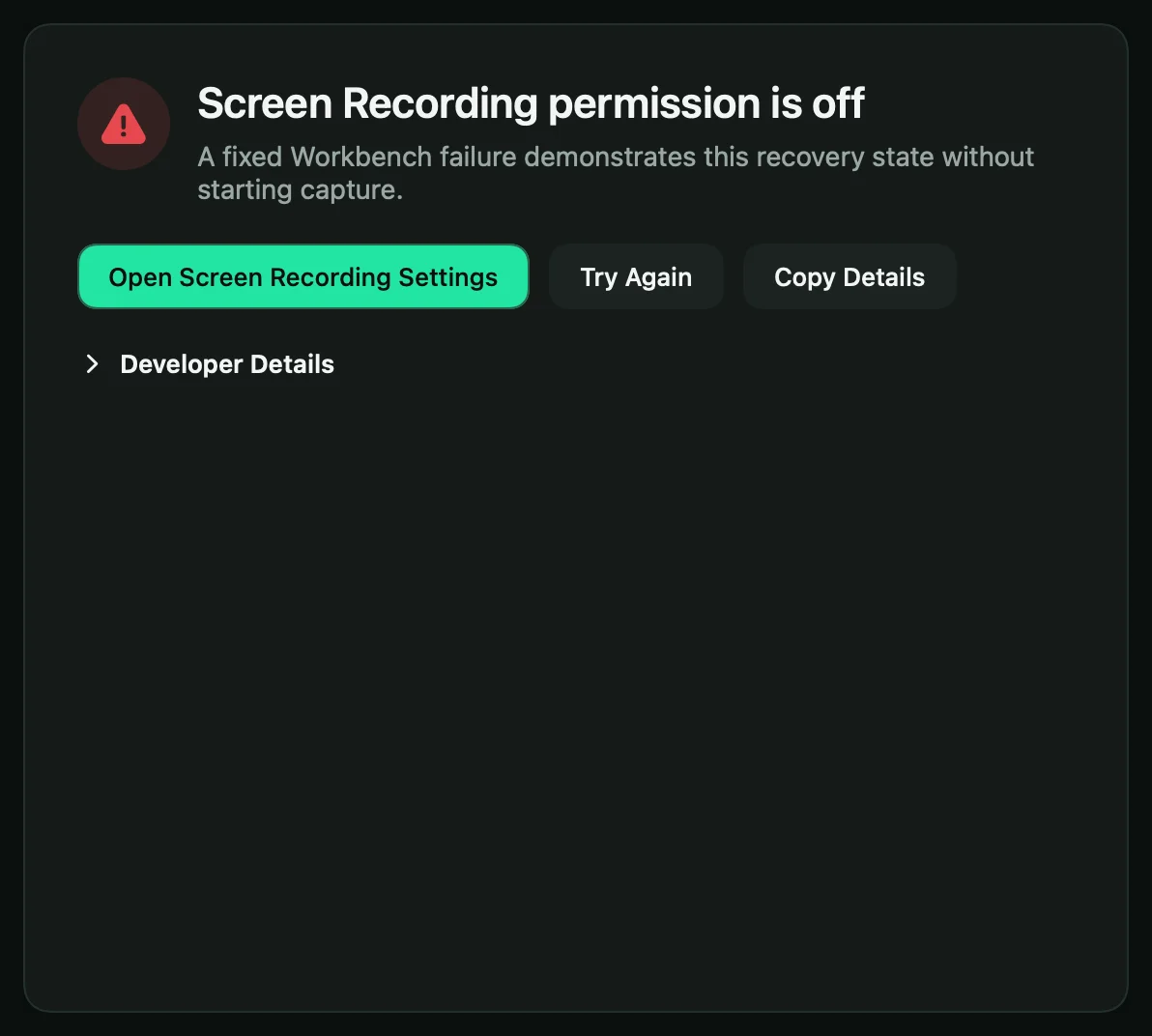
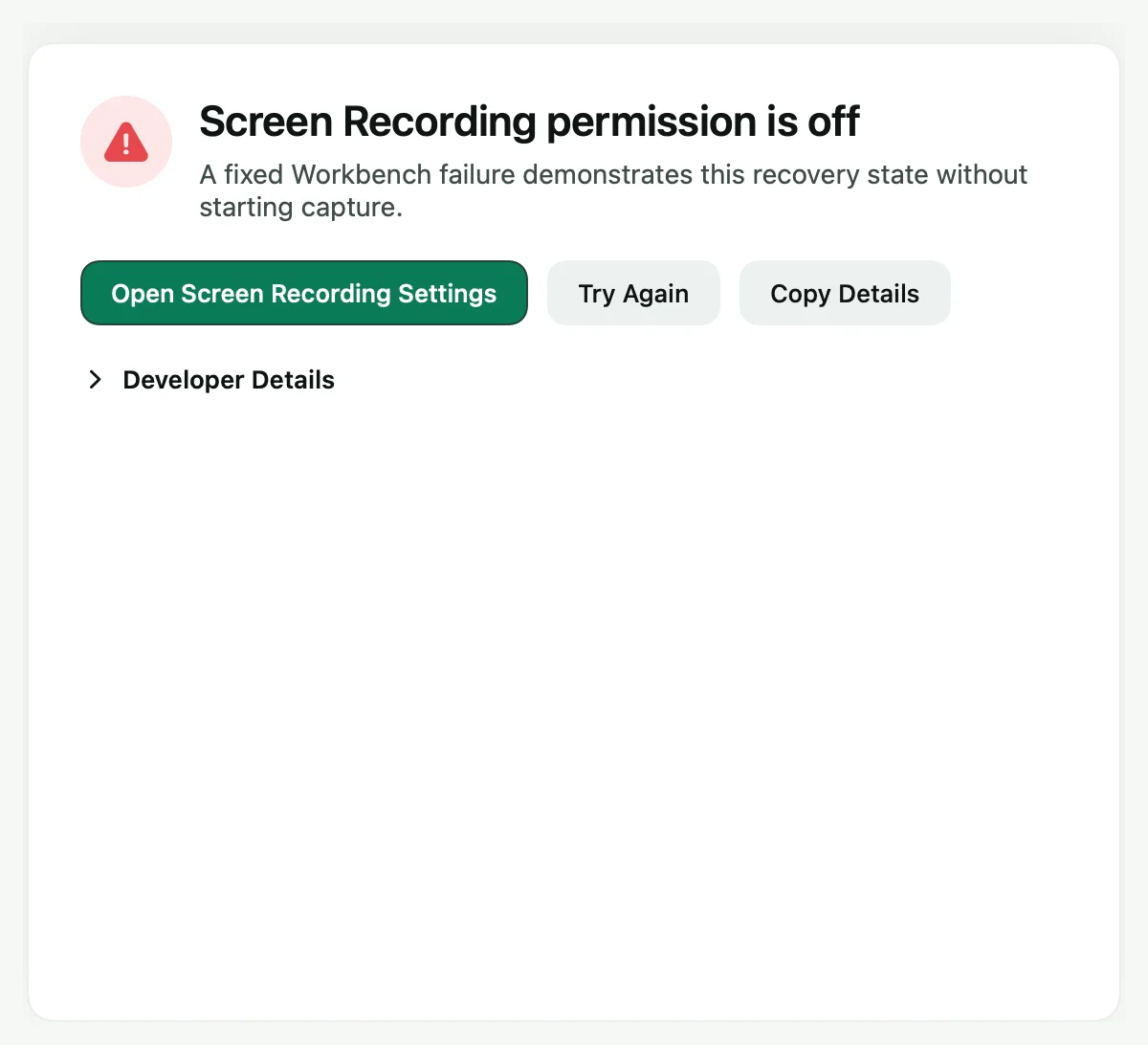
When a recording cannot start, Shoyu opens a window that names the problem and offers one button to fix it. After fixing it, click Try Again.
| Problem | What to do |
|---|---|
| Screen Recording or Input Monitoring permission is off | Click the button to open System Settings, allow Shoyu, then relaunch Shoyu. |
| Microphone or Camera permission is off | Allow it in System Settings, or choose no microphone or camera. |
| Microphone, Camera or System Audio could not start | Another app may be using it. Close that app, unplug and reconnect the device, or pick another one. |
| Capture source is unavailable | The window or display went away. Click Choose Capture Source. |
| Shoyu needs your account | Click Open Setup and sign in. |
If nothing helps, click Copy Details and send them to hello@shoyu.cc.
If Record is greyed out
Hold the pointer over Record to see why. Common reasons: the transcription model is still loading the first time, the chosen window has closed, or the organization cannot take new recordings.
Related guides
Still stuck? Write to hello@shoyu.cc. A person answers.