Link related recordings
Tell viewers what to watch first, what came next, and which recording replaces this one.
Add a relationship
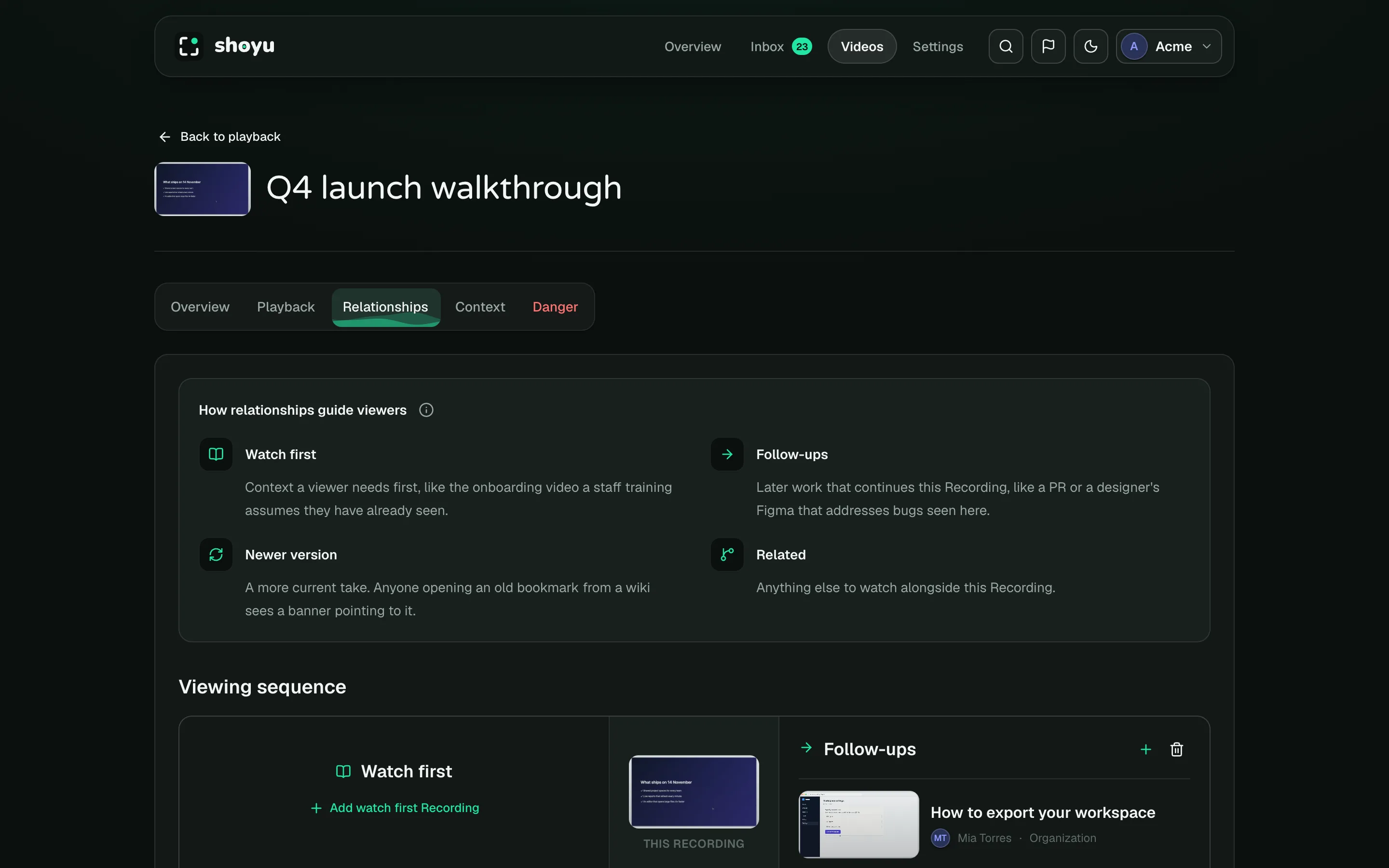
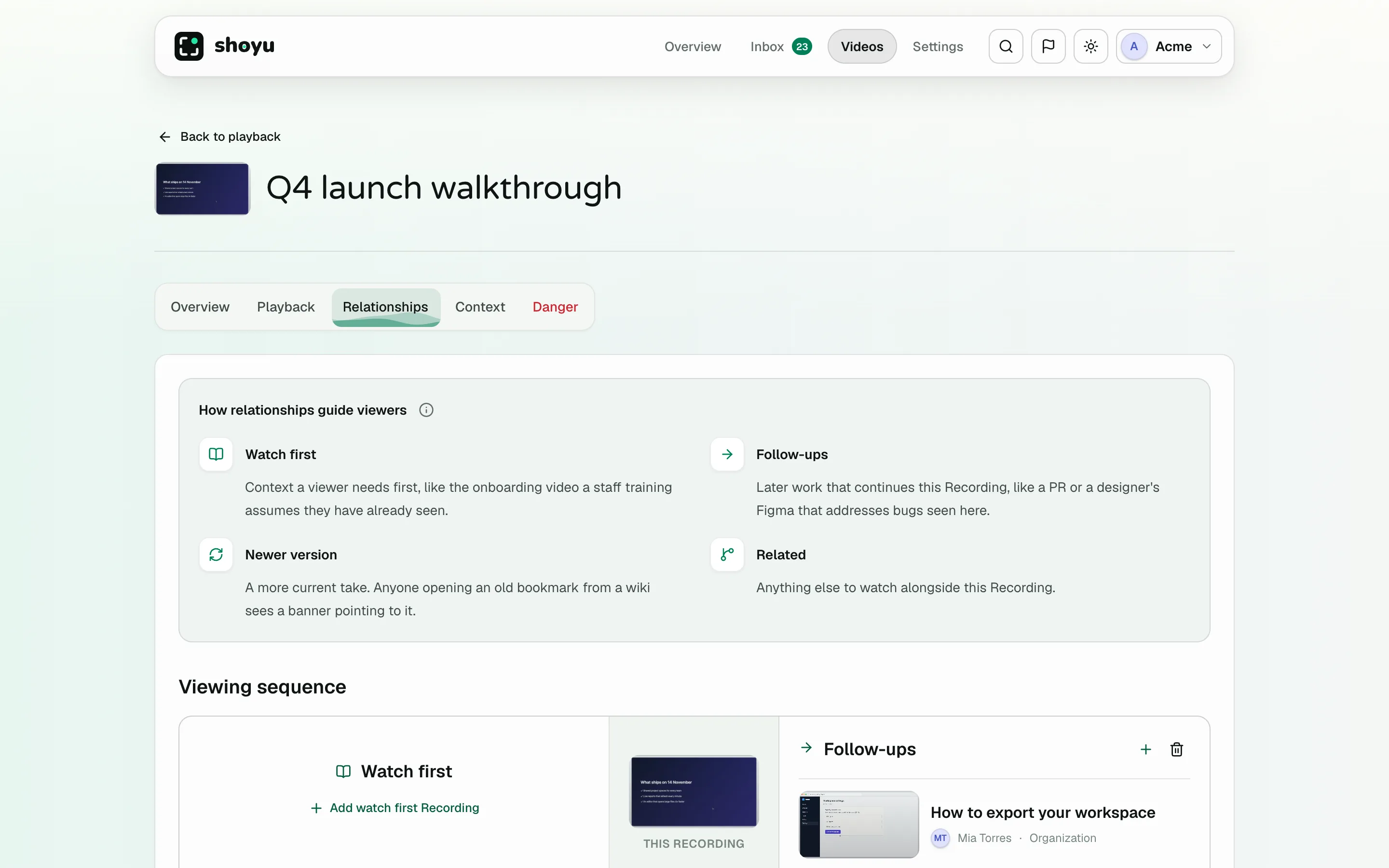
- On the Playback page, click Configure video and open Relationships.
- Under the kind of link you want, choose a recording from your organization.
| Relationship | What viewers see |
|---|---|
| Watch first | Before playing, a prompt suggests the recording to watch first, with Continue with this Recording. |
| Follow-ups | Later work that continues this recording, offered as Watch next when it ends. |
| Newer version | A banner pointing to the newer take. A recording can have one. |
| Related | Anything else to watch alongside it, on the Related Recordings tab. |
Rules
- Both recordings must be in the same organization.
- A recording can have up to 50 relationships.
- Newer versions cannot loop back on themselves.
- If the linked recording has a narrower audience, such as Private, Shoyu warns you. Viewers only see links to recordings they can watch.
Recording managers can always edit relationships. Owners and admins can let other members do so too in recording policy. To remove one, click remove twice.
Related guides
Still stuck? Write to hello@shoyu.cc. A person answers.