Add a terminal session to a recording
Record what happens in a terminal alongside your screen, so viewers can replay it as text.
Start a terminal session
- Start a recording of a display or a portion of the screen.
- In your terminal, run
shoyu terminal record. Shoyu wraps a new shell. - Work as usual. When you are done, type
exit, or runshoyu terminal stopfrom another terminal.
To record a single command, put it after --:
shoyu terminal record --title "API server" -- npm run devThe command’s exit code is passed back to you. If no recording is running, Shoyu opens the recorder and waits. It never starts a video by itself.
What is recorded
By default Shoyu records what the terminal prints, window resizes and the exit code. It hides likely secrets in the output before upload. It does not record what you type.
The session’s title comes from the shell or command and the folder name, never the full path. Use --title to set your own.
Record your keystrokes too
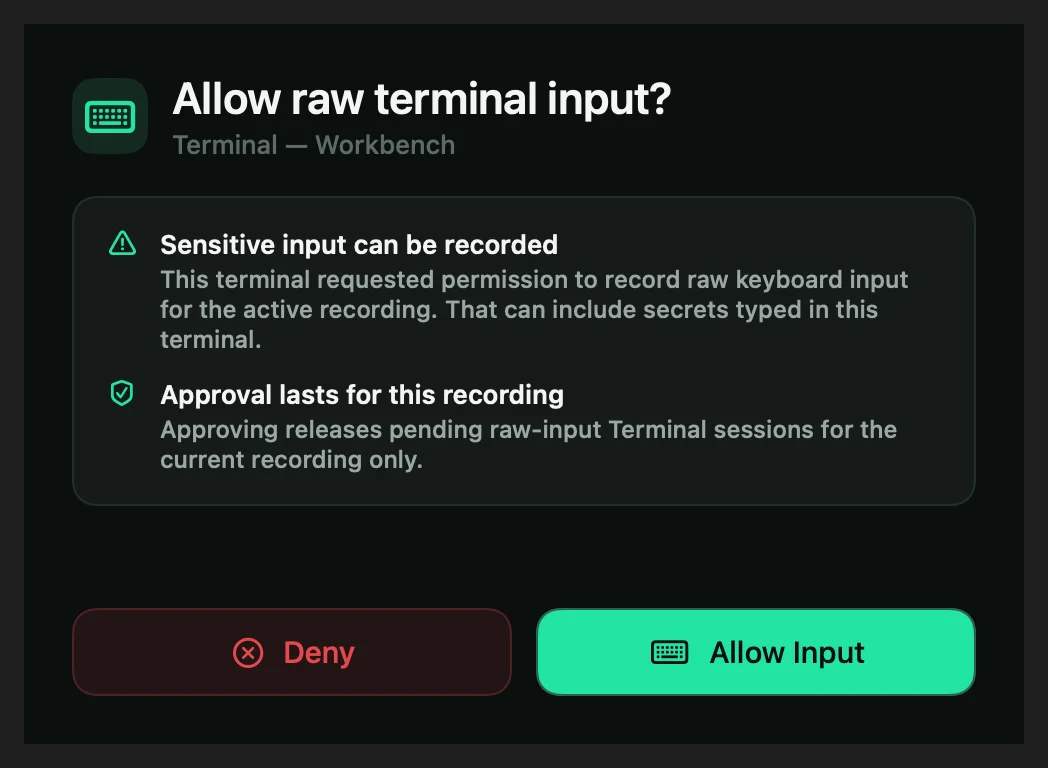
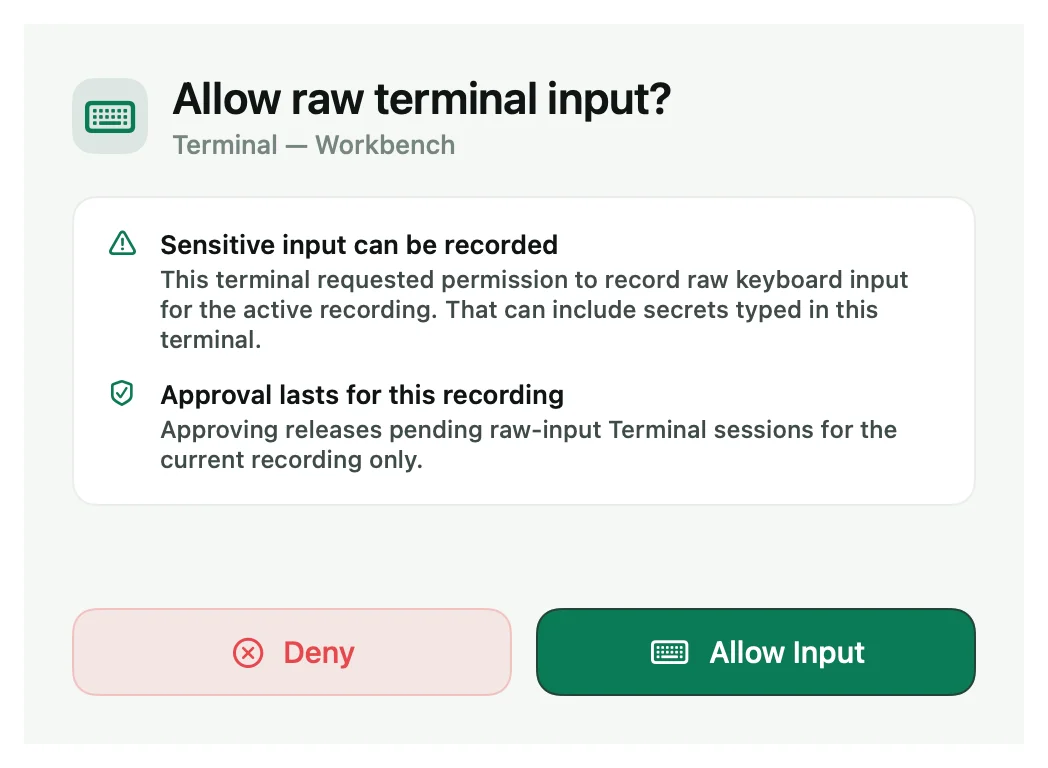
Add --capture-input to record your typing as well. The command warns you and asks you to type yes, and the Mac app asks you to allow it for this recording.
If it does not attach
| Message | What to do |
|---|---|
| “Shoyu for Mac is not running…” | Open Shoyu and run the command again. |
| “Approve Shoyu Terminal in Shoyu to continue…” | Click Approve in the Mac app. |
| “Terminal context is disabled for this recording” | Terminal is off in the Context tile or in your organization’s policy. |
| “Terminal context could not be attached. Preserved asciicast at…” | The upload failed. Your session is saved at the path shown. |
Related guides
Still stuck? Write to hello@shoyu.cc. A person answers.