Frame a recording
Put the recording on a backdrop with padding, rounded corners and a shadow, or change its shape to 16:9.
Add a backdrop
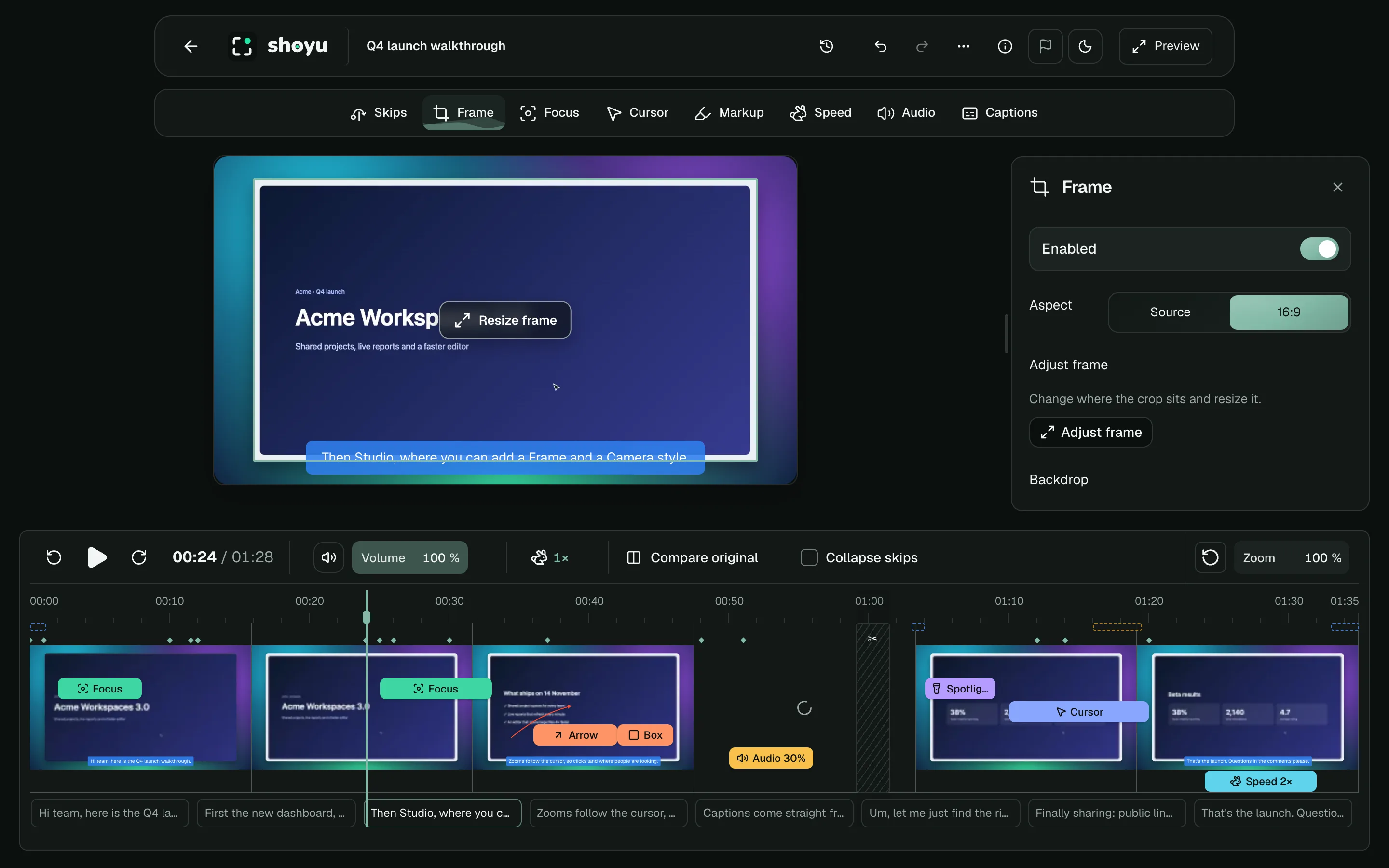
- Click Frame in the tool rail.
- Choose an Aspect: Source keeps the recording’s shape, 16:9 fits widescreen.
- Choose a backdrop: a Colour, a Gradient, or an Image.
- Set Padding, Corners and Shadow.
Gradients can move: turn on Animate, then choose Slow or Fast. For an image, click Upload an image (PNG, JPEG or WebP, up to 6 MB), or use Search Unsplash when it is offered.
Crop the recording
Click Adjust frame in the panel, or Resize frame on the video. Drag the corners to crop, or the centre handle to move the crop, then click Save frame. Cancel or Escape puts the frame back as it was. Studio warns you if a crop would cut off another edit.
Related guides
Still stuck? Write to hello@shoyu.cc. A person answers.