Choose what to record
Record a whole display, one window, a portion of the screen, or a browser tab.
Pick a capture source
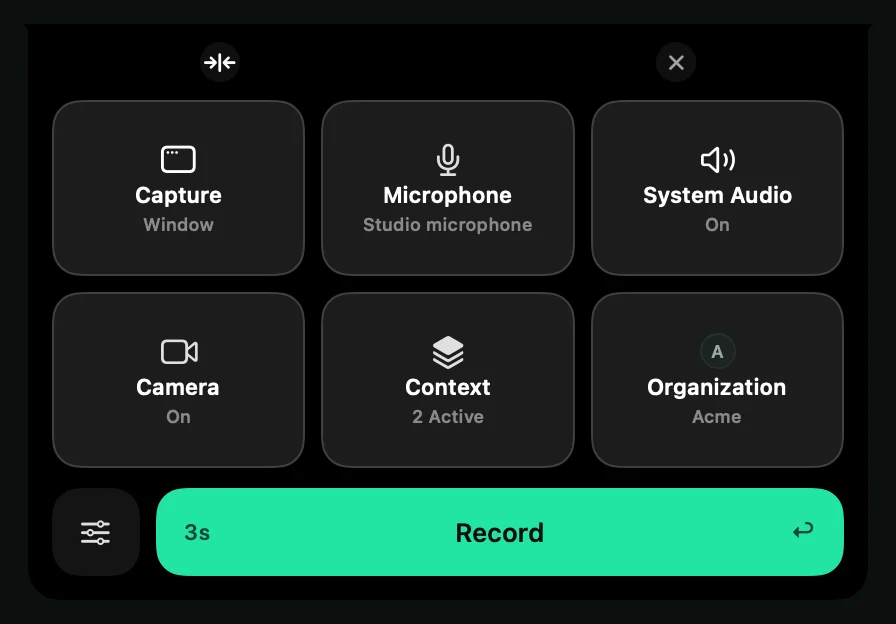
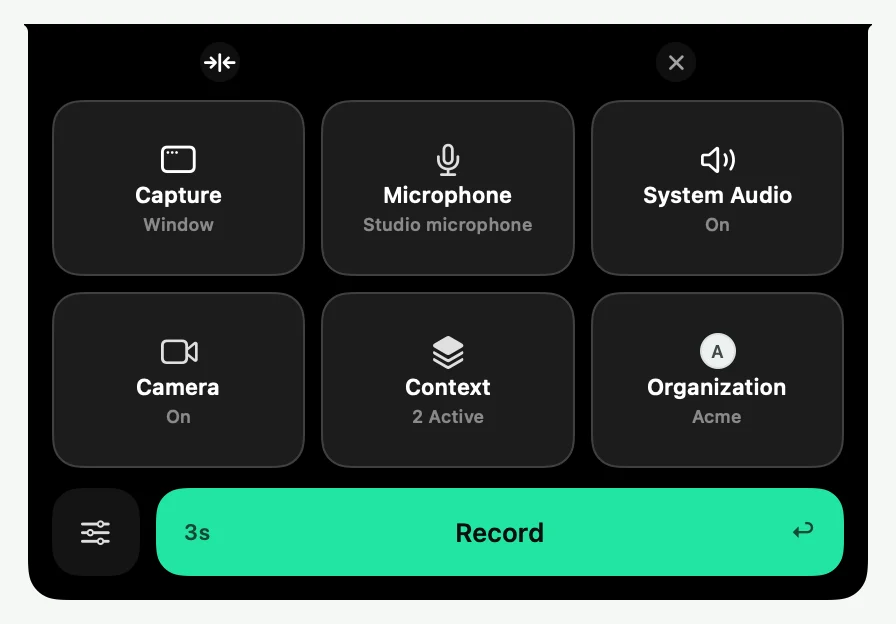
In the Control Deck, click Capture, then choose one of these.
| Choice | What Shoyu records |
|---|---|
| Entire Screen | A whole display, listed by its name and resolution. |
| Window | One app window. Shoyu outlines it in green and names it while you set up. |
| Selected area | A portion of the screen that you draw. |
| A browser tab | Under Browsers, choose a connected browser, then a tab. Shoyu brings the tab forward and records its window. |
| An iPhone or iPad | A device connected by cable. See Record an iPhone or iPad. |
Draw a portion of the screen
- Choose Selected area. The screen dims.
- Drag over the part you want to record. Or press Space for a centred selection and move it with the arrow keys.
- Click Continue, or press ↩.
Press ⌫ to clear the selection, or esc to cancel.
Record a window quickly
Press ⌥⇧⌘R to record the window under your pointer. Shoyu skips the Control Deck and starts after the countdown.
If the window changes
- If the window you picked last time is closed, minimised or on another Space, Shoyu picks the display instead.
- If you bring a different window forward while recording, the Island asks Record ‹title› instead?. Click Switch to follow it, or ignore it.
- If the window closes while you record, Shoyu stops and saves the recording. It never switches to the whole screen by itself.
Related guides
Still stuck? Write to hello@shoyu.cc. A person answers.