Watch a recording
Use the player’s controls, speed, display options, mini-player and keyboard shortcuts.
The Playback page
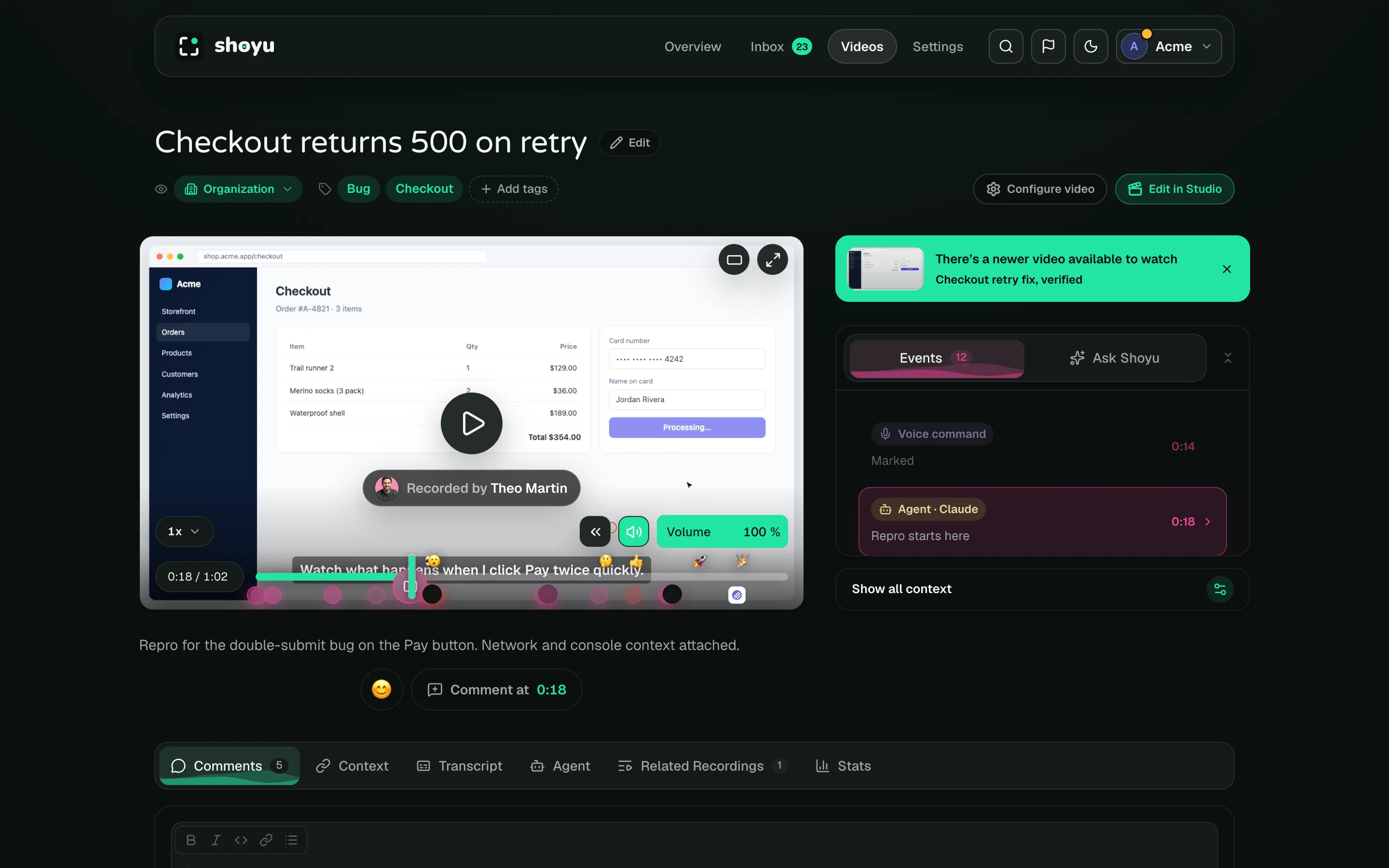
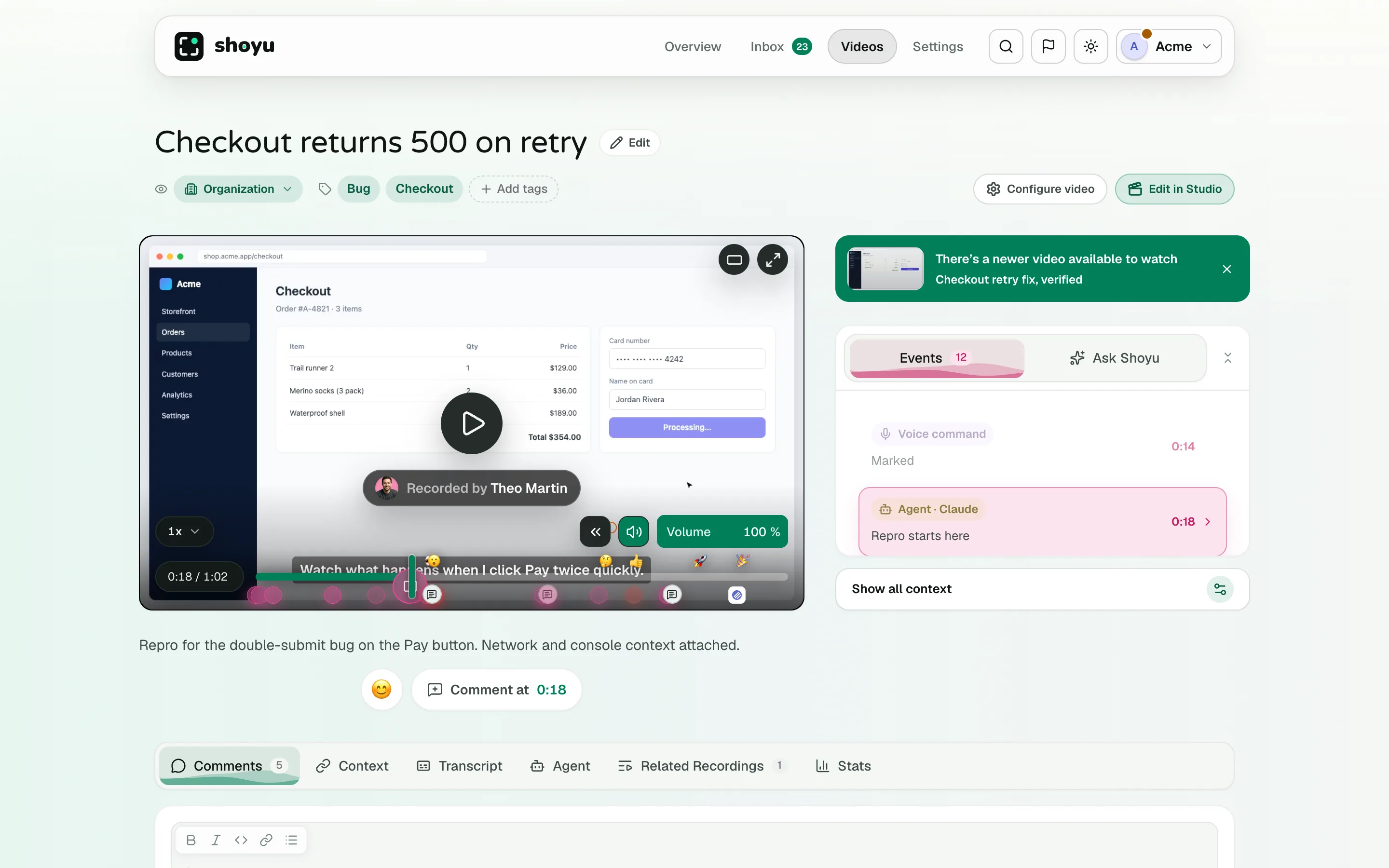
A Shoyu link opens the recording’s Playback page. The player is on the left, the Events rail on the right, and tabs such as Comments and Transcript below.
Player controls
- Click the video, or press Space, to play or pause.
- Click anywhere on the timeline to jump there. Markers on the timeline show comments, reactions, chapters and context.
- Click the speed pill to choose a speed from 0.25× to 4×.
- Use the volume button to mute, or drag the volume to change it.
- Click Cinema mode for a wider player, or Fullscreen.
- Right-click the video for Copy video URL, Copy video URL at timestamp, Picture-in-Picture and Cast.
Scroll down and the player floats in a corner, so you can keep watching while you read comments. Drag it to move it, and drag a corner to resize it.
Show or hide what is on the video
Click Display options (the double chevron) to show or hide click highlights, keyboard shortcuts, timeline markers, reactions, comments and captions (CC). Shoyu remembers your choices in this browser.
When it ends
At the end, Shoyu suggests what to watch next, including recordings the author linked as follow-ups or related. If someone marked a newer version, a banner says There’s a newer video available to watch.
On a phone
Playback works on phones. Events and Ask open from a sheet at the bottom of the screen. Studio needs a desktop browser.
Related guides
Still stuck? Write to hello@shoyu.cc. A person answers.