Get started with Studio
Open Studio, find your way around, preview your edit, and undo or restore any change.
Open Studio
On the Playback page, click Edit in Studio. Studio is for recording managers: the recording’s owner, and the organization’s owners and admins. It needs a desktop browser.
Find your way around
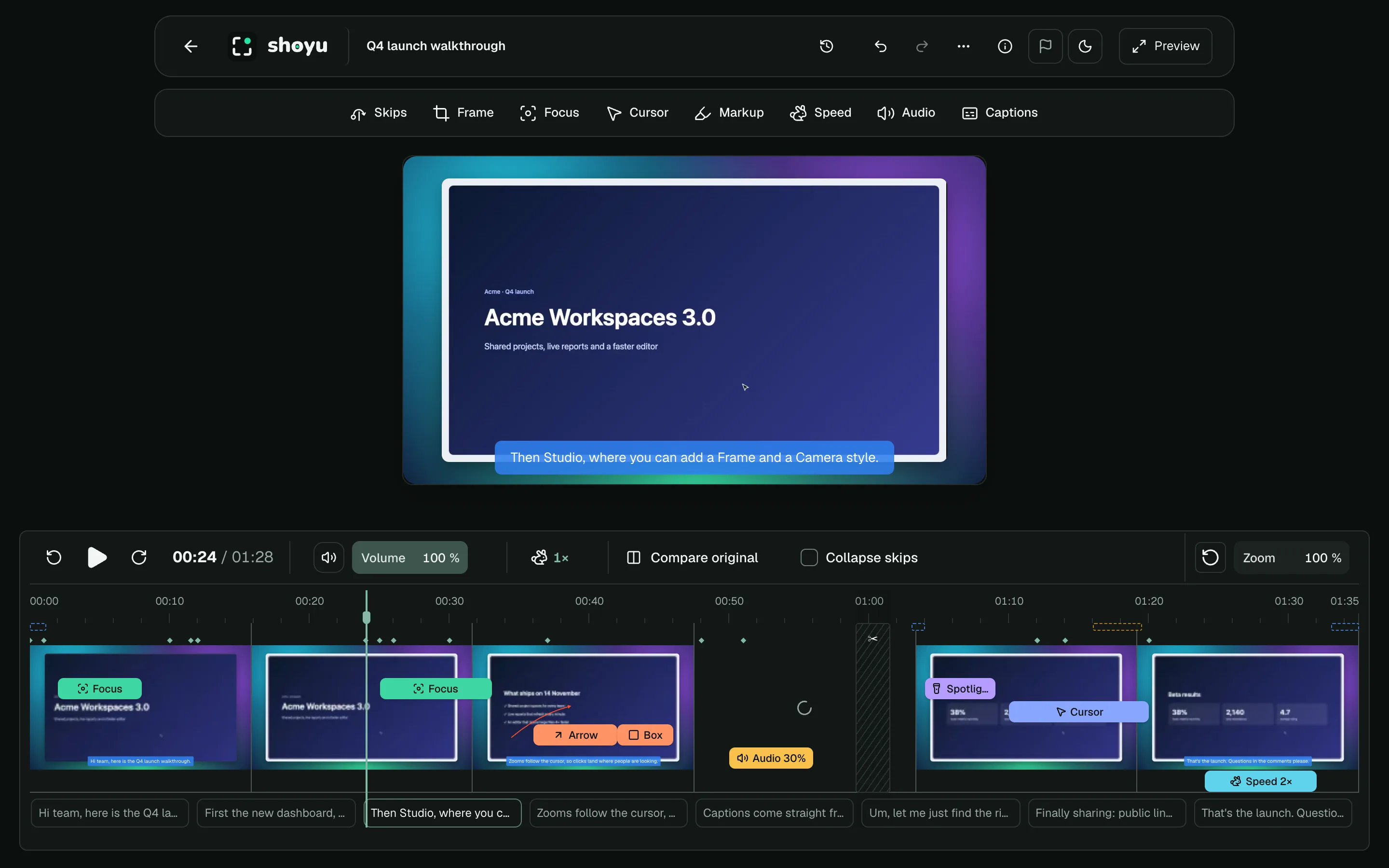
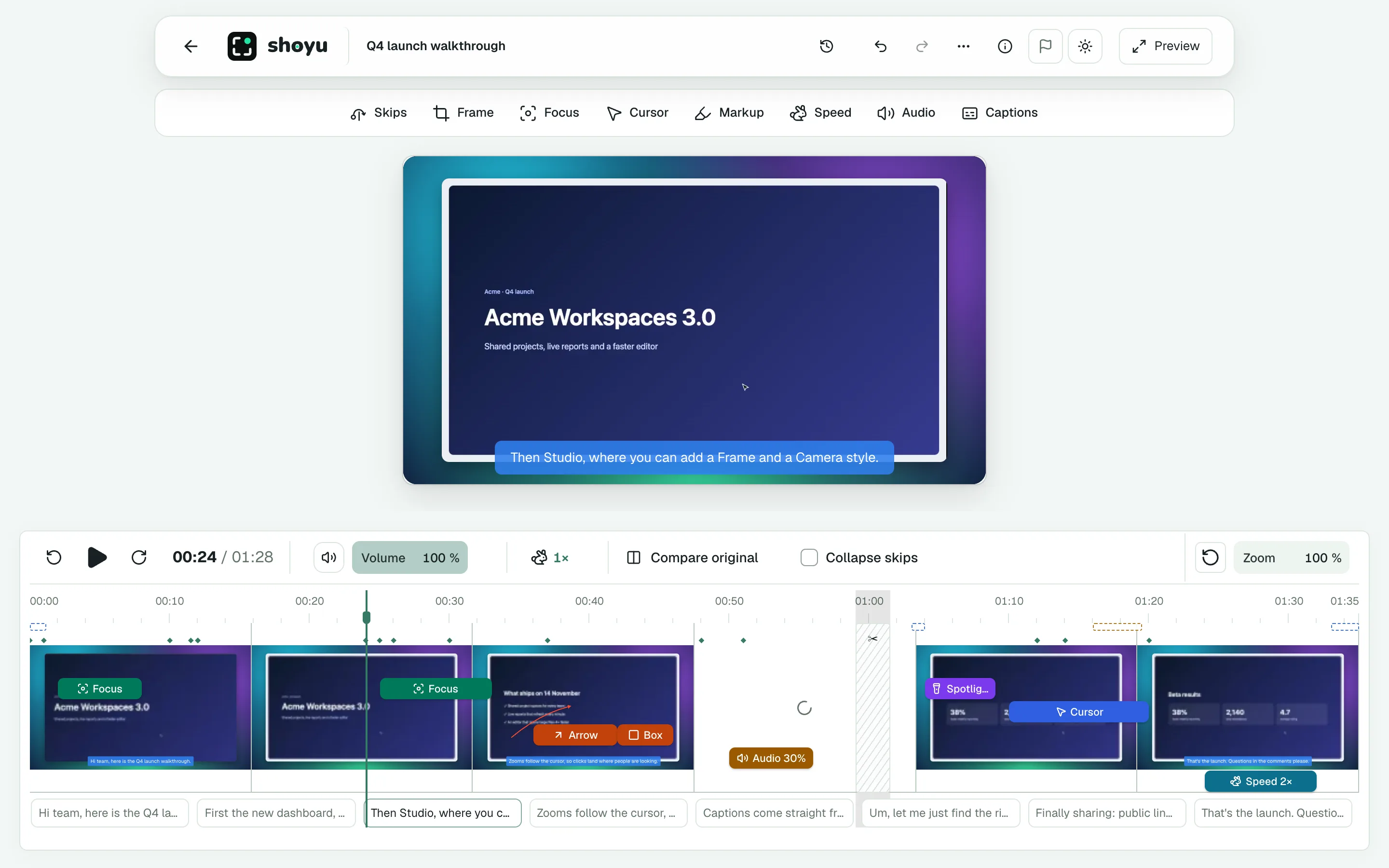
| Part | What it does |
|---|---|
| Header | Back to Recording, the save status, undo and redo, Version history and Preview. |
| Tool rail | The tools: Skips, Frame, Focus, Cursor, Markup, Speed, Audio, Captions, and Shortcuts when the recording has them. |
| Recording | The video with your edits applied. |
| Filmstrip | Every second of the recording as a picture, with your edits on it. |
Below the video are play, Back 10 seconds, Forward 10 seconds, volume and speed. Hold Compare original to see the recording before your edits.
Select part of the recording
Hold ⇧ and drag across the filmstrip. Shoyu asks what to do with the selection: Skip, Focus, Cursor, Speed or Hide Shortcuts.
Zoom the filmstrip with + and −, and press 0 to fit the whole recording. ← and → step one frame.
Saving, undo and preview
- Studio saves each change as you make it. The header says Saving…, then Changes saved.
- Undo with ⌘Z and redo with ⇧⌘Z.
- Click Preview to watch the edit as viewers will see it. Click Back to editing to return.
- Every tool’s panel has Enabled to switch an edit off for a moment, and a bin to remove it.
If a change cannot be saved, Studio puts it back and shows the problem in the tool’s panel with Try again.
Go back to an earlier version
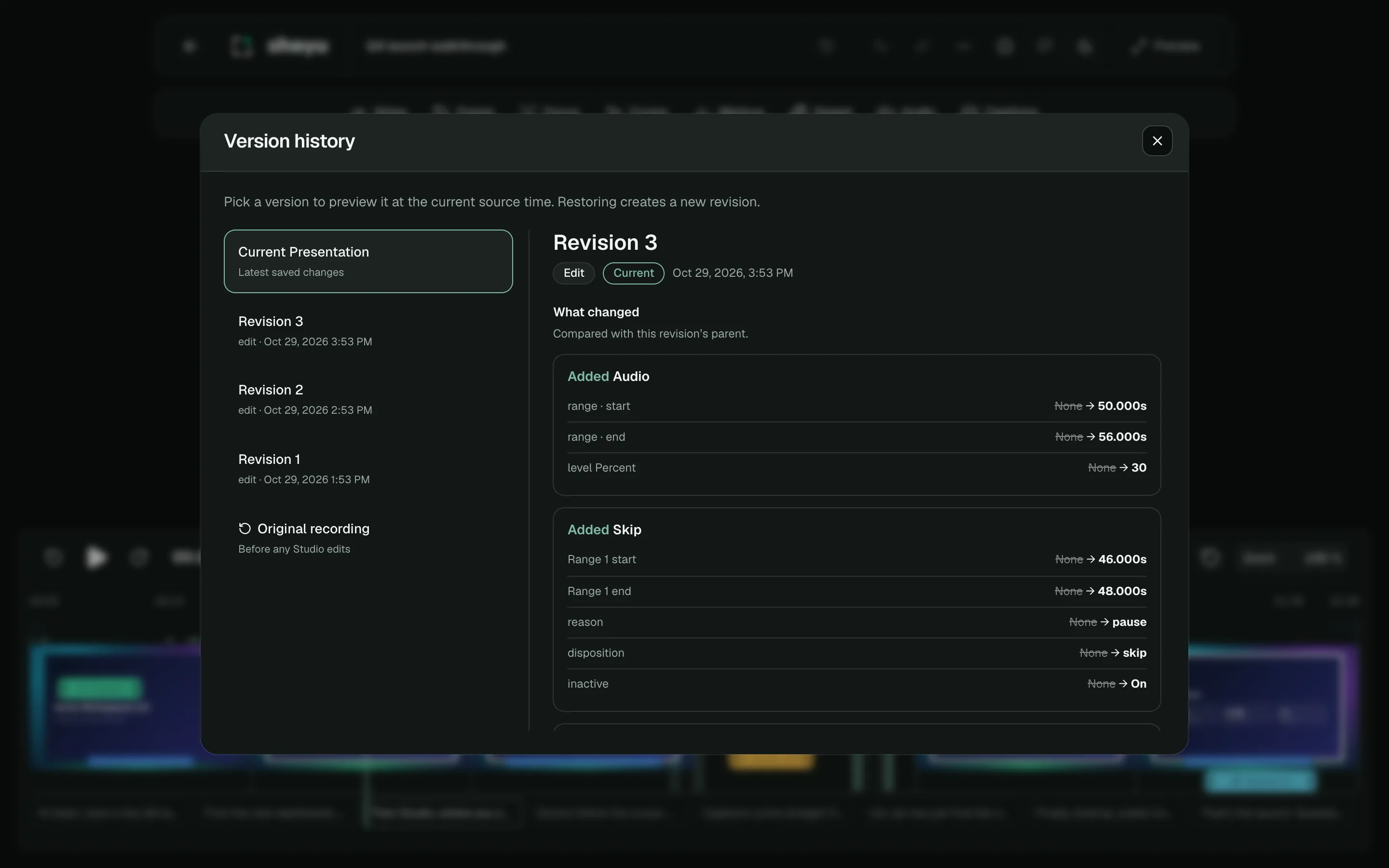
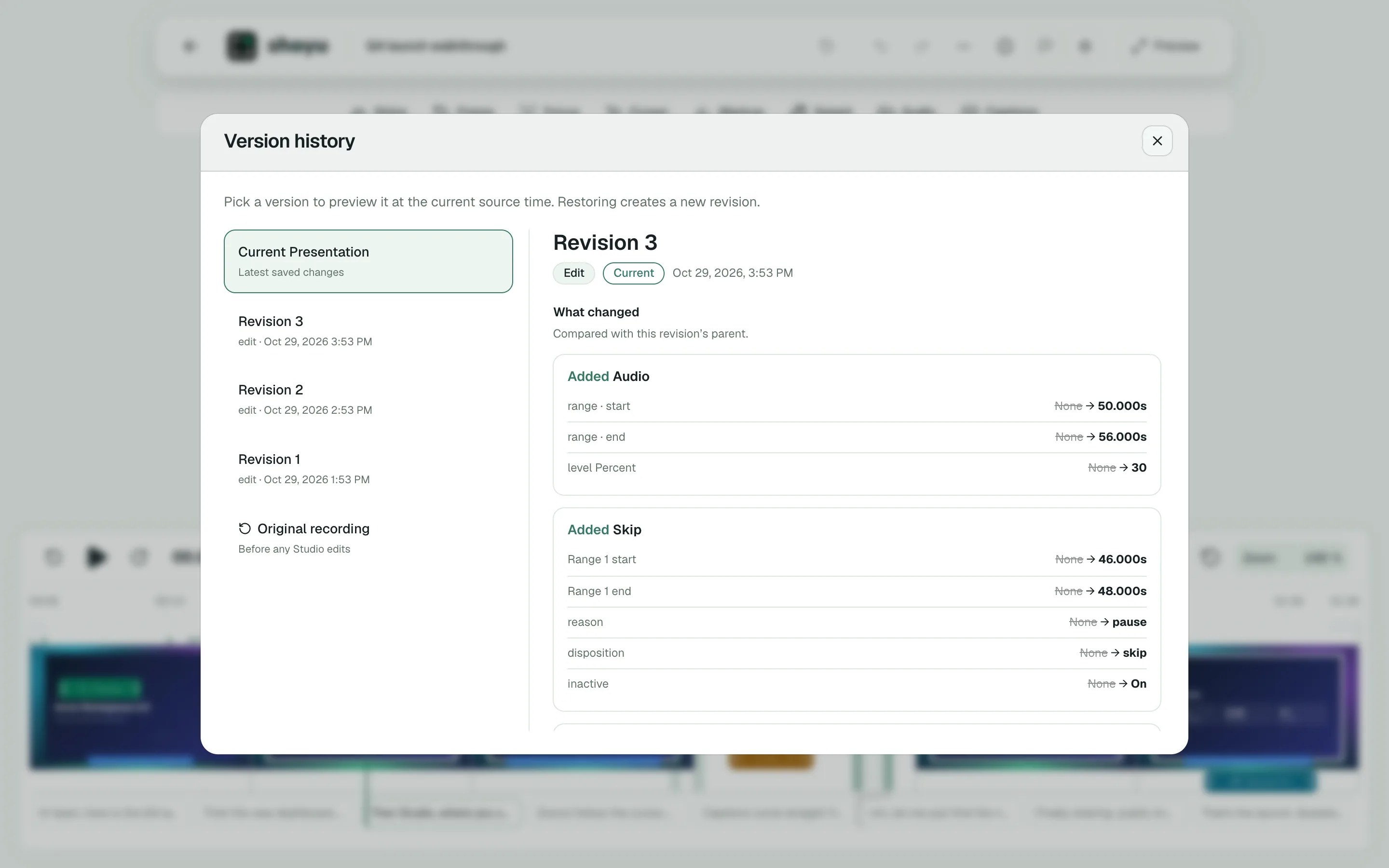
- Click Version history in the header.
- Choose a version to see what changed.
- Click Restore revision to go back to it, or choose Original recording and Restore original to remove every edit.
Restoring adds a new version, so you can always go forward again.
Related guides
Still stuck? Write to hello@shoyu.cc. A person answers.