Fix Mac permissions
Give Shoyu the macOS permissions it needs to record your screen, clicks, microphone and camera.
Check what is missing
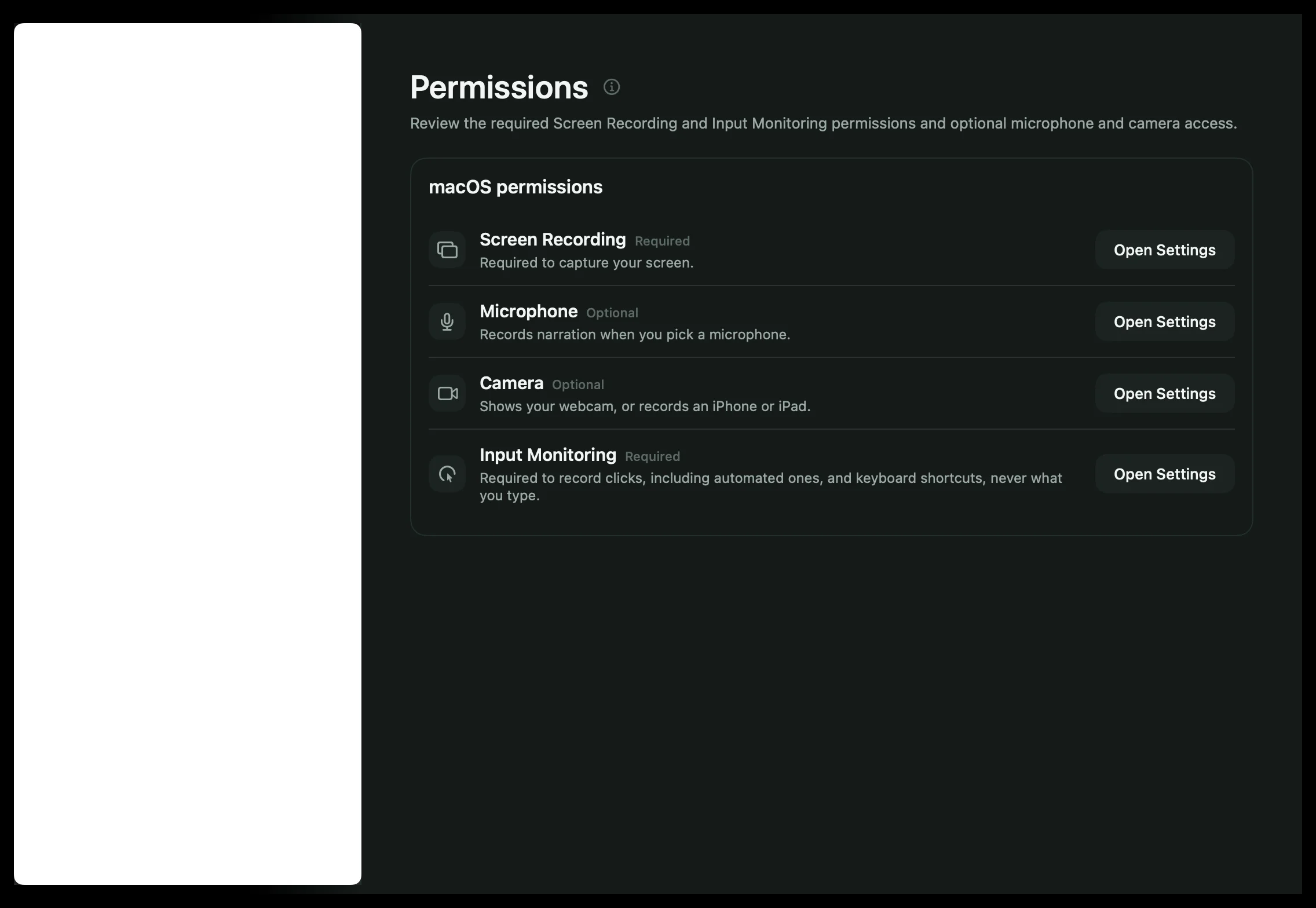
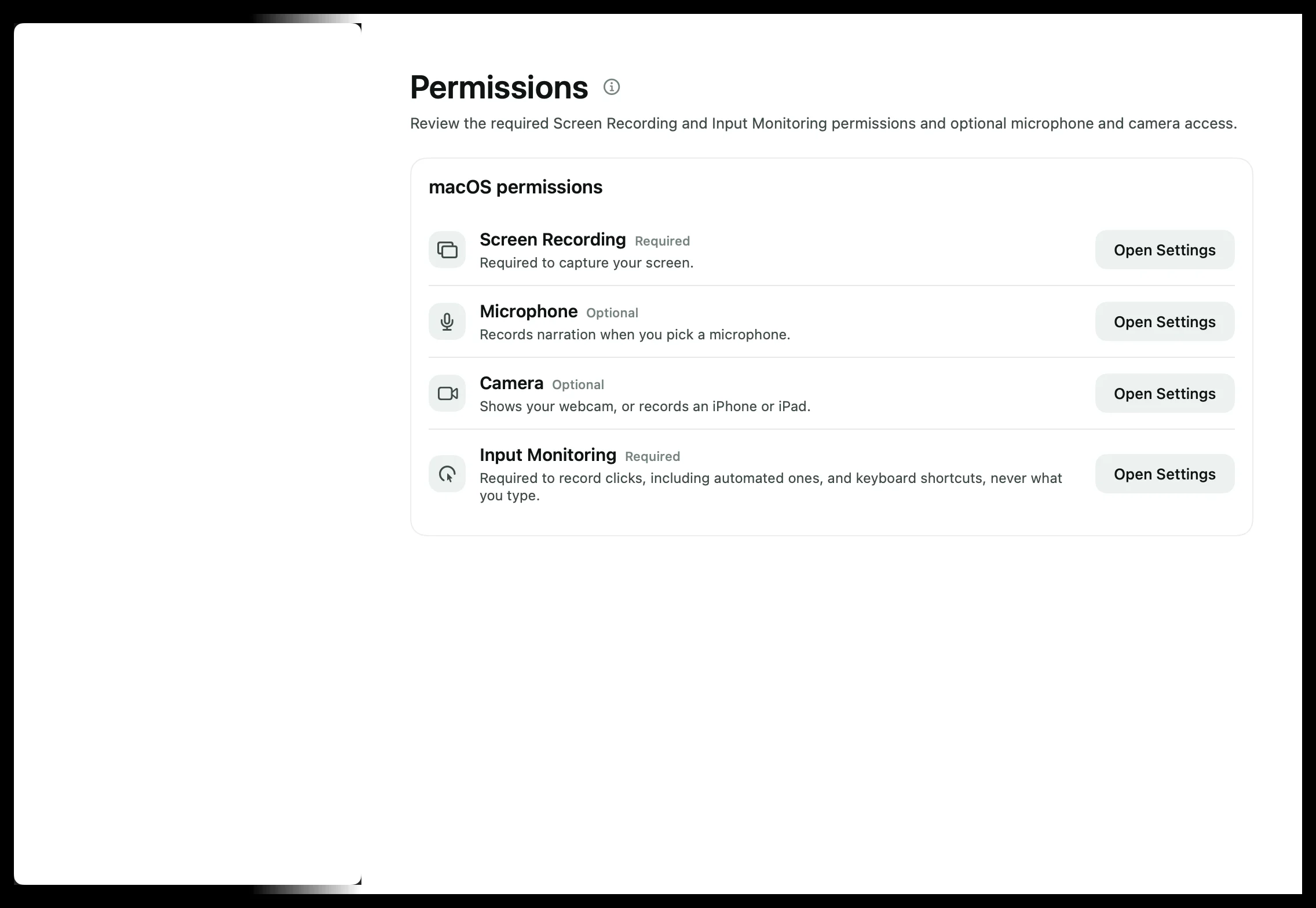
Open Settings › Permissions in the Mac app. Each permission shows whether it is allowed. If Screen Recording or Input Monitoring is missing, the Library also shows Permission update required.
Allow Screen Recording or Input Monitoring
- Click Open Settings beside the permission. macOS opens System Settings › Privacy & Security.
- Turn on Shoyu in the list. If it is not there, drag Shoyu in from the helper window.
- Go back to Shoyu and click Relaunch Shoyu.
macOS only applies these two permissions after Shoyu restarts. Until then the Library says Relaunch Shoyu to apply.
Allow the microphone or camera
Click Request microphone or Request camera and allow it. If you said no before, the button says Open Settings instead: turn Shoyu on in System Settings › Privacy & Security › Microphone or Camera.
If Shoyu is on but still blocked
In System Settings, turn Shoyu off and on again, then relaunch Shoyu. Make sure the Shoyu in the list is the one in your Applications folder.
Related guides
Still stuck? Write to hello@shoyu.cc. A person answers.