Skip parts of a recording
Hide pauses, mistakes and dead air with Skips, and review the cleanup suggestions Shoyu finds.
Skip a range
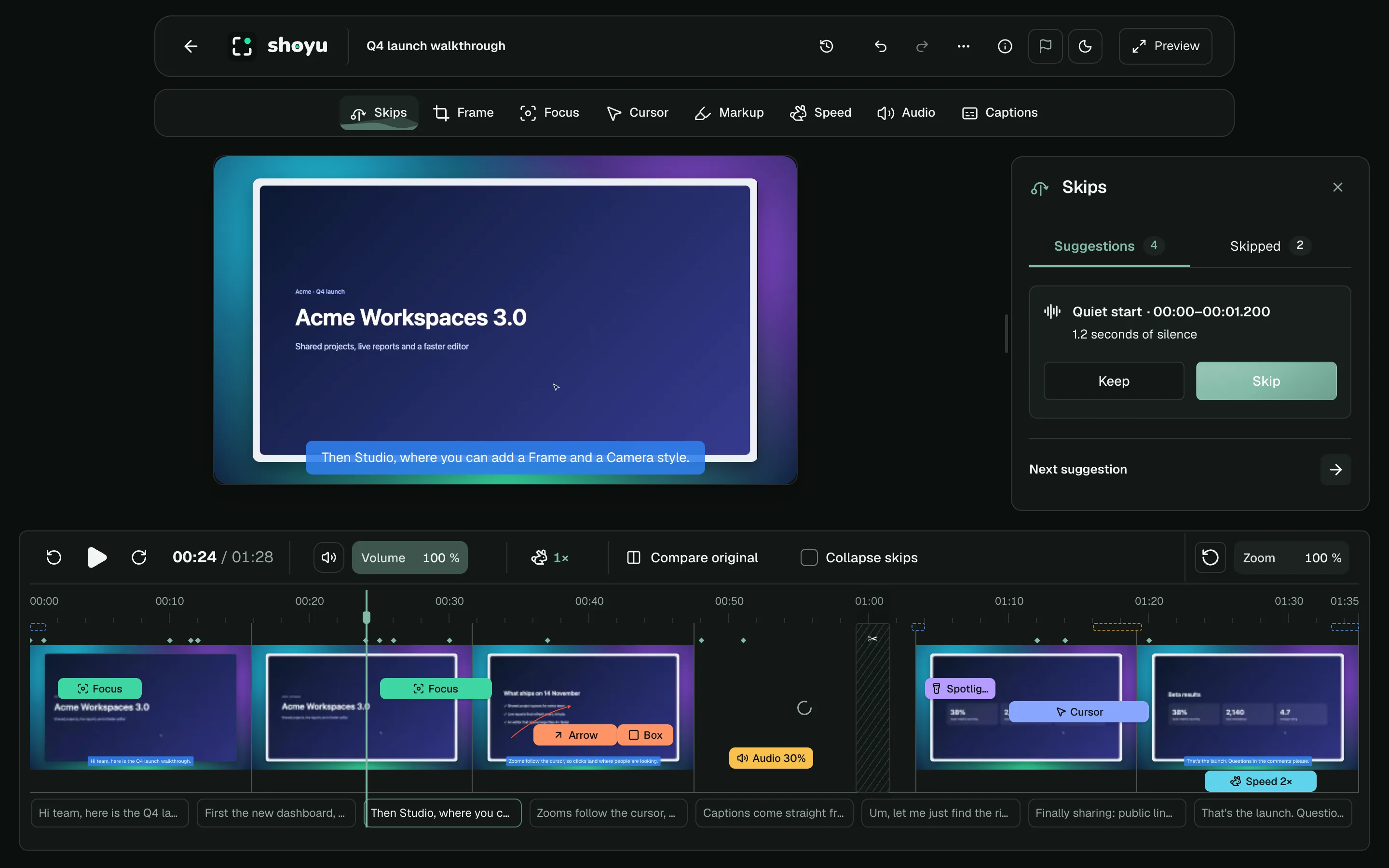
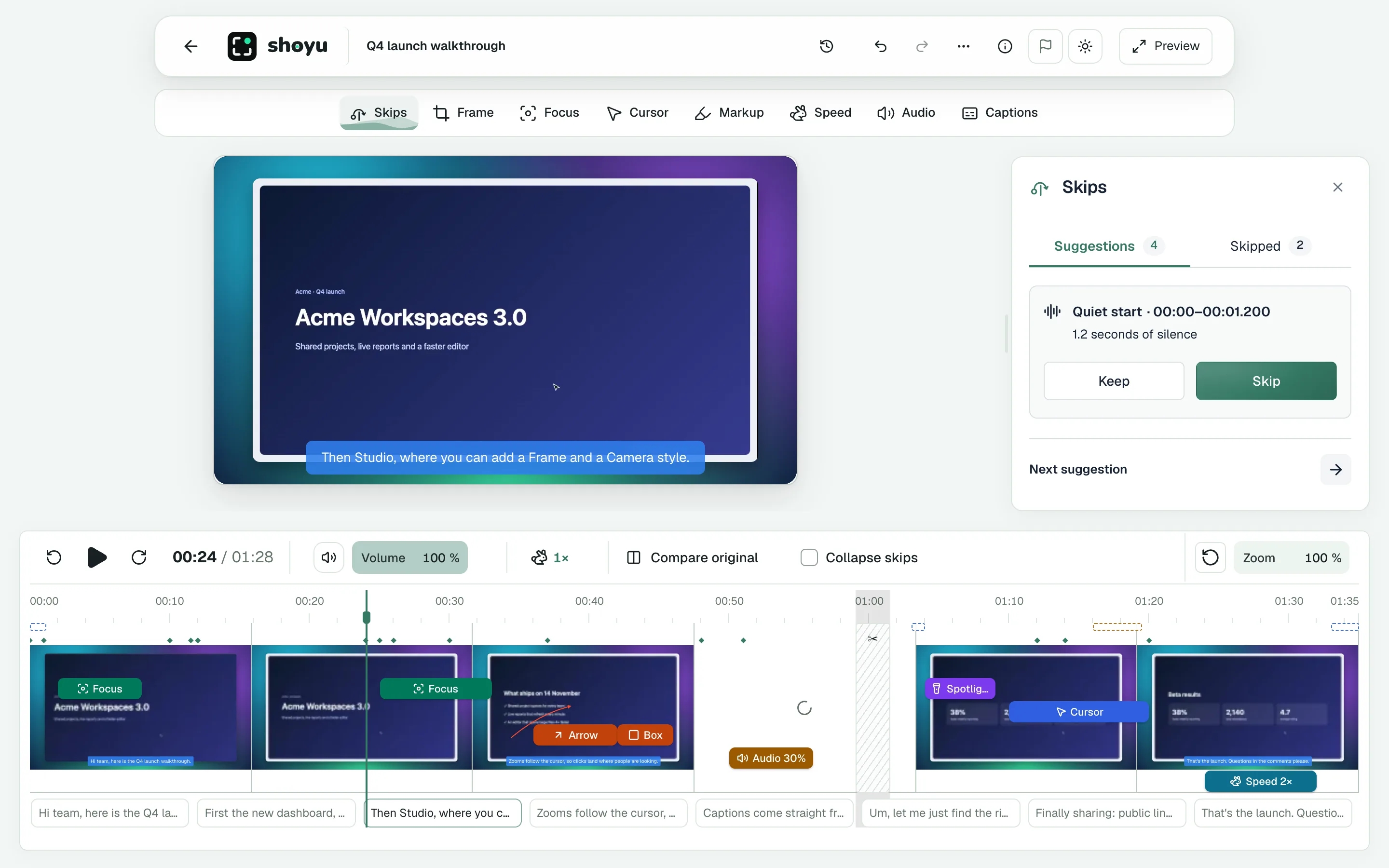
- Hold ⇧ and drag across the part to skip on the filmstrip.
- Choose Skip.
The range is crossed out on the filmstrip and viewers jump over it. Skips only hide time. Nothing is deleted, and viewers can still watch the original.
Adjust a skip
Open Skips and choose a skip. Set Start at and End at, or use Start at playhead and End at playhead. Split here divides a skip at the playhead, and Add a skip at the playhead starts a new one.
Audio fades smooths the sound at each skip: Off, 50, 150 or 300 ms. The default is 50 ms.
Review cleanup suggestions
Shoyu suggests pauses and filler words to skip. When it has some, they show as dashed marks along the top of the filmstrip.
- In Skips, open Suggestions.
- For each one, click Play around it (Space) to hear it.
- Click Skip (S) or Keep (K). Skip and adjust lets you change the range first.
- Use ↑ and ↓ to move between suggestions.
To accept every clear-cut suggestion at once, click Skip all. The button says how many.
See the edit without skips
Turn off Collapse skips under the video to play through skipped ranges while you edit.
Related guides
Still stuck? Write to hello@shoyu.cc. A person answers.