Use your camera
Show your webcam in a recording, move and resize it, and give it a Camera style.
Turn on your camera
- In the Control Deck, click Camera and choose a camera.
- A camera preview appears over the area you are recording. Drag it to where you want it.
- Use the corner control to resize it.
The buttons on the preview open Camera style, the macOS video effects and Flip camera. During a recording, you can pause the camera with Pause webcam overlay, or by saying “shoyu camera”.
Choose a Camera style
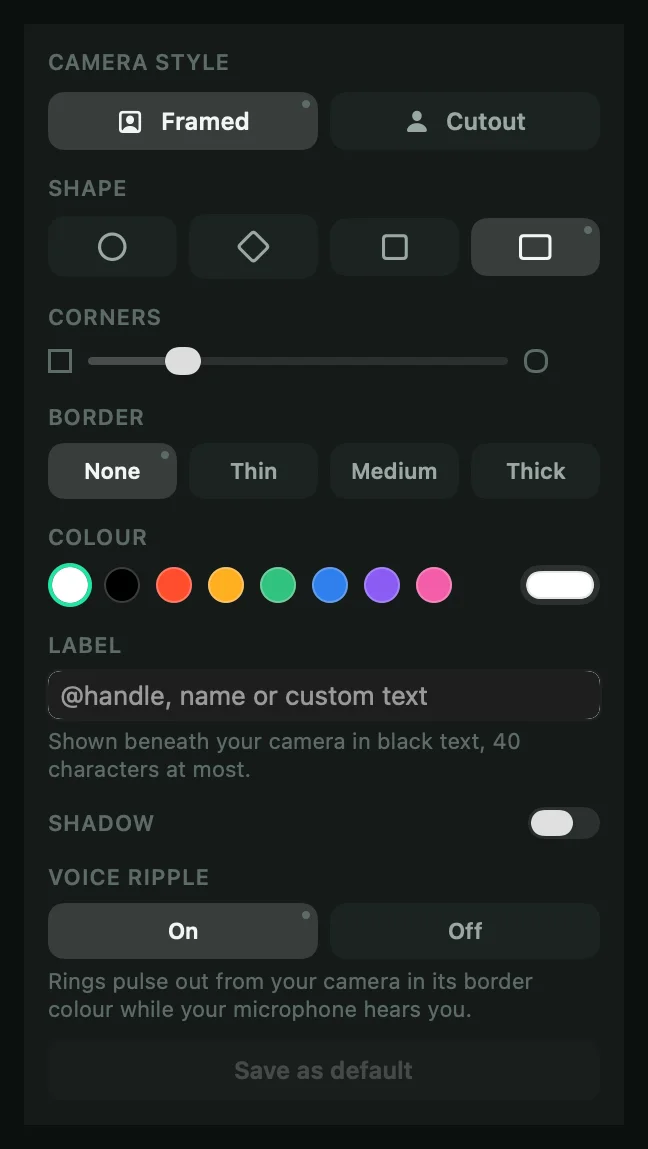
Click the paintbrush on the preview. Your choices apply to this recording.
| Setting | Choices |
|---|---|
| Framed or Cutout | Framed puts you in a shape. Cutout removes your background and shows only you. |
| Shape | Circle, Rhombus, Square or Rectangle (the default). |
| Corners | How round the corners are. |
| Border | None, Thin, Medium or Thick, in any Colour. |
| Label | Up to 40 characters under you, such as your name. Framed only. |
| Camera shadow | A shadow behind the camera, with opacity, blur, distance and angle. |
| Voice ripple | Rings that pulse from the camera while you speak. Framed only. |
Turn on Save as default to keep the style for future recordings. You can also set it in Settings › Recording.
If the camera does not start
If Shoyu says Camera permission is off, click Open Camera Settings and allow Shoyu. If another app is using the camera, close it and try again.
Related guides
Still stuck? Write to hello@shoyu.cc. A person answers.