Record an iPhone or iPad
Connect an iPhone or iPad by cable and record its screen and sound from your Mac.
Connect the device
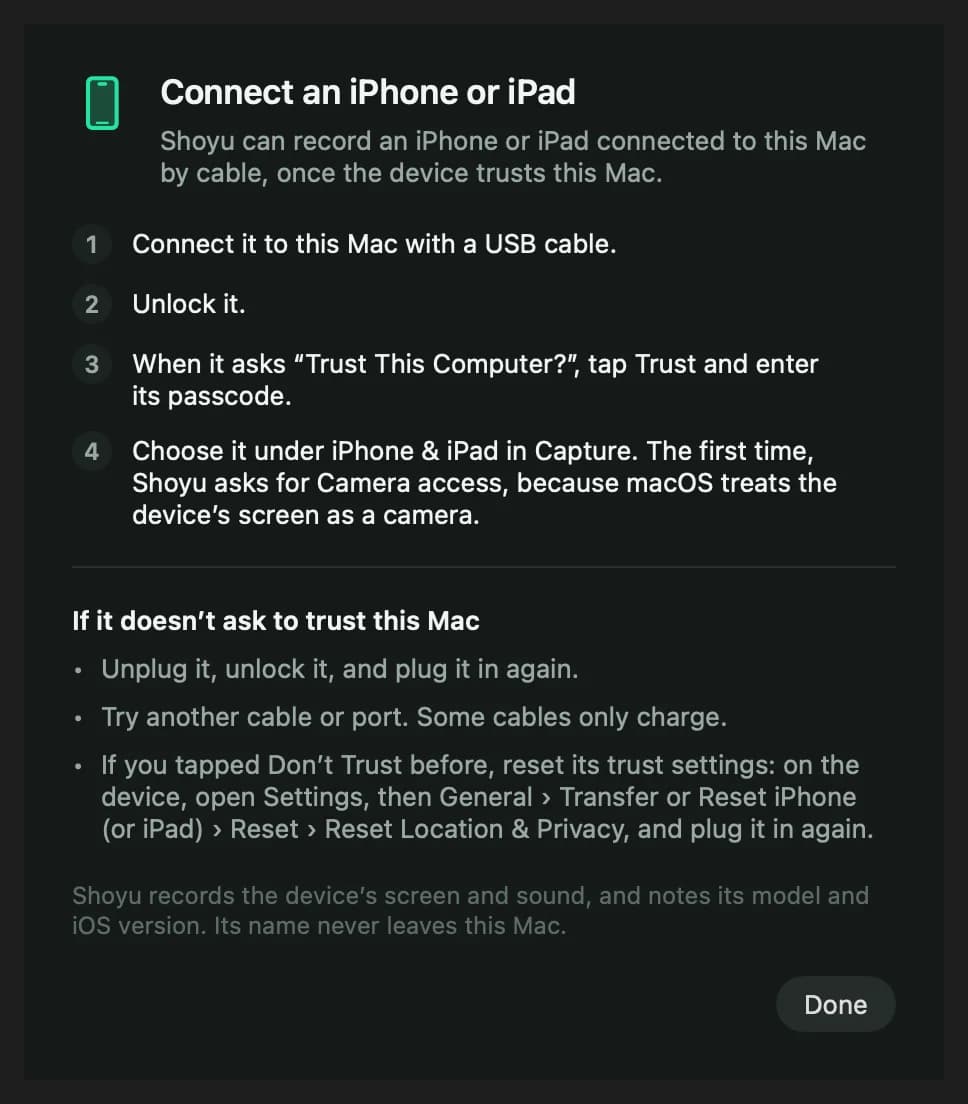
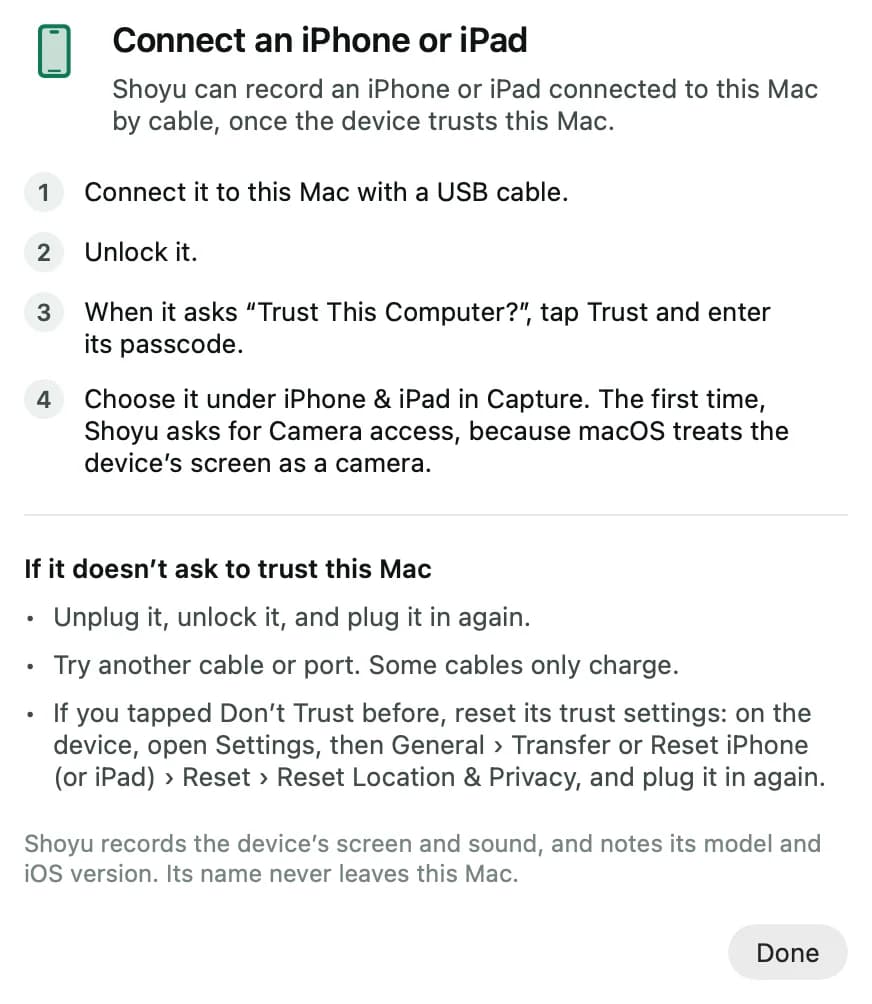
- Connect the iPhone or iPad to your Mac with a cable.
- Unlock it. When it asks, tap Trust.
- In the Control Deck, click Capture and choose the device under iPhone & iPad.
- Allow camera access if Shoyu asks. macOS treats the device’s screen as a camera.
For these steps on your Mac, click the question mark beside Record an iPhone or iPad. If the device never asks to trust, unplug it and plug it in again, or try another cable.
While you record a device
- Your Mac’s camera is off, because the device is the recording.
- The System Audio tile becomes iPhone Audio or iPad Audio and records the device’s sound.
- If the cable comes out, Shoyu pauses. Plug it back in to continue, or click End Recording.
Device logs and vitals
In the Context panel, Device logs records the device’s own logs and Device vitals records its CPU, memory and battery. Viewers find them on the recording’s Device tab. Secrets in logs are masked.
Related guides
Still stuck? Write to hello@shoyu.cc. A person answers.