Share a recording
Choose who can watch a recording, from only you to anyone with the link, and copy its link.
Copy the link
Shoyu copies a recording’s link when you stop recording. To copy it again, use the address bar on the Playback page, right-click the video and choose Copy video URL, or hover a recording in the Mac app’s Status Panel and choose Copy Playback Link.
On a Public recording, click Share beside Comment at under the video. The button says Link copied once the link is on your clipboard. The Public link also shows under Anyone with the link when you choose Public, with a copy button beside it.
A link does not give access by itself. Who can open it depends on the recording’s visibility.
Choose who can watch
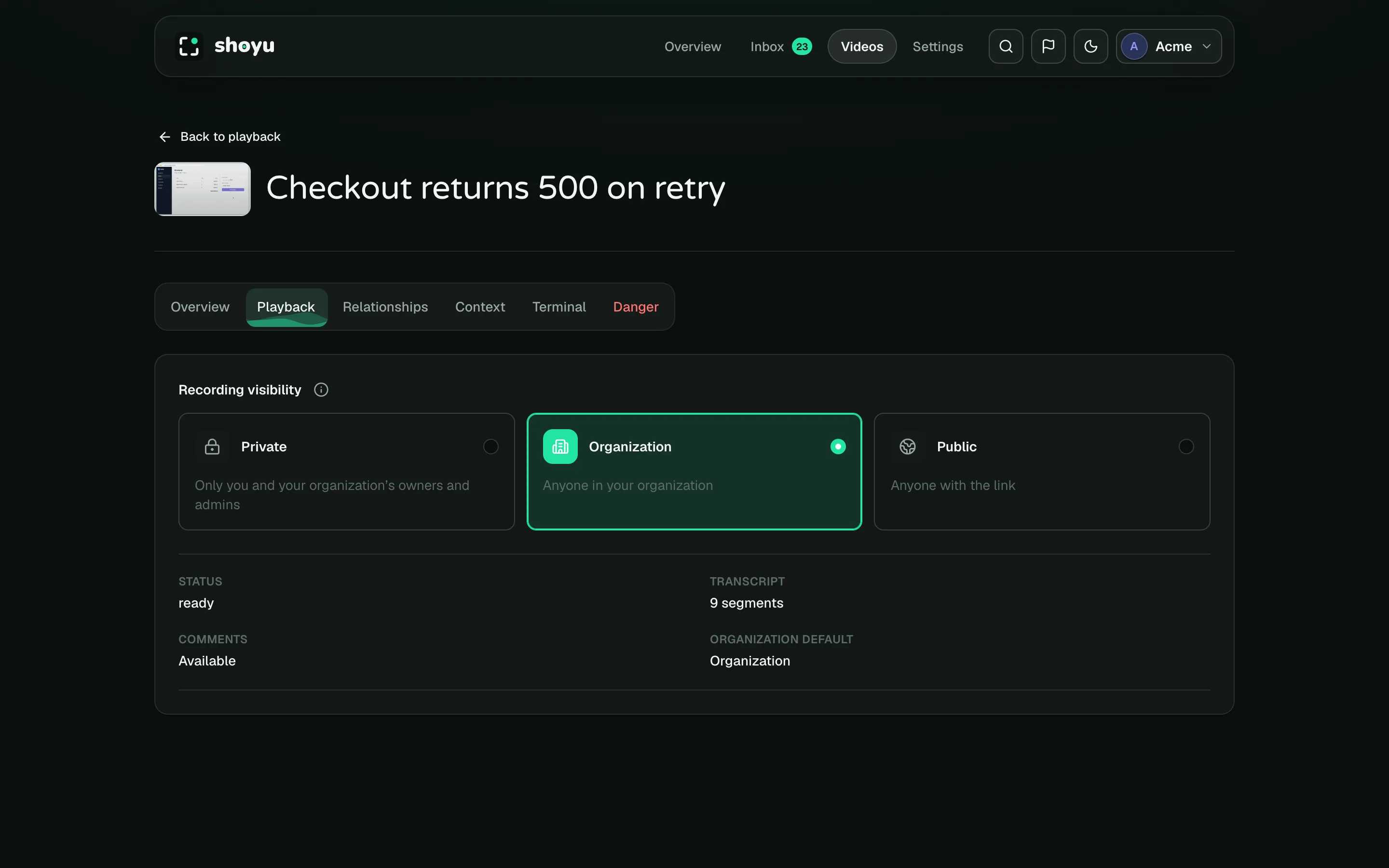
- On the Playback page, click Configure video.
- Open the Playback tab.
- Choose a visibility.
| Visibility | Who can watch |
|---|---|
| Private | Only you and your organization’s owners and admins. |
| Organization | Anyone in your organization. |
| Public | Anyone with the link, signed in or not. |
Choosing Public asks you to confirm with Make Public. Public viewers can watch, read comments and the transcript, and see context. They cannot see Deep Context network details or Stats, and they cannot comment or react.
Who can change visibility
The recording’s owner, and the organization’s owners and admins. New recordings start with the organization’s default visibility.
If someone cannot open your link
Shoyu shows a not-found page to anyone who cannot watch a recording. It never says whether the recording exists, so check the visibility and that they are a member of your organization.
Related guides
Still stuck? Write to hello@shoyu.cc. A person answers.