Change the cursor and click highlights
Swap the pointer for a cleaner one, smooth its movement, and highlight clicks.
Style the pointer
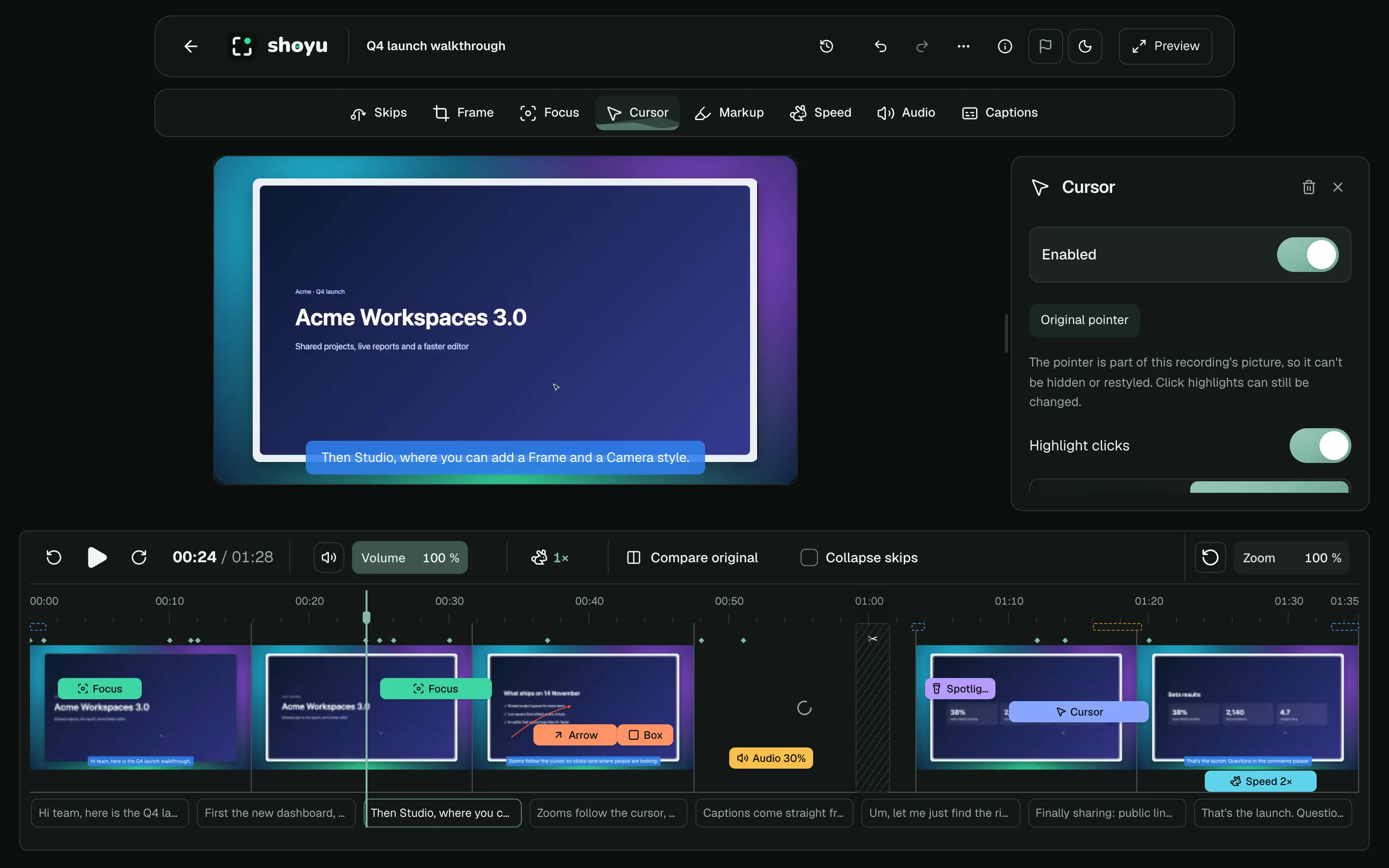
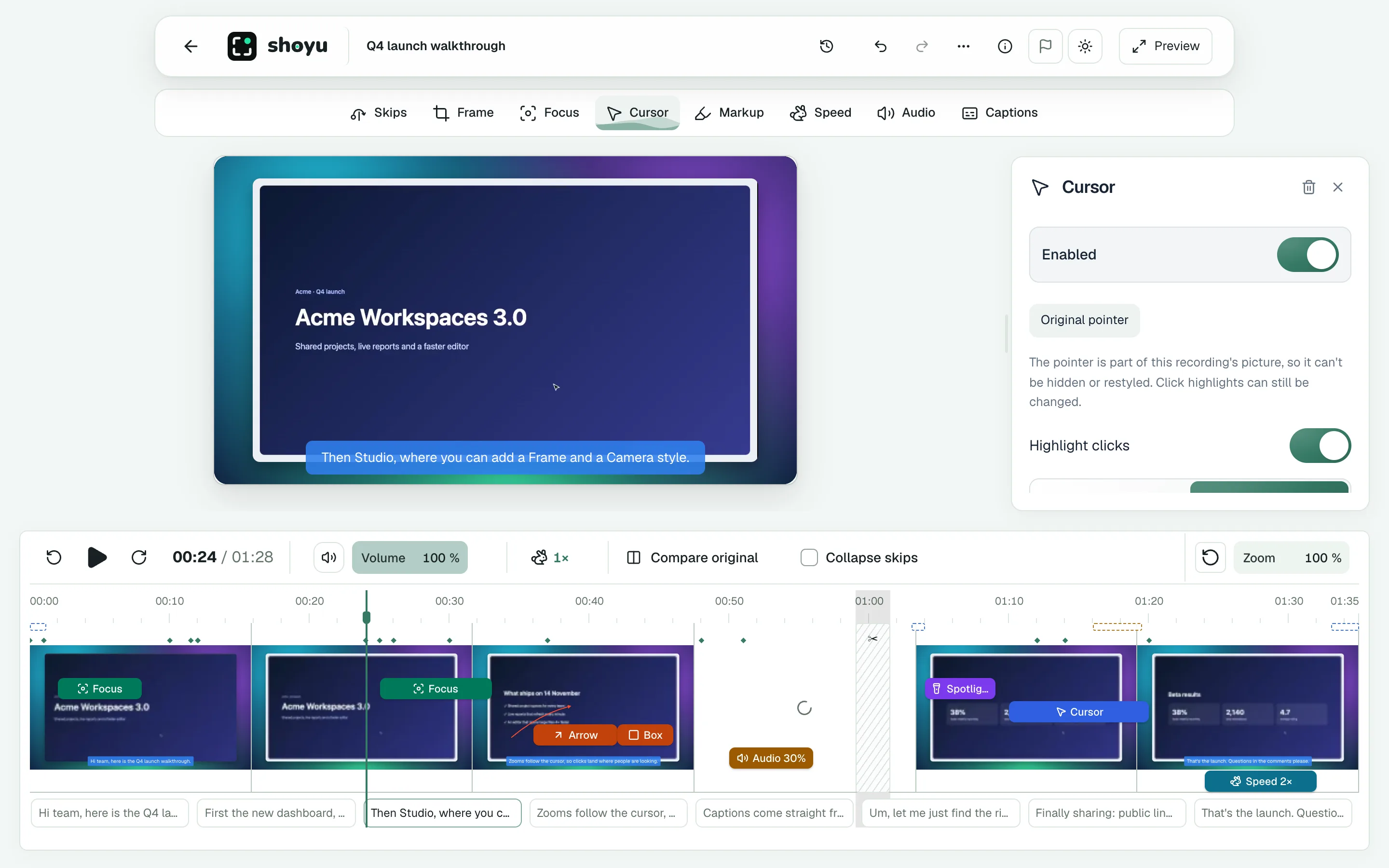
- Choose Original to keep the pointer as recorded, Shoyu for a cleaner one, or Hidden.
- The Shoyu pointer comes as an Arrow, a Dot, a fish, a Gold arrow, a Top hat, a Rocket or a Wand, from 100% to 300% in size. A moving Rocket or Wand leaves a trail.
- Choose a Pointer colour to repaint the Arrow, the Dot or the Top hat’s arrow.
- Turn on Smooth movement to steady a shaky pointer.
- Turn on Highlight clicks for a ring or ripples on every click, in your chosen colour.
Shoyu records the pointer separately from the video, which is why you can change it afterwards. Recordings of an iPhone or iPad have no pointer.
Use the same pointer on every recording
- Style the pointer the way you like it, then choose Save as preferred.
- Your recordings start with that pointer and click highlight until you choose another one in Studio.
- To turn it off, open Cursor on a recording that shows it and choose Stop using as preferred.
Only recordings you own follow your preferred pointer. On a recording where the pointer is part of the picture, only the click highlight changes.
Related guides
Still stuck? Write to hello@shoyu.cc. A person answers.