Change Mac app settings
Find every Mac app setting, from uploads and Camera style to storage, shortcuts and diagnostics.
Open Settings
Click the Shoyu menu bar icon, open More, and choose Settings…. Or press ⌘, in any Shoyu window. Use the search field in the sidebar to find a setting by name. Most section titles have an ⓘ beside them that opens the guide for that section in your browser.
What each section holds
| Section | Settings |
|---|---|
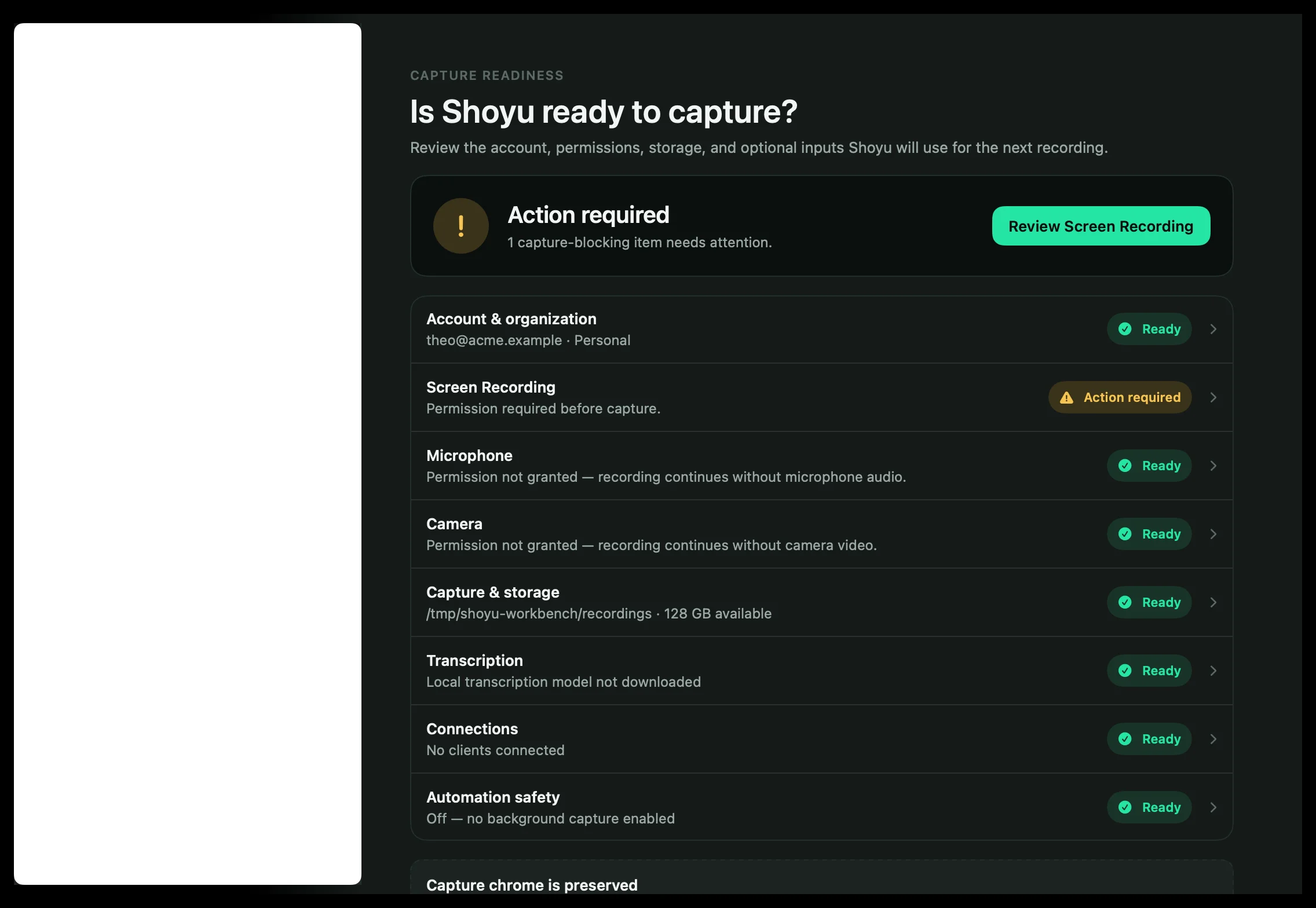
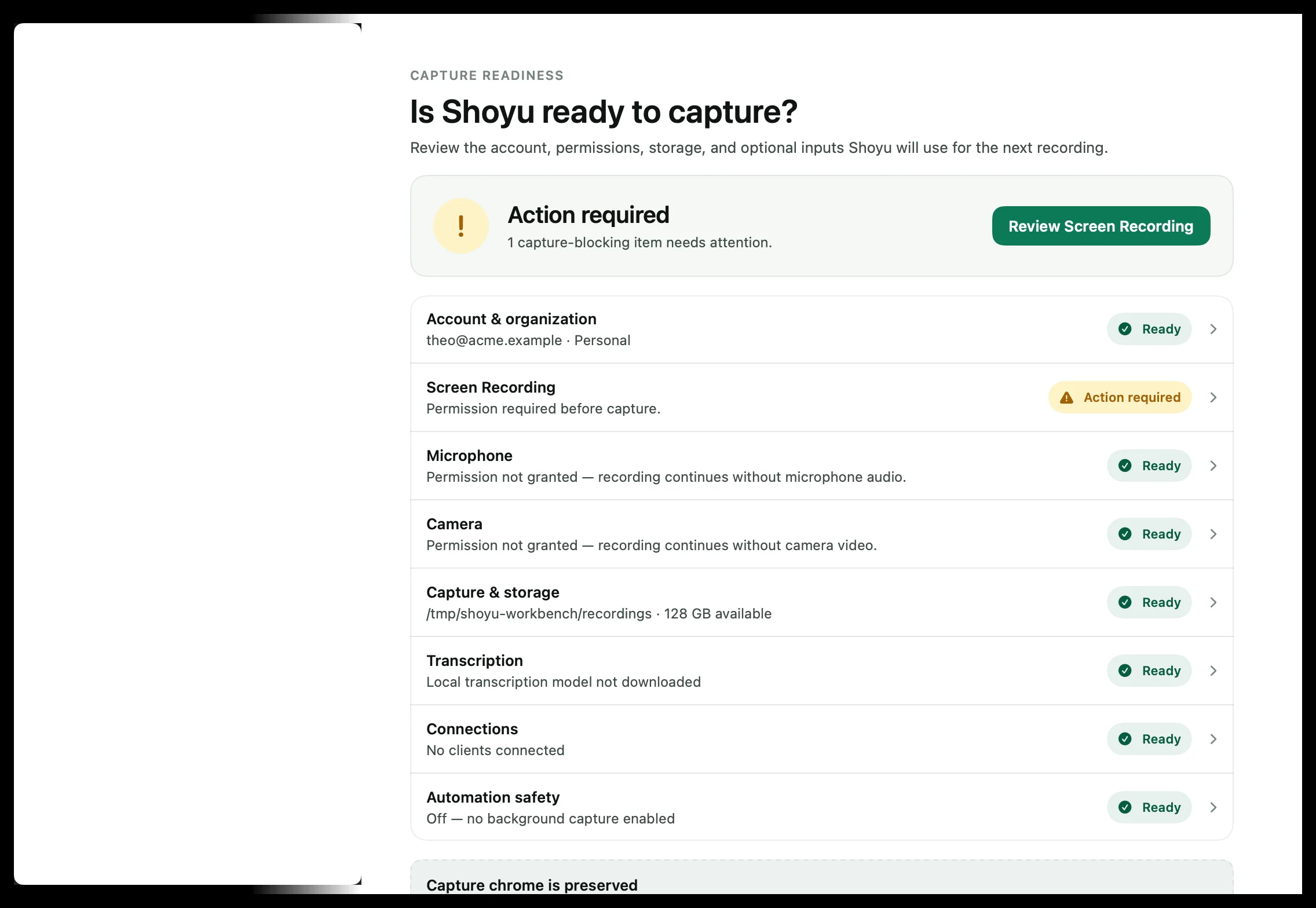
| Overview | Whether Shoyu is ready to capture, and a button to fix the first problem. |
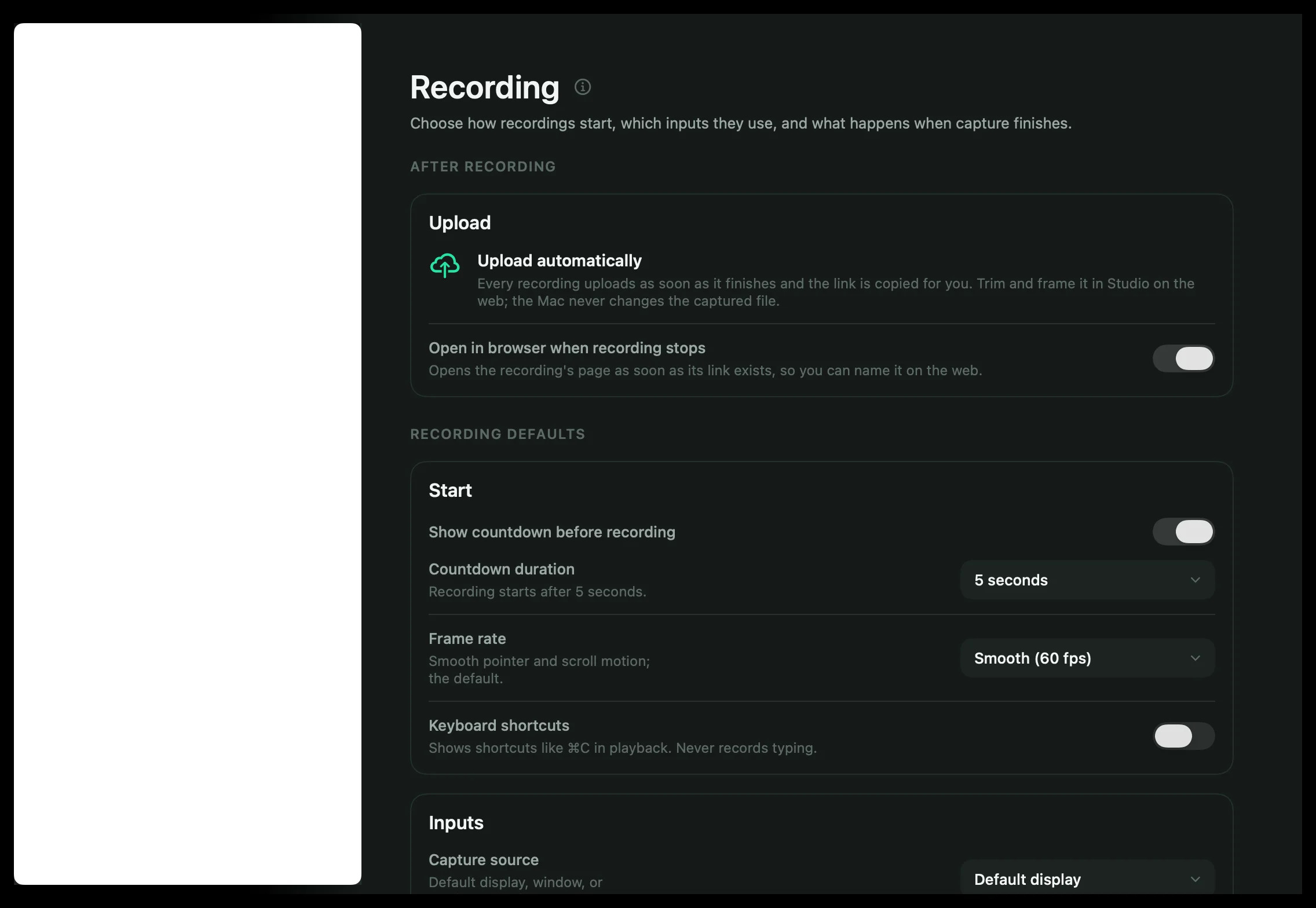
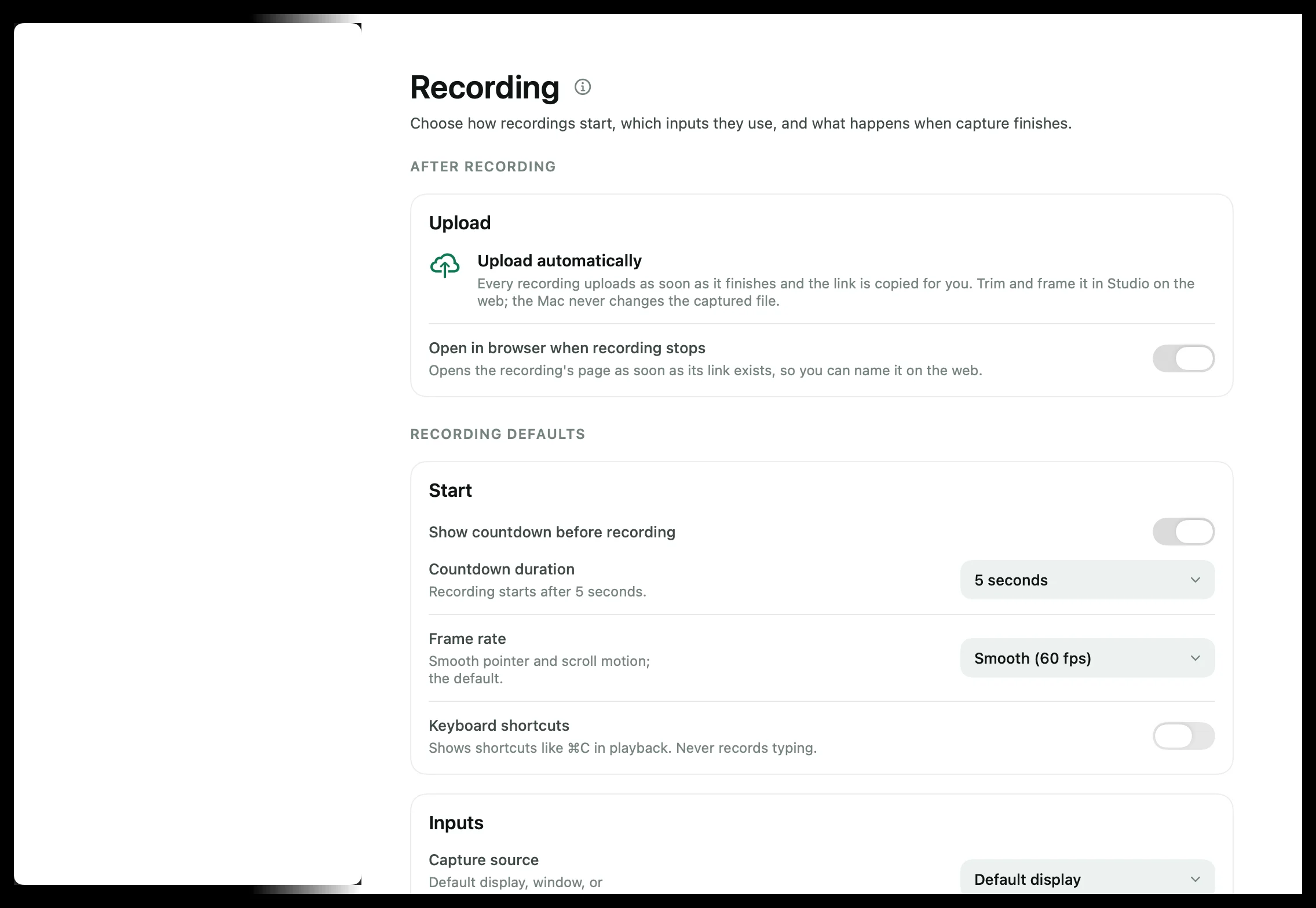
| Recording | Upload automatically, Open in browser when recording stops, countdown, frame rate, keyboard shortcuts, capture source, organization, audio, camera and Camera style. |
| Quick Capture | Frame rate, Show clicks and the watermark corner. |
| Connections | Browser, IDE and terminal clients you have approved or denied. |
| Permissions | The macOS permissions Shoyu uses, and their state. |
| Account & Privacy | Who you are signed in as, Sign Out, the access you granted, and Help improve Shoyu. |
| System & Storage | Show intro tips, theme, Launch at startup, the shoyu command, the recordings folder, Warn when free space is below, the transcription model and Export diagnostics. |
| Automation | Whether agents can record, and their limits. See Let an agent record its work. |
| Shortcuts | Your global shortcuts. See Keyboard shortcuts. |
Sign out of the Mac app
In Settings › Account & Privacy, click Sign Out. Your local recordings stay on your Mac. Recordings you make while signed out are not uploaded later by themselves.
Related guides
Still stuck? Write to hello@shoyu.cc. A person answers.