Review and revoke access to your account
See every browser, Mac app, command line and agent signed into your account, and sign any of them out.
See what has access
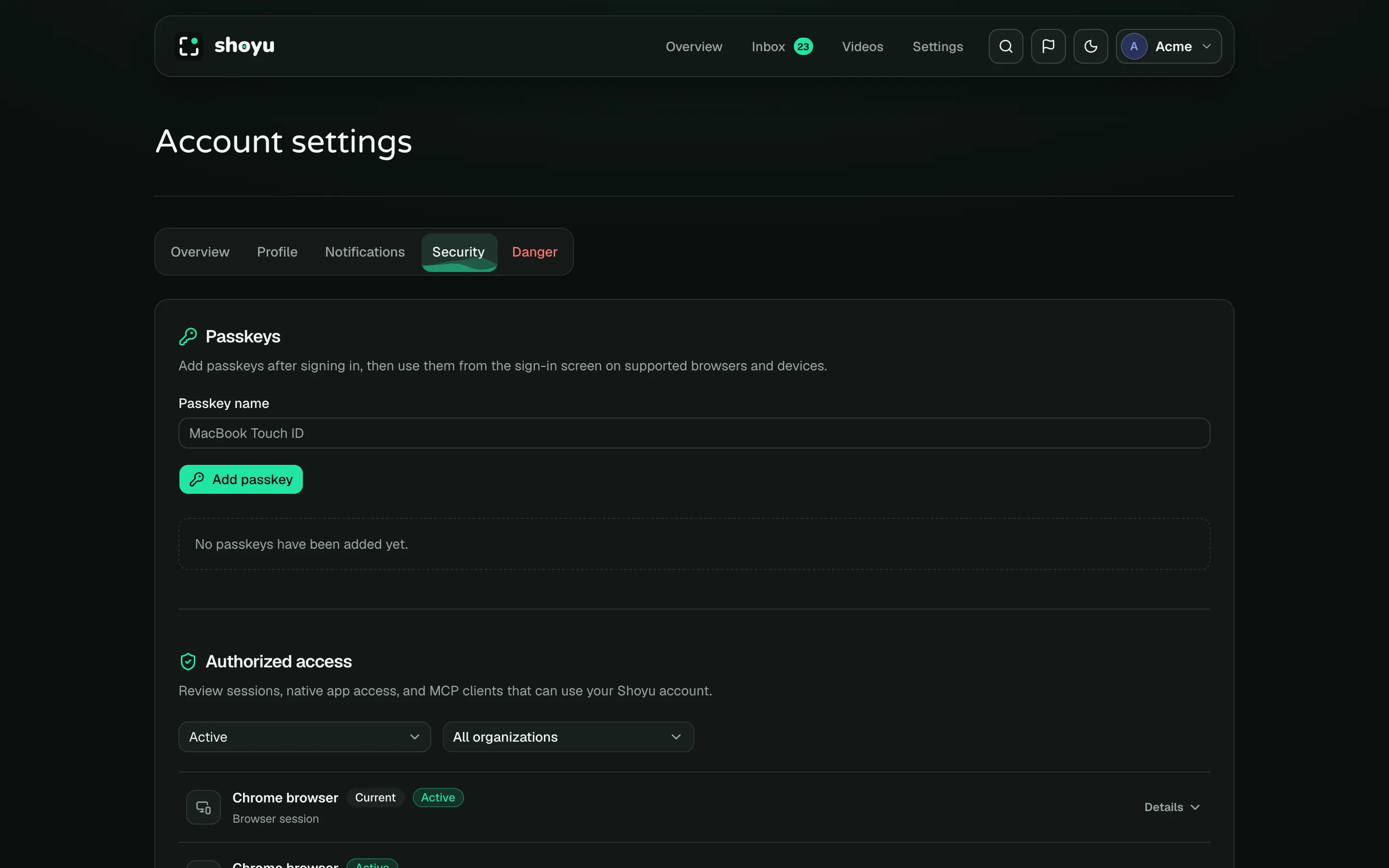
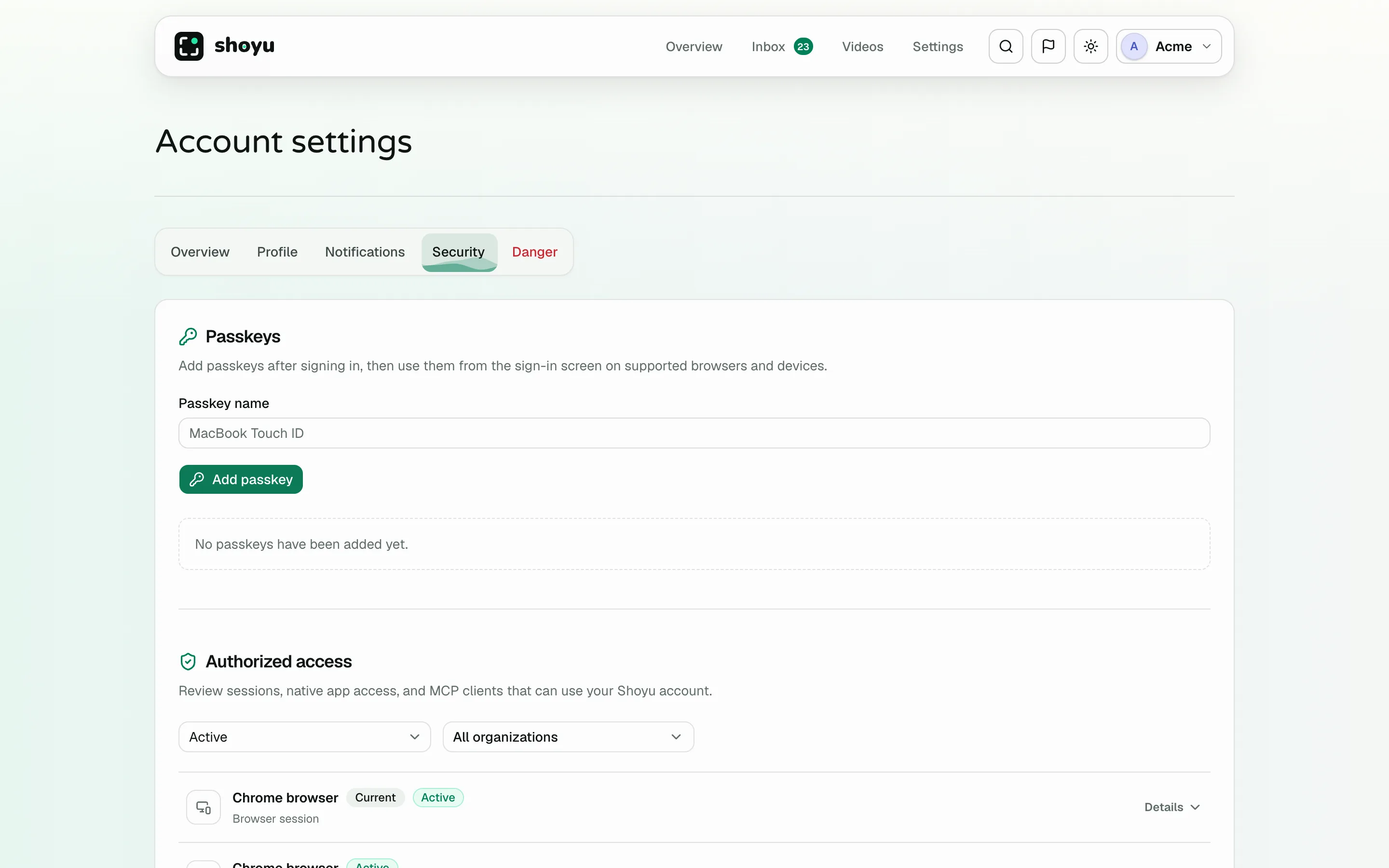
Open Account, then Security. Authorized access lists your browser sessions, the Mac app, the shoyu command, the IDE extension and MCP agents. Click Details to see which organizations each one can use.
Sign something out
Click Revoke access on any row. It loses access straight away. Logout on the current row signs out this browser.
To change which organizations an app can use, revoke it, then sign it in again and choose the organizations.
Approving a new sign-in
When the Mac app, the shoyu command or an agent signs in, your browser shows a page asking you to authorize it. Only continue if you started the sign-in yourself, a moment ago. Choose its organizations, then click Authorize, or Deny.
Related guides
Still stuck? Write to hello@shoyu.cc. A person answers.