Open the recorder
Open the Control Deck from the menu bar, a shortcut or the Library, and learn what each tile does.
Ways to open it
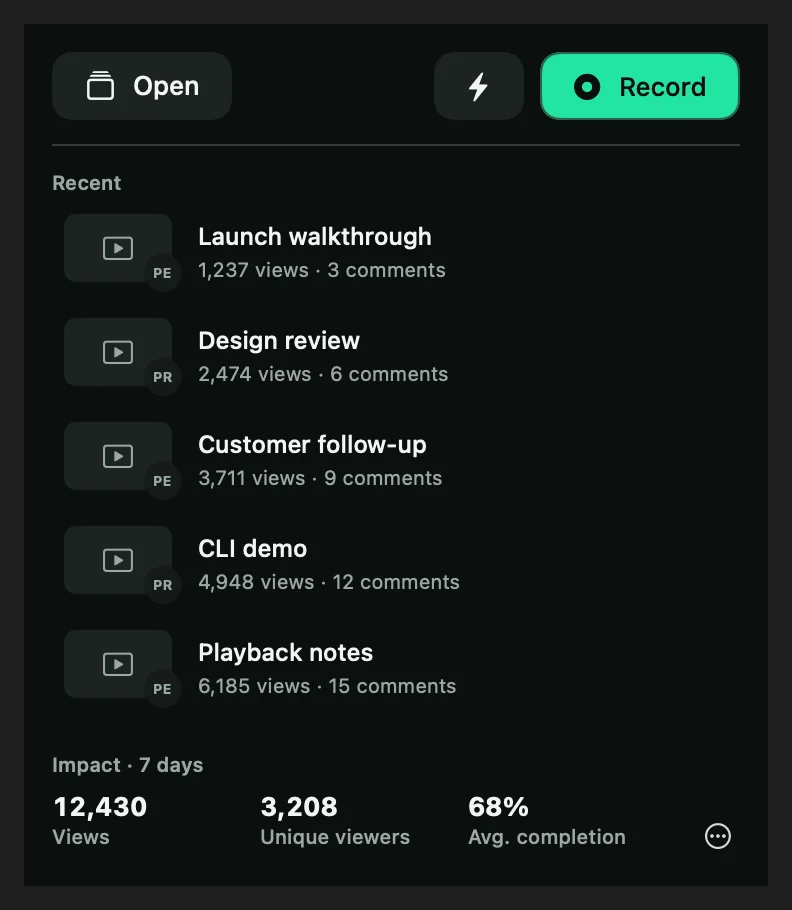
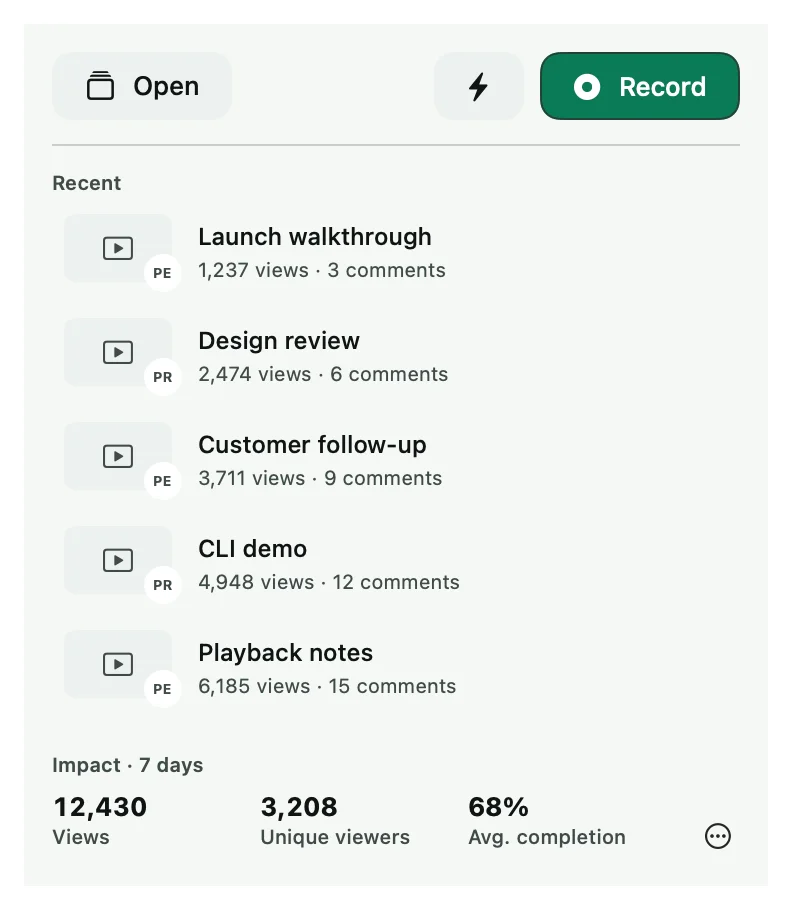
- Click the Shoyu icon in the menu bar, then Record.
- Press ⌥⇧R anywhere. Press it again to close the Control Deck. It never stops a recording.
- In the Library, click New recording.
- From the browser extension, the IDE extension, or
shoyu recordin a terminal.
The Control Deck
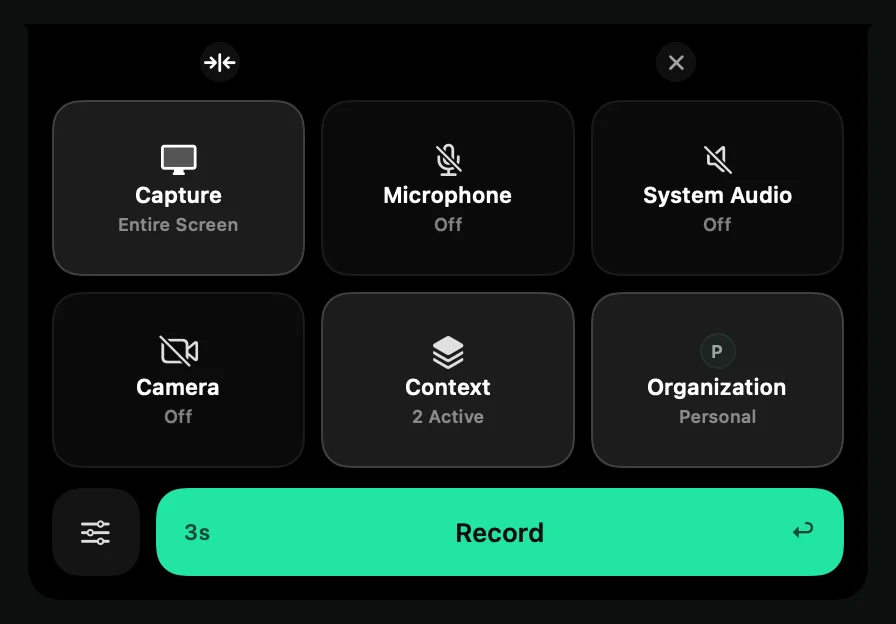
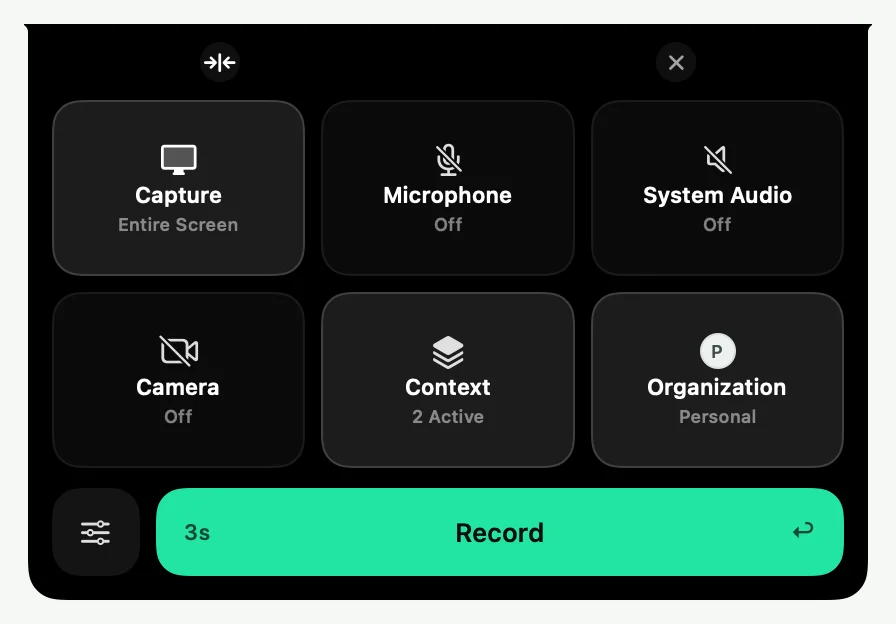
The Control Deck opens at the top centre of your screen. Each tile sets up one part of the recording.
| Tile | What it sets |
|---|---|
| Capture | What to record: a window, a display, a portion of the screen, a browser tab or a connected iPhone or iPad. See Choose what to record. |
| Microphone | Which microphones to record. None is picked until you choose one. |
| System Audio | Sound from your Mac, such as a video you play. Off until you turn it on. |
| Camera | Your webcam and its Camera style. See Use your camera. |
| Context | Which kinds of context Shoyu records with this recording. See Choose which context Shoyu records. |
| Organization | Where the recording is uploaded. Organizations that cannot take new uploads are dimmed. |
The options button beside Record holds frame rate, countdown and keyboard shortcut settings. The chevron expands or collapses the deck, and the X closes it.
Start recording
Click Record, or press ↩ when no selector is open. If Record is greyed out, hold the pointer over it to see why. For example, the selected window may have closed, or the organization cannot hold the recording.
Related guides
Still stuck? Write to hello@shoyu.cc. A person answers.