Use the Library on your Mac
Find, preview, upload and tidy the recordings saved on your Mac.
Open the Library
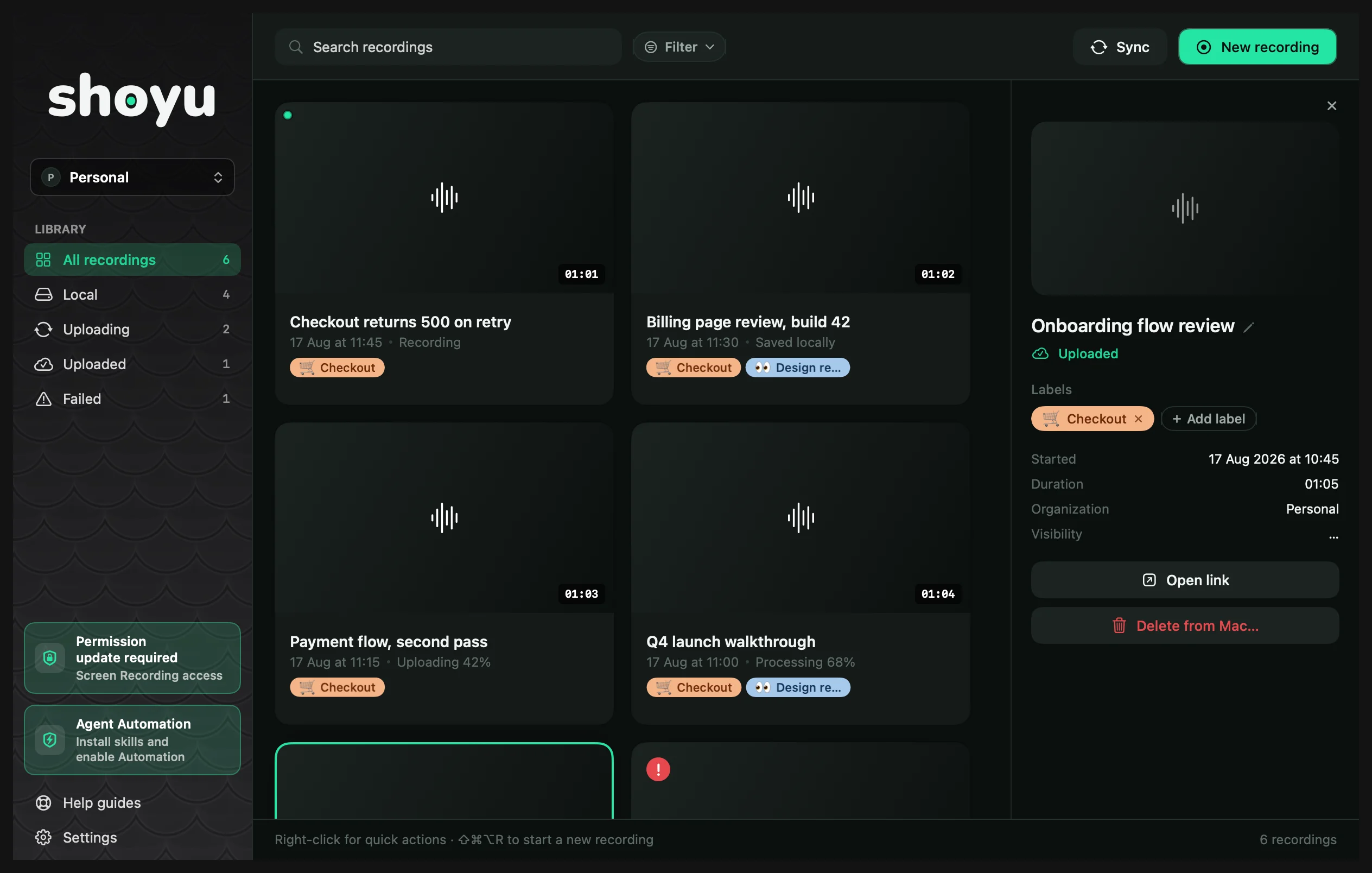
Click Open in the Status Panel, or press ⌥⇧B. The sidebar groups recordings into All recordings, Local, Uploading, Uploaded and Failed, and has an organization switcher at the top. Help guides, at the bottom above Settings, opens these guides in your browser.
Work with a recording
- Double-click a recording to open it: in your browser if it is uploaded, or in a preview window if not.
- Click the title in the details pane to rename it. New recordings are named by date and time.
- Add a coloured label or an emoji, then use Filter to show only those recordings.
- Right-click a recording for Play preview…, Upload, Reveal in Finder, Copy file path, Open link and Delete from Mac….
Sync with your account
Click Sync to check your Mac against Shoyu. It says Everything matches Shoyu., or lists what changed.
Free up space on your Mac
Right-click a recording and choose Delete from Mac…, then Move to Trash. This removes the file on your Mac only. The uploaded recording stays on Shoyu. To delete it there too, see Move, transfer or delete a recording.
To keep recordings somewhere else, change the Recordings folder in Settings › System & Storage.
Shoyu asks before it records when your Mac has less than 2 GB free. To change that level, pick a size in Warn when free space is below in Settings › System & Storage, or pick Off to stop the question. With less than 64 MB free, Shoyu does not start a recording.
Related guides
Still stuck? Write to hello@shoyu.cc. A person answers.