Install the browser extension
Add Shoyu Browser Context to Chrome, Chromium or Vivaldi and connect it to the Mac app.
Which browsers work
The extension connects to the Mac app from Chrome, Chromium and Vivaldi. Edge, Brave, Arc and Opera are next. The extension loads in them, but it cannot connect to Shoyu yet.
Install it
- Go to Download and click Download ZIP on the browser extension.
- Unzip it into a folder you will keep, such as
Applications/Shoyu Browser Context. The browser loads the extension from this folder, so do not delete it. - In your browser, open the Extensions page (
chrome://extensionsin Chrome) and turn on Developer mode. - Click Load unpacked and choose the folder that contains
manifest.json. - Pin Shoyu Browser Context to the toolbar so you can click it.
Connect it to Shoyu
- Make sure Shoyu is open on your Mac.
- Click the Shoyu button in the browser toolbar.
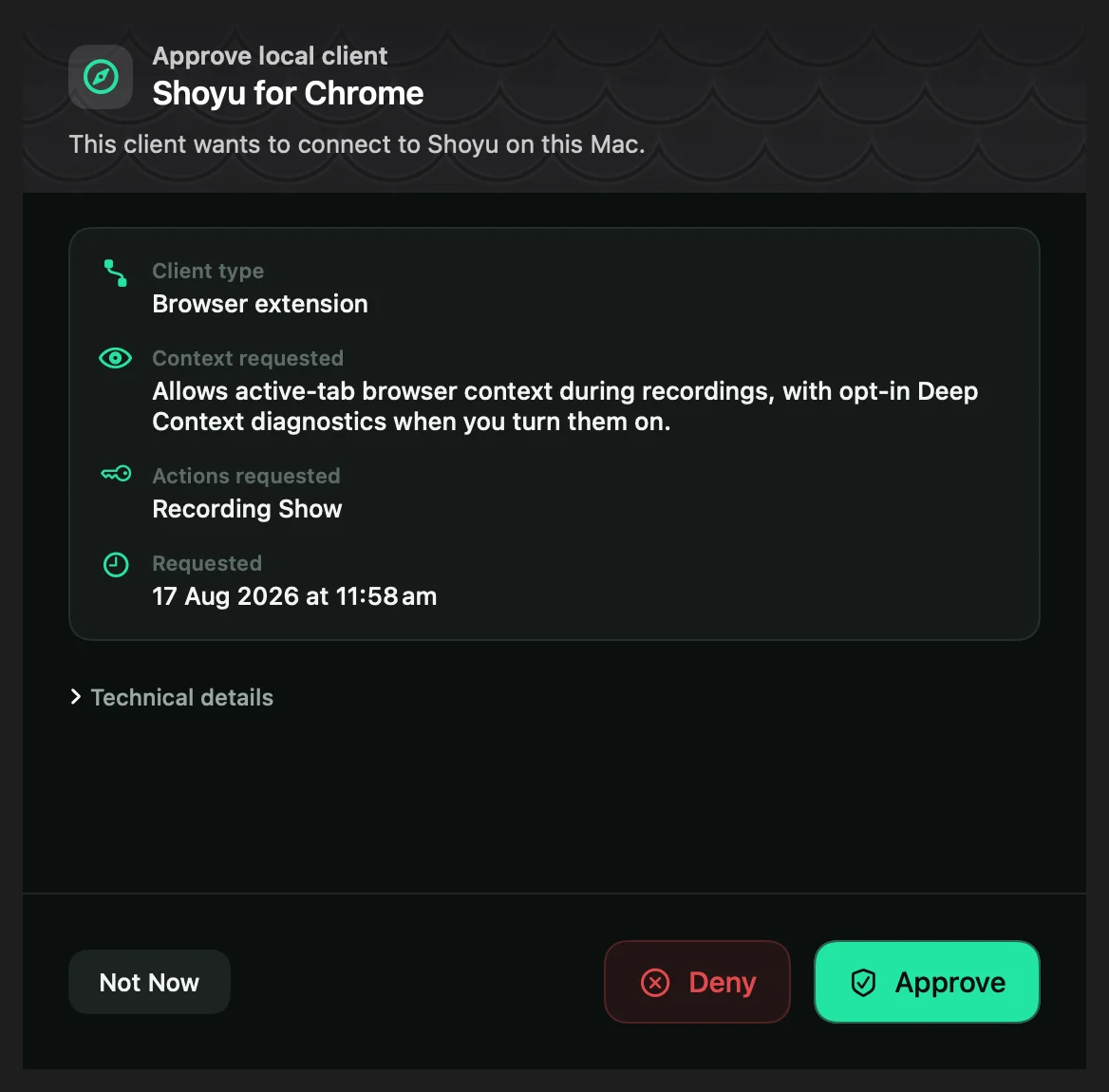
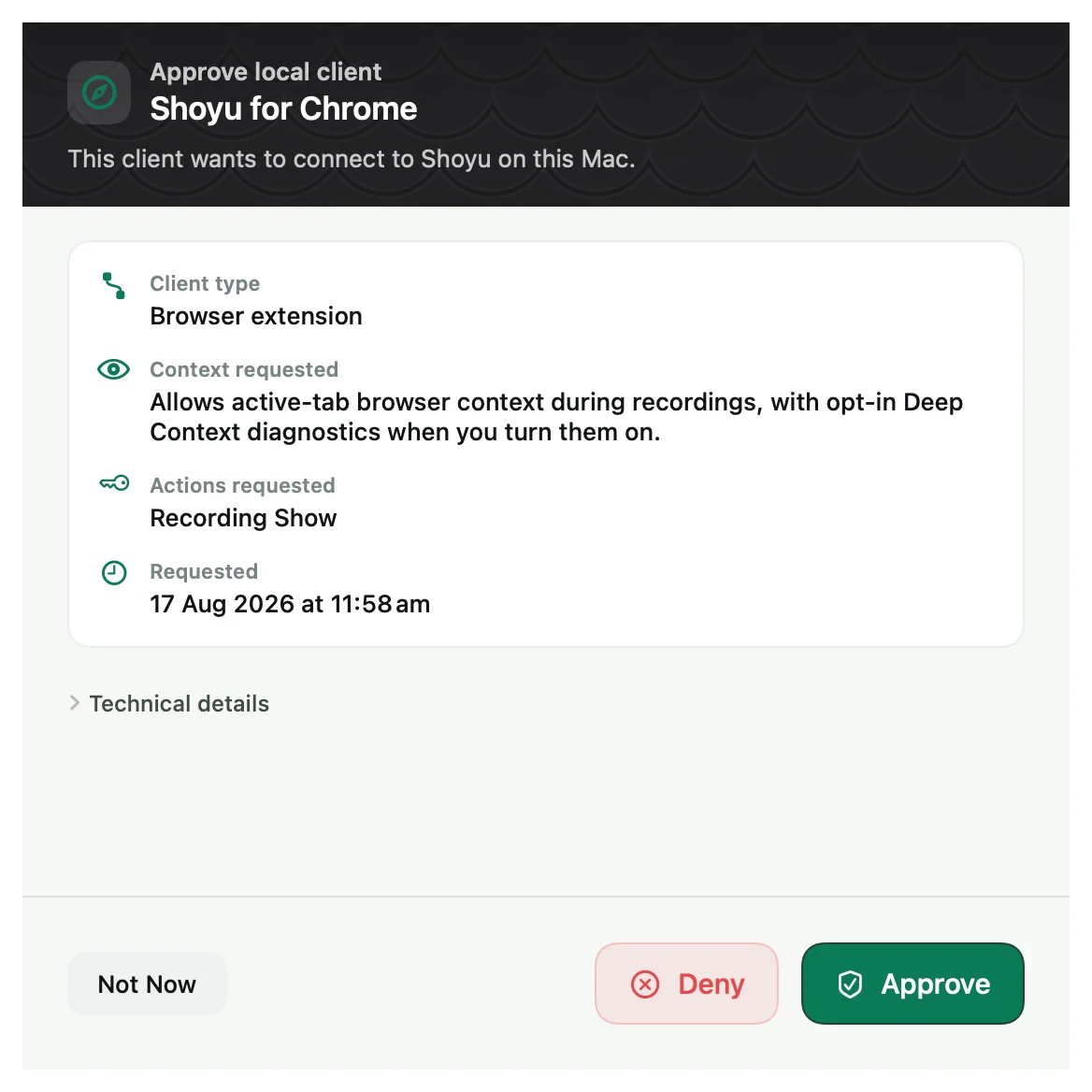
- Shoyu shows Approve local client for Browser Context. Click Approve.
The toolbar button’s tooltip now says it is connected to Shoyu for Mac. To check from the dashboard, open the account menu and choose Recording Status.
Update the extension
- Finish any recording.
- Download and unzip the new release.
- Replace the contents of your existing extension folder with the new files.
- On the Extensions page, click Reload on Shoyu Browser Context.
- Approve it again in Shoyu if asked.
Related guides
Still stuck? Write to hello@shoyu.cc. A person answers.