Record your voice and system audio
Pick one or more microphones, add your Mac’s sound, and get a transcript made on your Mac.
Choose a microphone
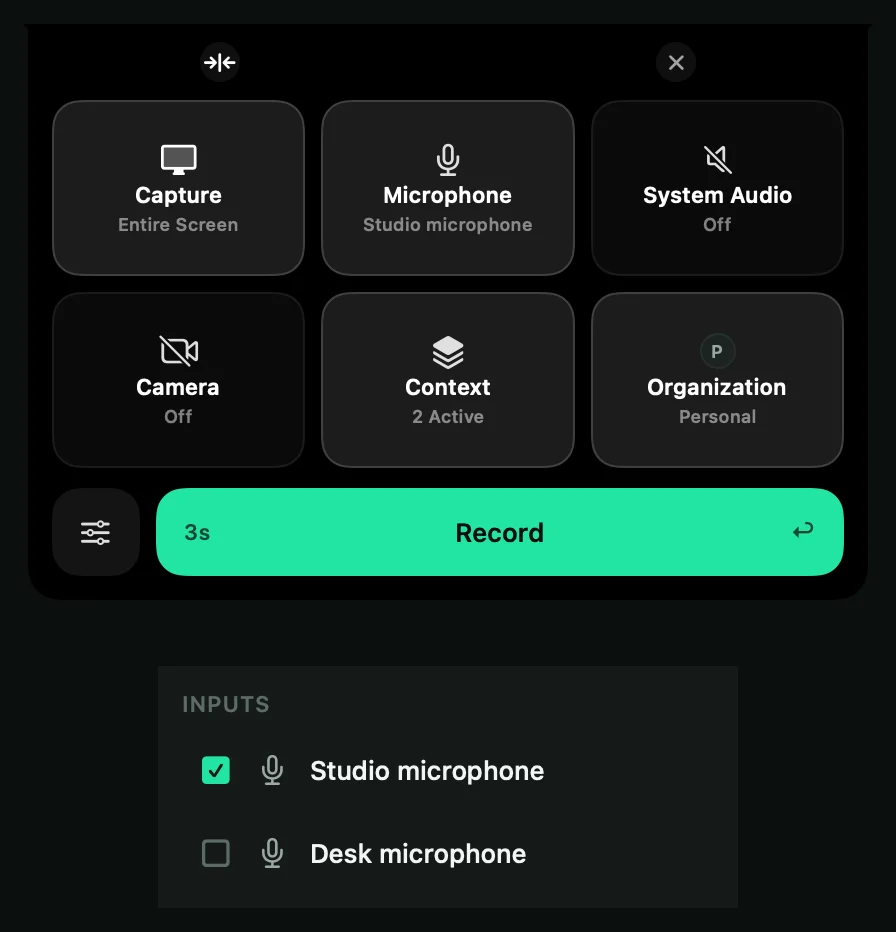
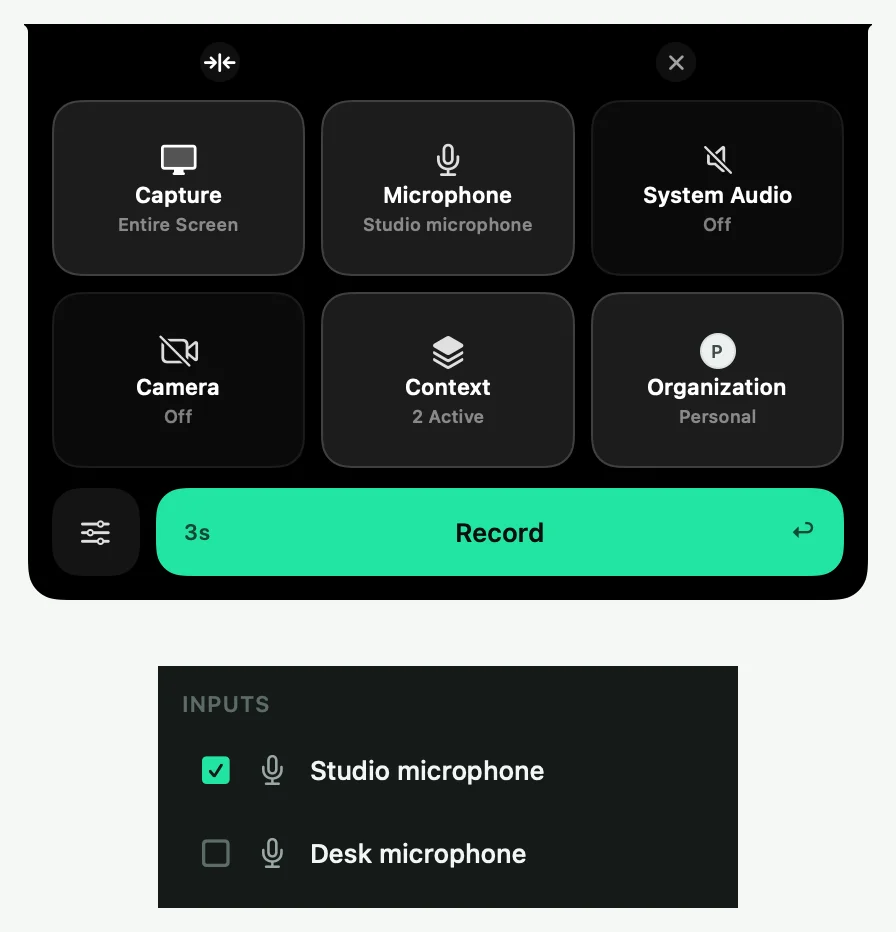
- In the Control Deck, click Microphone.
- If you have one microphone, the click turns it on or off. If you have several, choose them in the Inputs menu.
Each microphone is recorded on its own track. If the tile says Grant Permission, allow microphone access first. See Fix Mac permissions.
Add system audio
Click System Audio to record sound from your Mac too. It is a separate track, and you can only change it before you start.
Your transcript
Shoyu writes a transcript from your microphone on your Mac. The first time, it downloads a speech model. You can follow its progress on the transcription card in the Library sidebar.
While the model loads, Record says recording is available once the transcription model is ready. This only happens the first time, or after an update.
Use voice commands
While a microphone is recording, you can say these commands. Shoyu recognises them on your Mac.
| Say | What happens |
|---|---|
| “shoyu mark” | Adds a Marked moment at that point. |
| “shoyu camera” | Pauses or resumes your camera. |
| “shoyu stop” | Asks you to confirm. Say “shoyu confirm” within five seconds to stop. |
If a microphone stops
If a microphone disconnects during a recording, Shoyu pauses and tells you. Plug it back in, then resume. If a microphone does not start within five seconds, the recording does not start and Shoyu explains why.
Related guides
Still stuck? Write to hello@shoyu.cc. A person answers.