Turn a recording into a document
Have Shoyu write a document for a recording or a playlist, with chapters, frames, code, links and follow-ups, then copy it or send it to GitHub, Linear or Notion.
Create the document
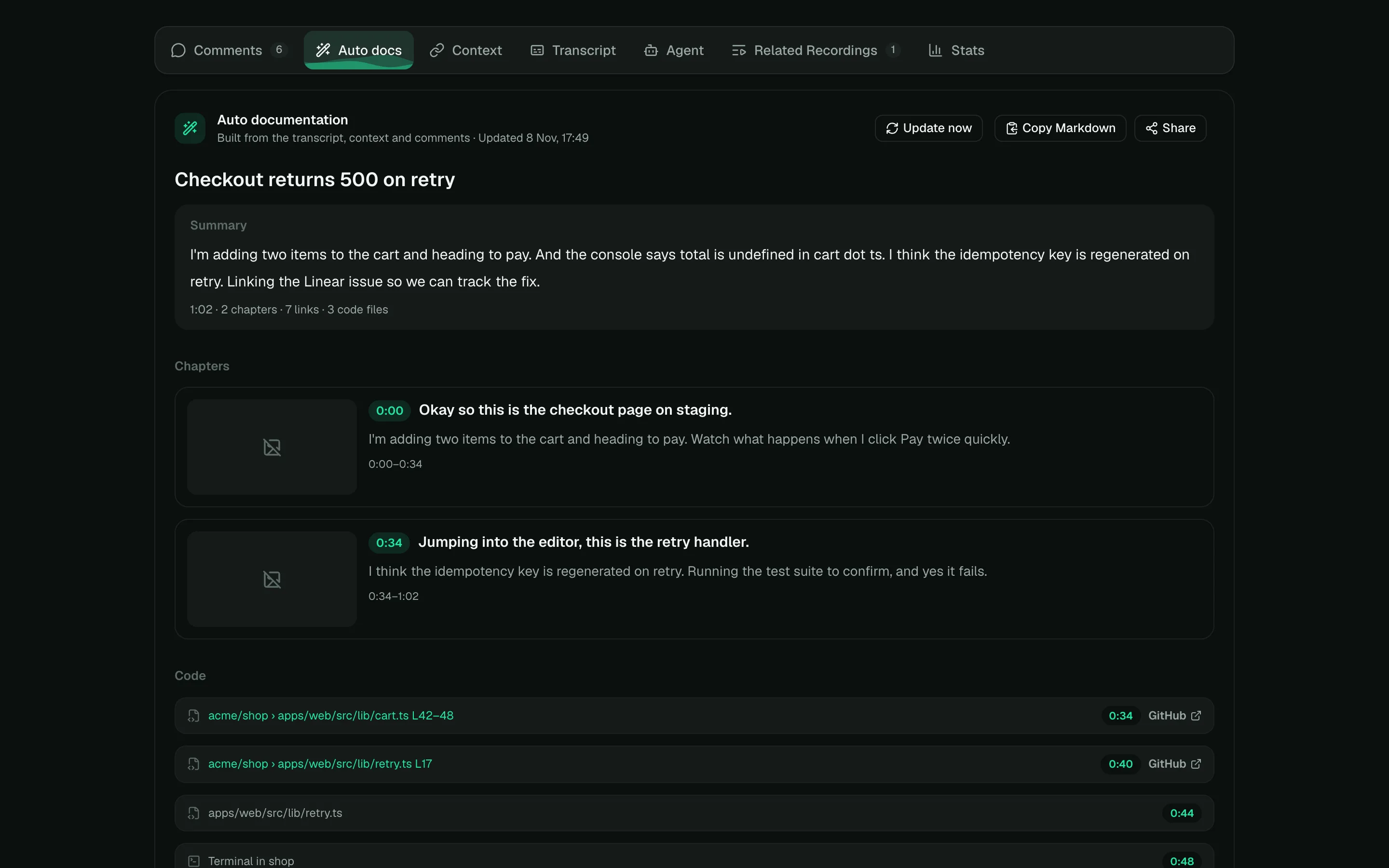
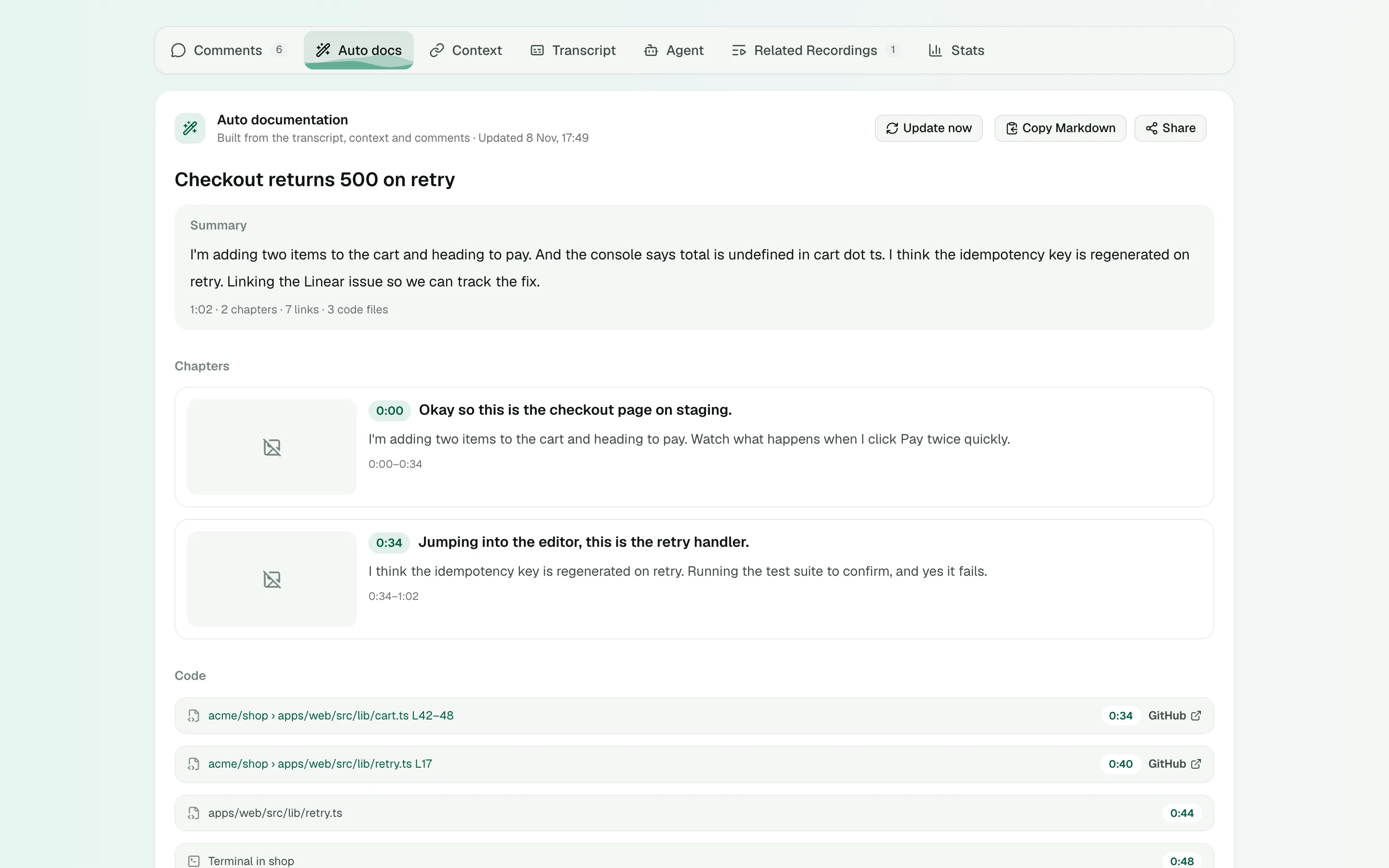
- Open your recording.
- Below the player, click the Auto docs tab.
- Click Create documentation.
Shoyu reads the transcript, the recording’s context and its comments. The document opens with a Summary of the whole recording, then chapters with a frame from the video, the code and terminal commands it shows, links such as Figma files and Linear issues, a Discussion line, and follow-ups from the comments. Each item has its time in the recording: click it to play from there. Parts of the recording you skipped in Studio are left out.
Discussion counts the comments you can see and the people who wrote them, sorts them into problems, questions, decisions, suggestions and kind words, and gives the overall mood: Mostly positive, Mixed, Mostly concerns or Neutral.
Keep it up to date
When someone comments with something that changes the story, such as a bug, a correction or a question, the tab says New comments may change this documentation and Shoyu writes a new version a minute or two later. If you reply that you will look into a problem, the follow-up says Author is on it. Resolving the thread marks it Resolved.
To write it again now, click Update now. The current version stays readable until the new one is ready.
See the code
When you can read the repository, the lines the recording points at load in the document by themselves, with syntax highlighting. Shoyu reads them as you and never stores them. Otherwise you see the repository, file and lines as a link to open on GitHub or GitLab.
Shoyu can read the code when your organization has connected GitHub in Settings › Policy and you have linked your GitHub account, or when you have added your own token. See Show code from your own repositories.
Show code from your own repositories
- Create a read-only token. On GitHub, open Settings › Developer settings › Fine-grained tokens, choose the repositories and give Contents read-only access. On GitLab, open Preferences › Access tokens and add a token with the
read_apiscope. - In Shoyu, open Account, then Connected apps.
- Under Source code access, paste the token beside GitHub token or GitLab token, and click Save.
Shoyu checks the token with GitHub or GitLab before saving it, keeps it encrypted, and uses it only to read code you open. To stop, click Remove, and revoke the token on GitHub or GitLab too.
Copy or share it
- Click Copy Markdown to paste the document anywhere that reads Markdown.
- Click Share, then GitHub issue, to open a new issue with the document filled in. Shoyu offers the repositories the recording’s Code context names, or you can type one.
- Click Share, then Linear issue, to open a new Linear issue with the document filled in.
- Click Share, then Notion page. Shoyu copies the document and opens a new Notion page: paste it in.
- Click Share, then Download Markdown, to save it as a file.
Nothing is posted until you submit it in GitHub, Linear or Notion. Frames in a copied document link back to Shoyu, so only people who can watch the recording see them.
Document a playlist
- Open the playlist from Videos › Playlists.
- Click Documentation.
- Each recording shows where it stands. Click Create on your own recordings that have no document, or Create all to do them together. For someone else’s recording, click Ask author for auto doc.
- Click Copy Markdown or Download Markdown to get every recording’s document, in playlist order, as one file.
| Label | What it means |
|---|---|
| Documented | The document is ready. Updating soon means new comments may change it. |
| Writing… | Shoyu is writing it now. |
| No docs yet | There is no document. Create it if the recording is yours, or ask its author. |
| Asked the author | You asked. Your Inbox tells you when it is ready. |
| Auto docs off | The recording’s organization has turned Auto documentation off. |
| Password needed | Enter the recording’s share password to include it. |
| Can’t open | You can no longer watch this recording, so it is left out. |
When you ask an author, they get a note in their Inbox. You can ask once per recording.
Choose which recordings get one automatically
Owners and admins can change Auto documentation in Settings › Policy. Turn off Allow Auto documentation to hide every document and stop new ones; they come back when you turn it on. Under Create automatically for recordings by, pick owners, admins or members. Under And for recordings tagged, add tags: a recording that gets one of them is documented without its owner asking.
Related guides
Still stuck? Write to hello@shoyu.cc. A person answers.